
.png)




If you're looking for a Microsoft 365 backup solution, you can find more information on our website, or start a free trial here.
PAGE CONTENTS
Introduction
Backup and recovery of Teams forms part of our Microsoft 365 service offering.
- To add a backup set and do a first recovery, you need to be both a RedApp company administrator, and a Microsoft 365 global administrator for your tenant organisation. To do subsequent recoveries, you only need to be a RedApp company administrator and a Microsoft 365 Teams admin. Read more about Microsoft's admin roles in this article on their knowledge base.
- If you need to restore files from private or shared channels, see Article 1345.
- Recommendations for protecting Teams for Education can be found in Article 1321.
What is supported?
Redstor currently supports backup and recovery of:
- Teams (member and owner metadata)
- Public channels (member and owner metadata)
- Shared channels (messages and metadata, but NOT files - see Article 1345)
- Posts (messages, replies, and images)
- Message reactions (emoji) are not currently restored.
- Recordings are not backed up, but links to them are.
- When Teams is recovered, posts and replies are currently not restored to the post thread (due to Microsoft API restrictions), but to a purposely created OneNote tab.
- Files
- Tabs (metadata, not contents)
- OneNote notebooks are supported, but backups will complete with warnings.
The following options are supported for recovery:
- When recovering entire Teams, you can choose between recovering to a new folder and recovering using InstantData.
- When recovering single items, recovery is to a new folder by default.
Items will always be recovered to a newly created, separate "Channels" team containing all channels present in the backup, even if only one item from one channel is being recovered.
Hosted content (e.g. inline images) as part of posts or replies will not be recovered unless explicitly selected. However, the RedApp interface does not currently indicate the file type of objects selected for recovery, so if recovering hosted content is critical, InstantData is recommended.
- Class Notebooks can only be recovered via InstantData as a folder with standard notebooks (see Article 1321).
- Dynamic groups are restored as assigned groups. Learn more about membership types from Microsoft's knowledge base here.
Please take note of the following limitations:
- It is not possible to exclude specific file types from backups.
- Once a SharePoint site is associated with Teams, it is treated as a Teams backup by the RedApp. We therefore advise backing up both services to achieve full protection for your setup.
- Version history, metadata and permissions are not backed up.
What is not supported?
Backup and recovery of archived teams is not supported. If a team has been archived, our backup system is unable to access the data to perform a backup.
- Should an archived team be included in your backup selection, the backup scan will fail with the error "Archived teams not supported".
- To backup an archived team, you will need to un-archive it and run a backup, then re-archive the team. This backup will now be available for recovery, and you can ignore future "Archived teams not supported" errors.
- Read more about archived teams in this article from Microsoft's knowledge base.
Due to Microsoft API restrictions, the following is also not currently supported:
- Backup and recovery of private chats, i.e. direct messages (user to user)
- Recovery of private channel files and messages into Teams (see Article 1345)
- Backup and recovery of features specific to Teams for Education:
- Assignments
- Students
While attachments within the Files and Assignments tabs are backed up as SharePoint files, we cannot currently backup related features like Grades, Student Submissions, Rubric Grading, and Outcomes. See Article 1321 for more information.
Guides
Use the guides below to manage your Teams backups.
How to add a backup set
To add a backup set, you need to be both a RedApp company administrator, and a Microsoft 365 global administrator for your tenant organisation. Read more about Microsoft's admin roles in this article on their knowledge base.
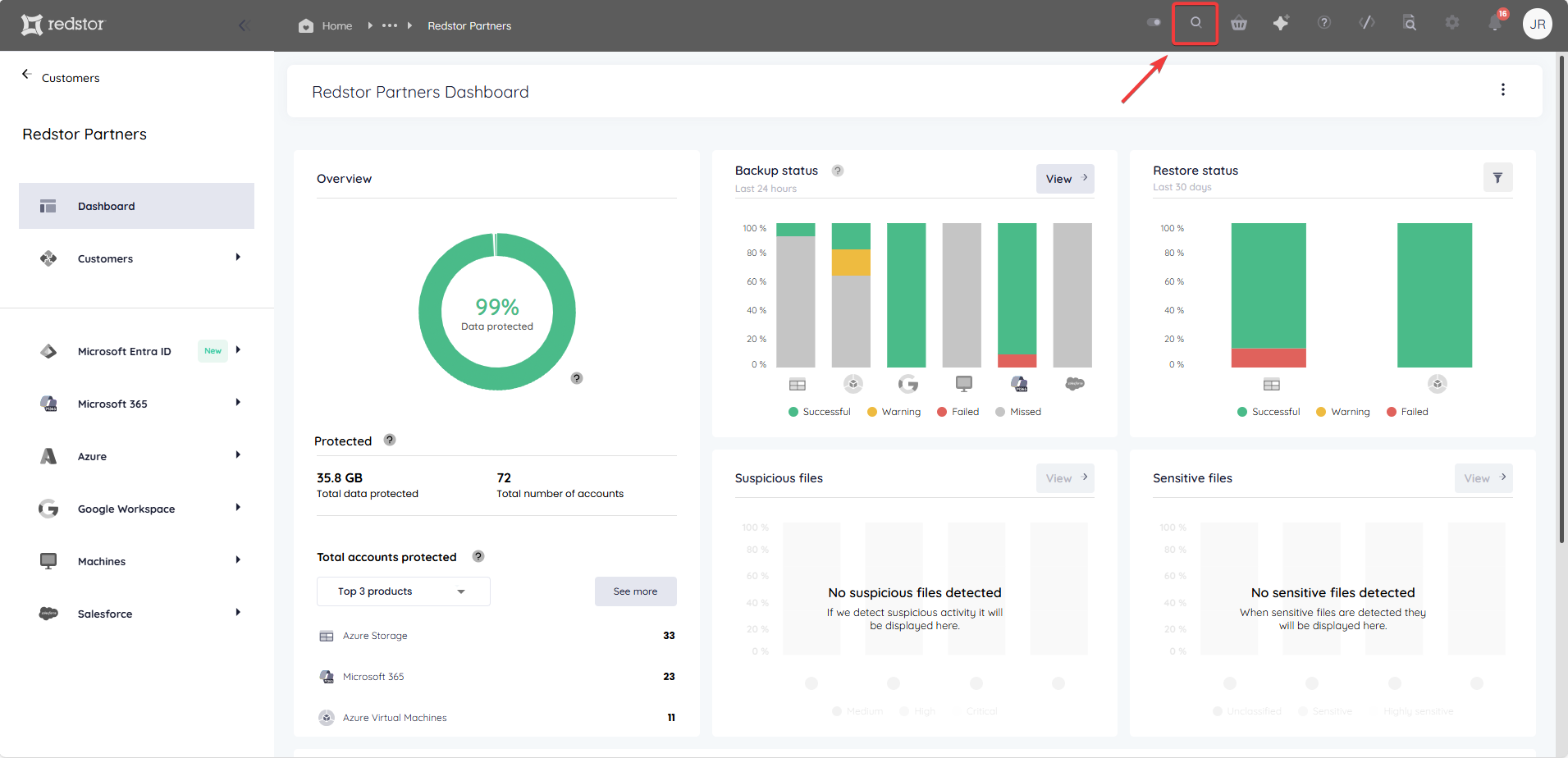
1. In the RedApp, go to the home page for the customer company you want to add backups for. Click on the search icon at the top right to find a specific customer.
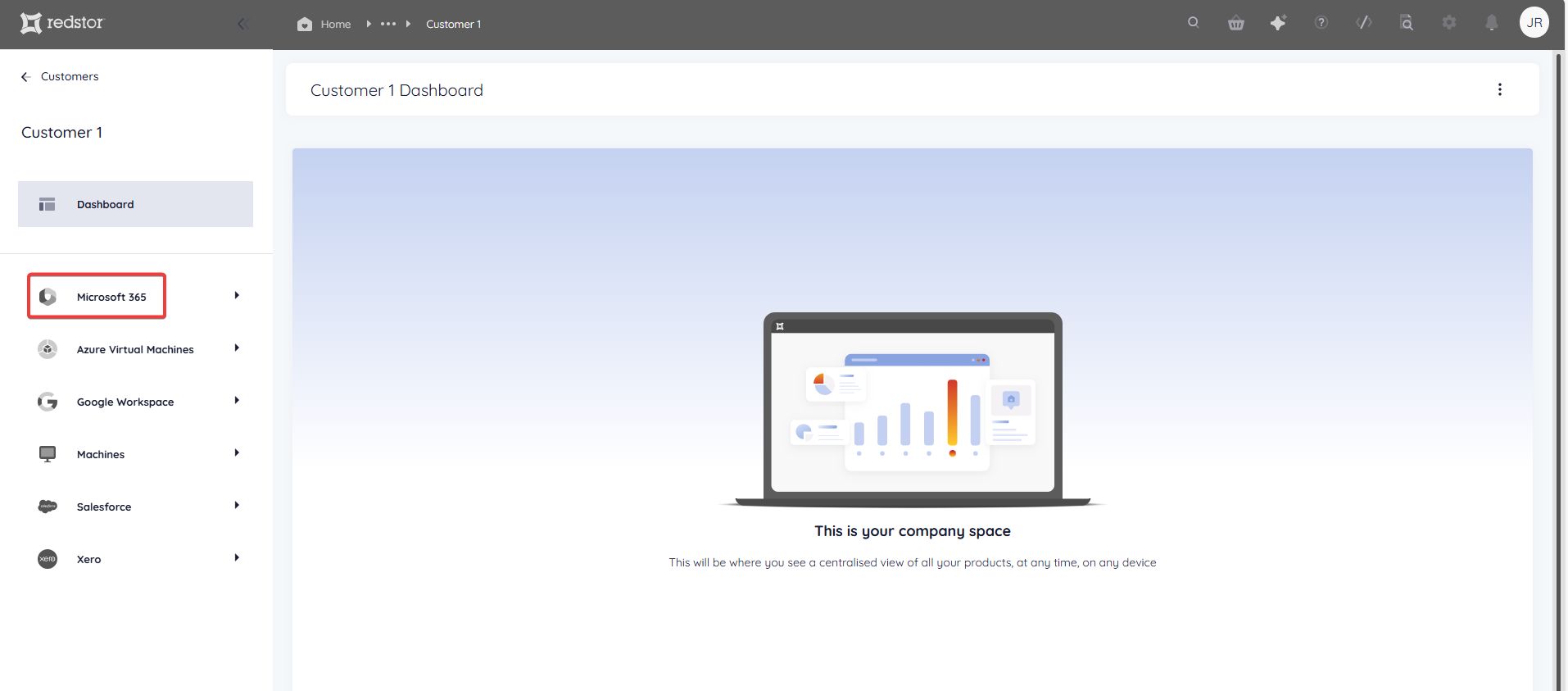
2. To add a new backup set, go to Microsoft 365 in the sidebar on the left. If you do not see Microsoft 365 listed, you will need to add it as a product.
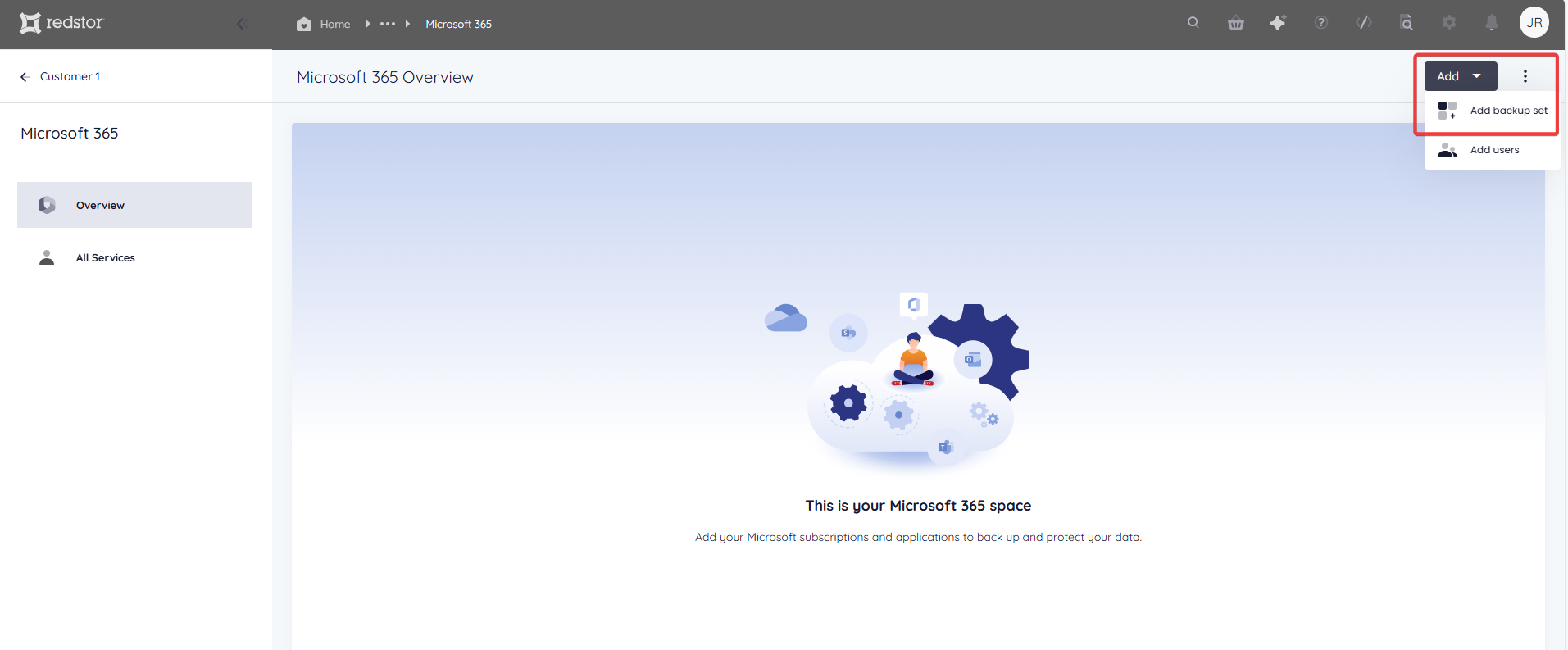
3. Click Add at the top right and go to Add backup set.
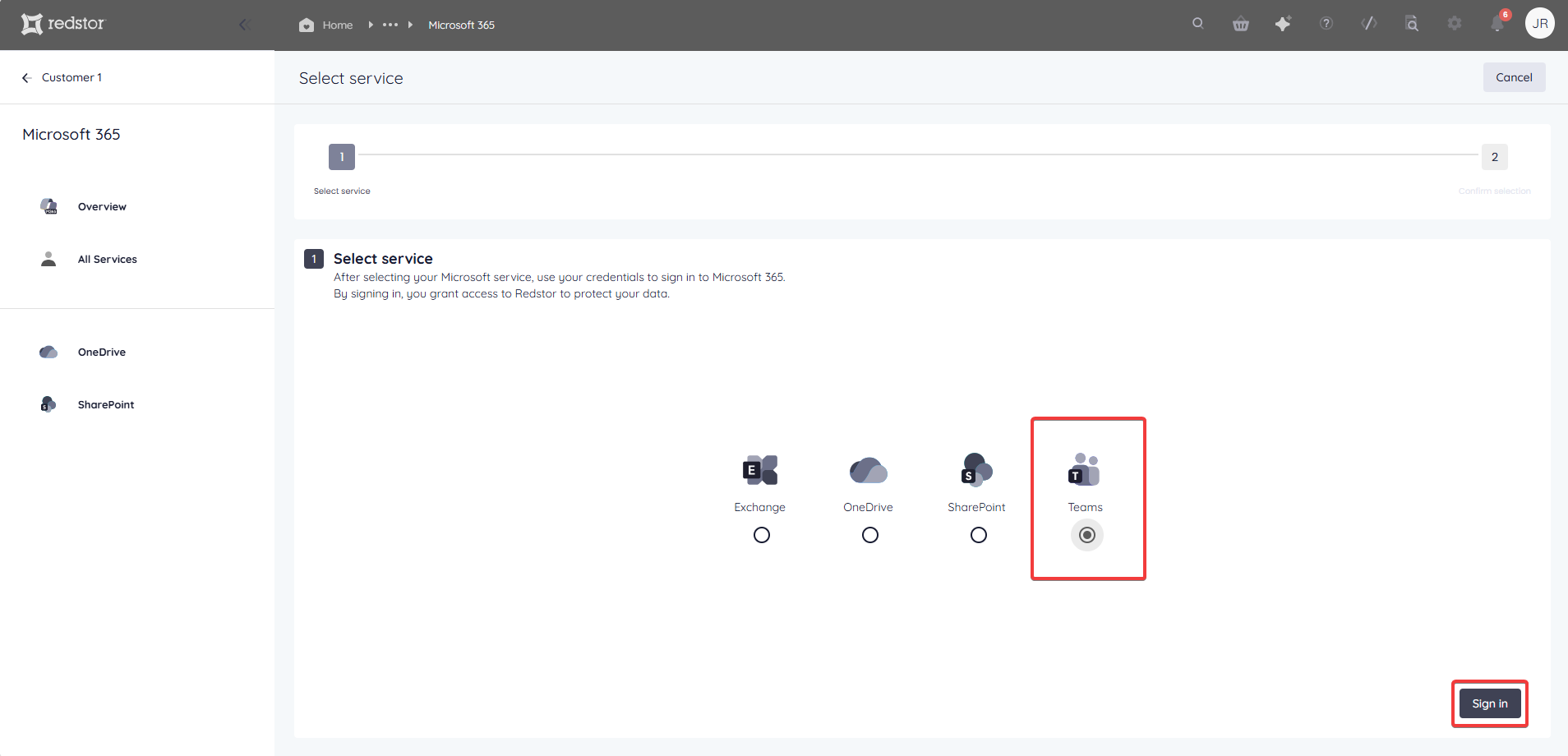
4. Select Teams and click Sign in.
5. You will now need to sign into Microsoft 365 and provide Redstor with permission to access your data. Click Accept.
Note:
- A separate window containing an authentication screen will pop up. If you do not see it, you may have a pop-up blocker enabled. To proceed, allow the pop-up and reattempt the authentication.
- If you encounter an "Access denied" error, click here.
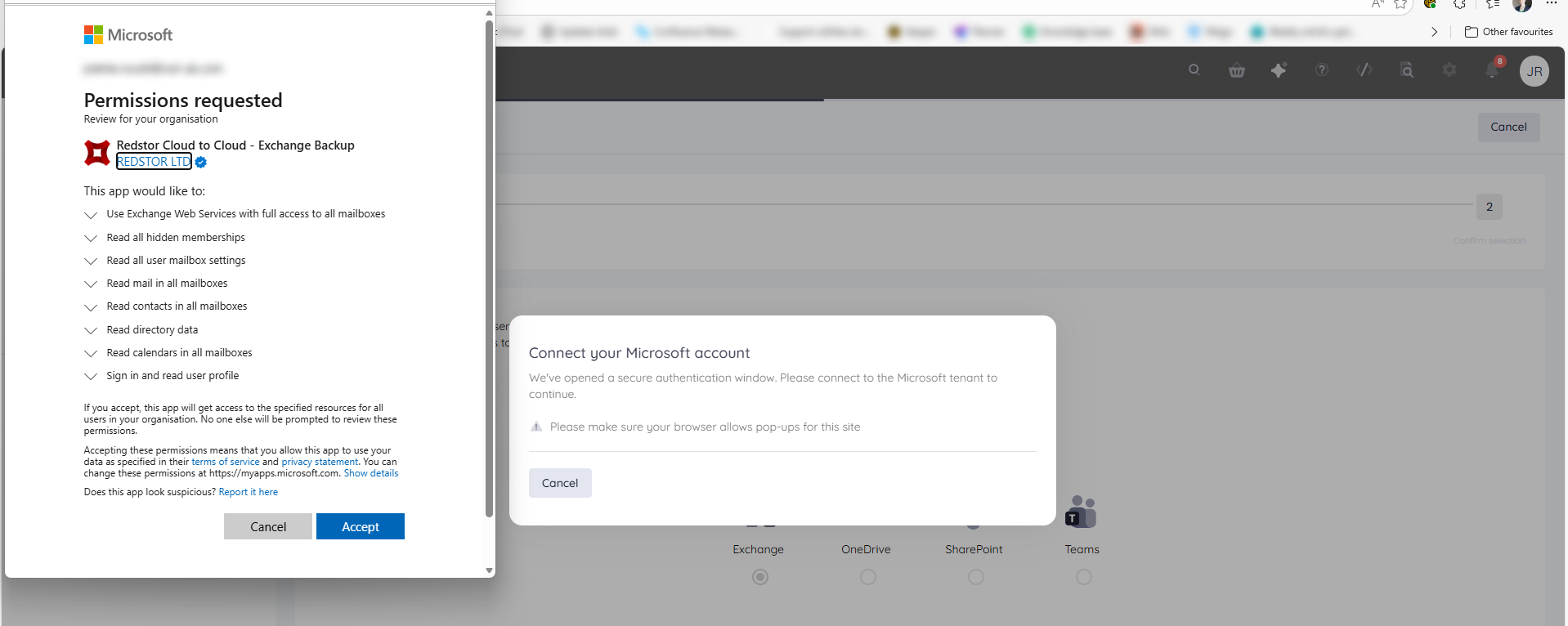
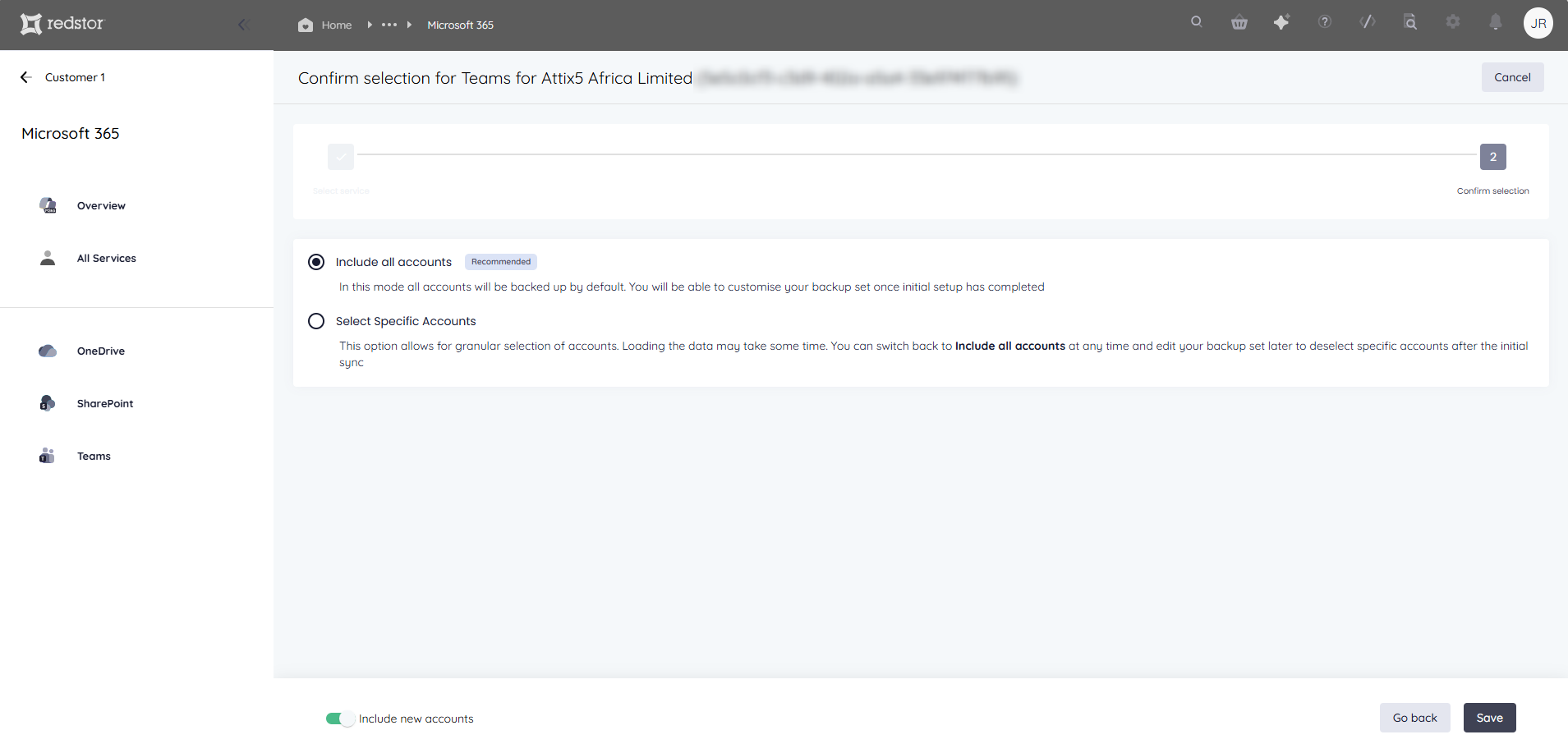
6. You can now select accounts for backup. You have two options: include all accounts or select specific accounts.
Include all accounts (faster)
This option creates a backup set that includes all accounts in the tenant. Including all accounts for backup saves time during setup and reduces the possibility of human error.
- You can edit this selection at any time after the setup is complete by following the steps in How to edit a backup set below.
- Enable Include new accounts at the bottom of the page to ensure that future additions to this tenant are automatically added to the backup selection.
- Click Save to proceed.
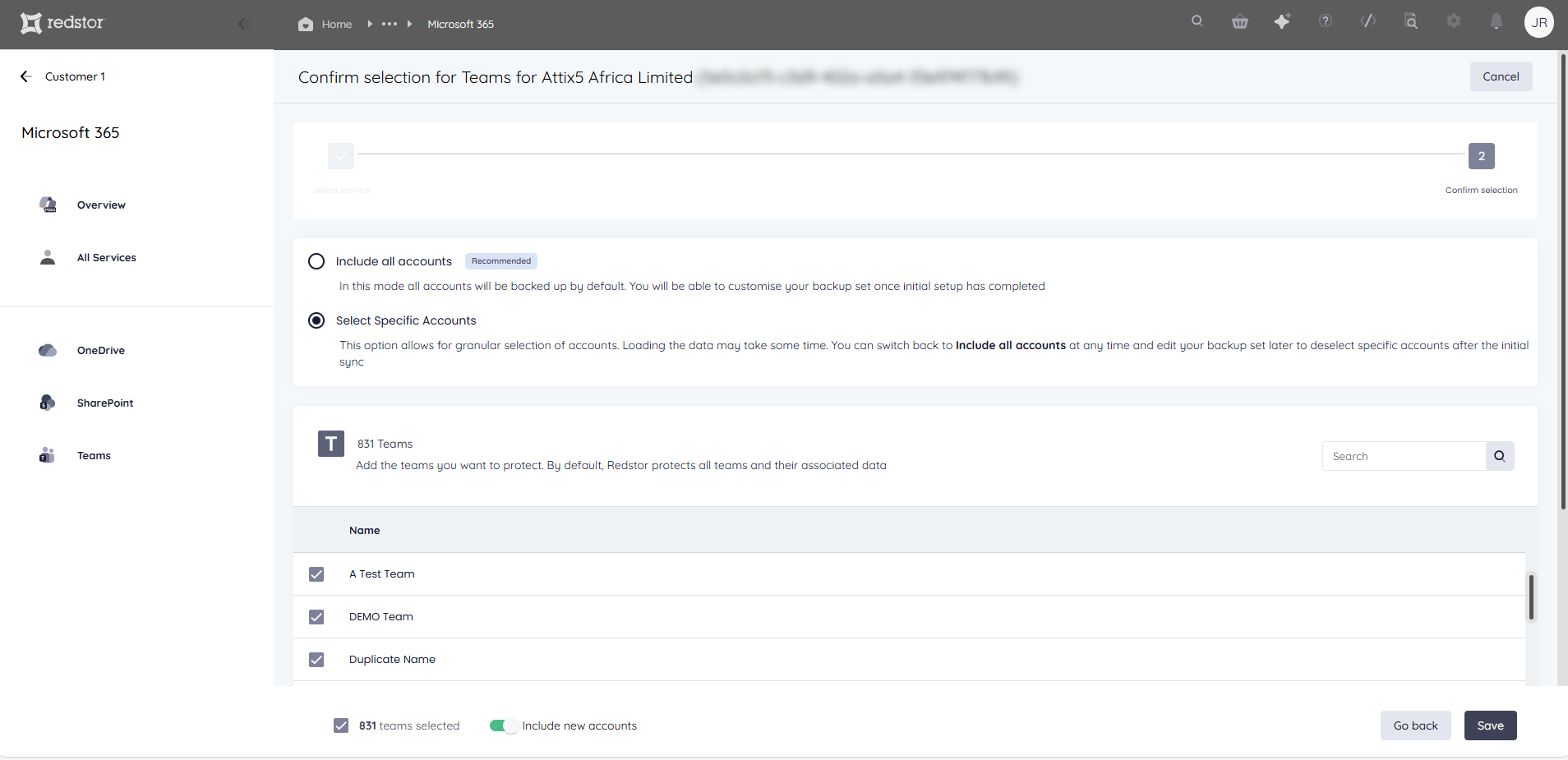
Select specific accounts (more control)
This option lets you select specific accounts for backup from a list of all accounts in the tenant.
- If you have a large number of accounts, this list may take a few moments to load.
- You can edit this selection at any time after the setup is complete by following the steps in How to edit a backup set below.
- All accounts (sites) will be selected by default. Deselect the sites you do not want to backup, or deselect all and select only the sites you want to backup.
- Enable Include new accounts at the bottom of the page to ensure that future additions to this tenant are automatically added to the backup selection.
- Click Save to proceed.
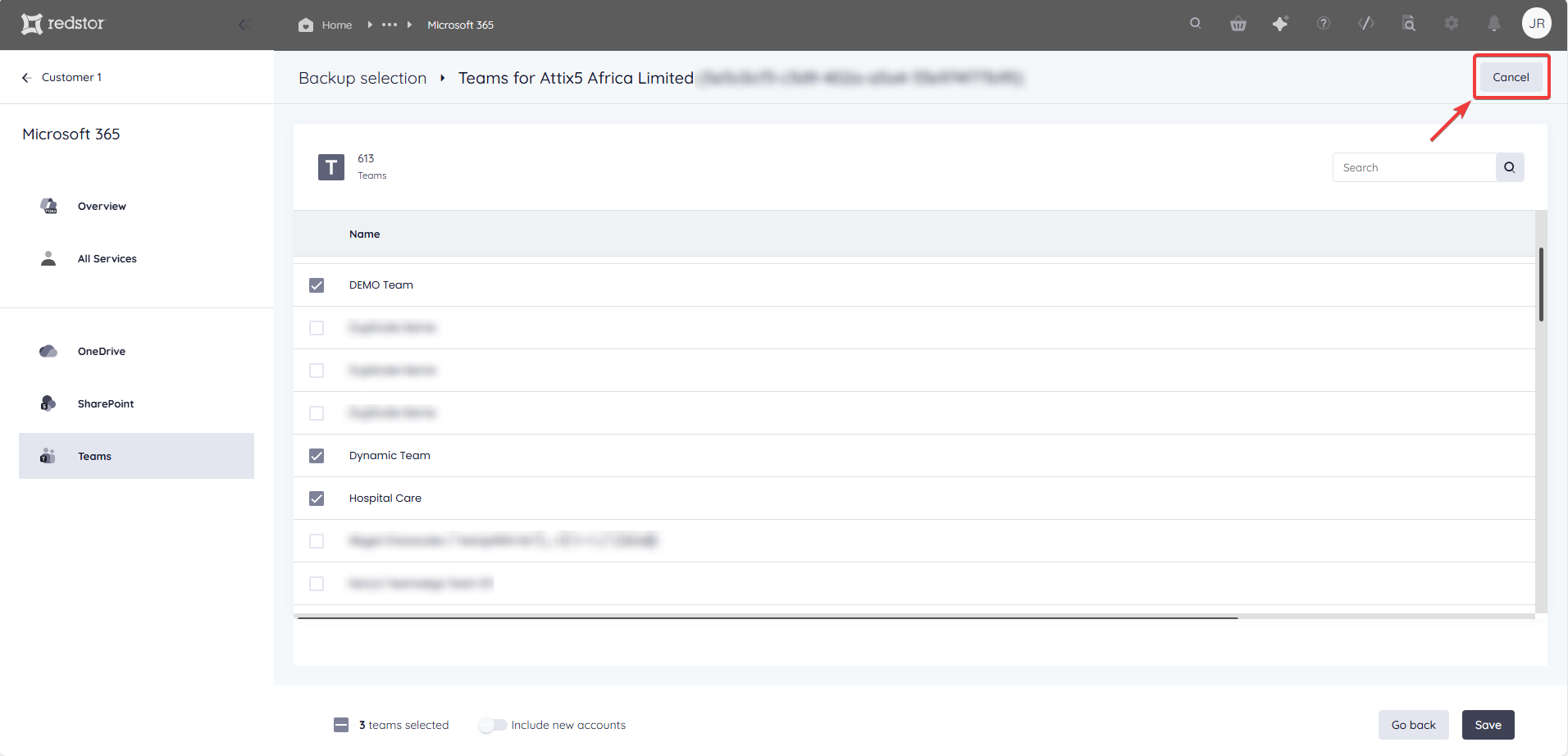
If you do not want to create this backup set, click Cancel at the top right.
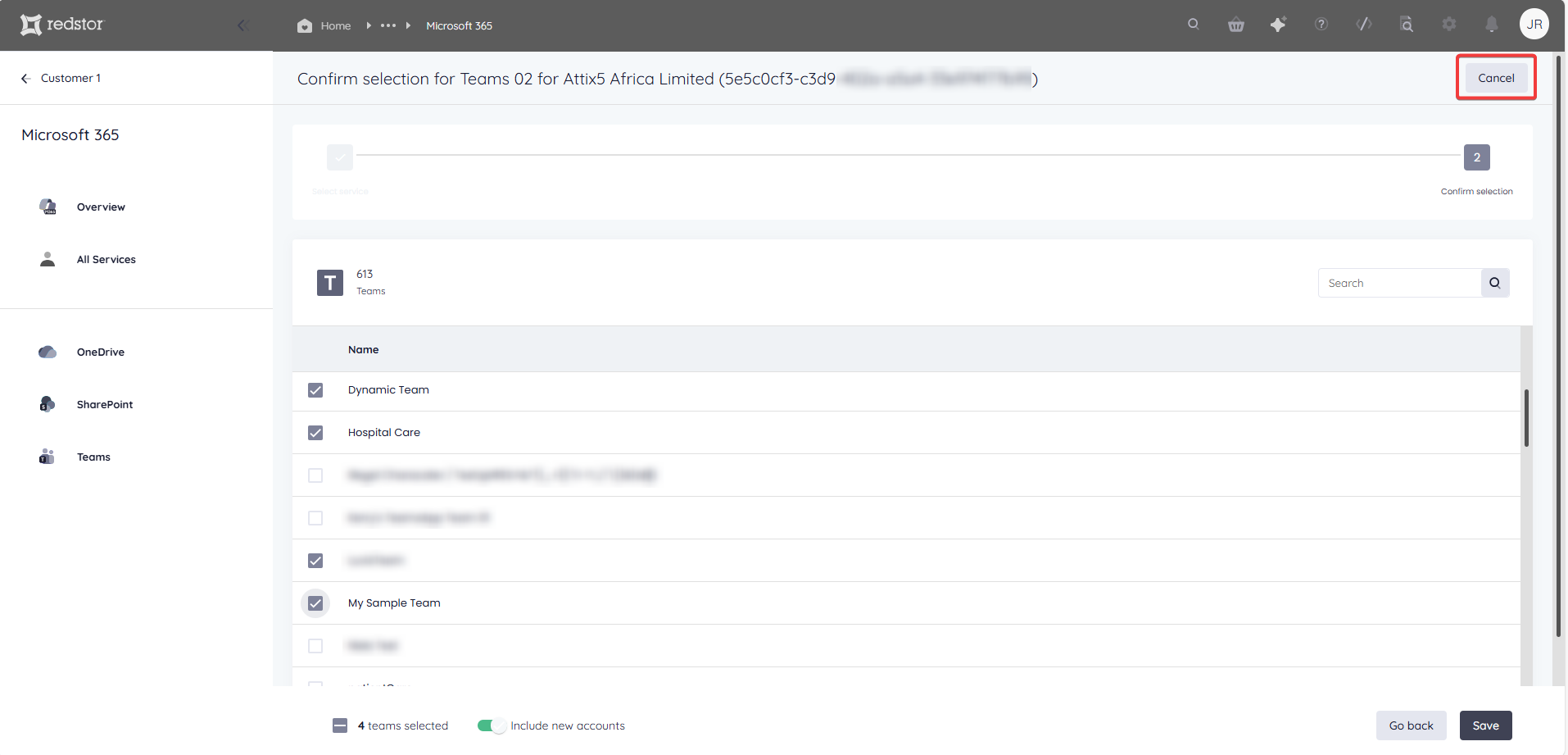
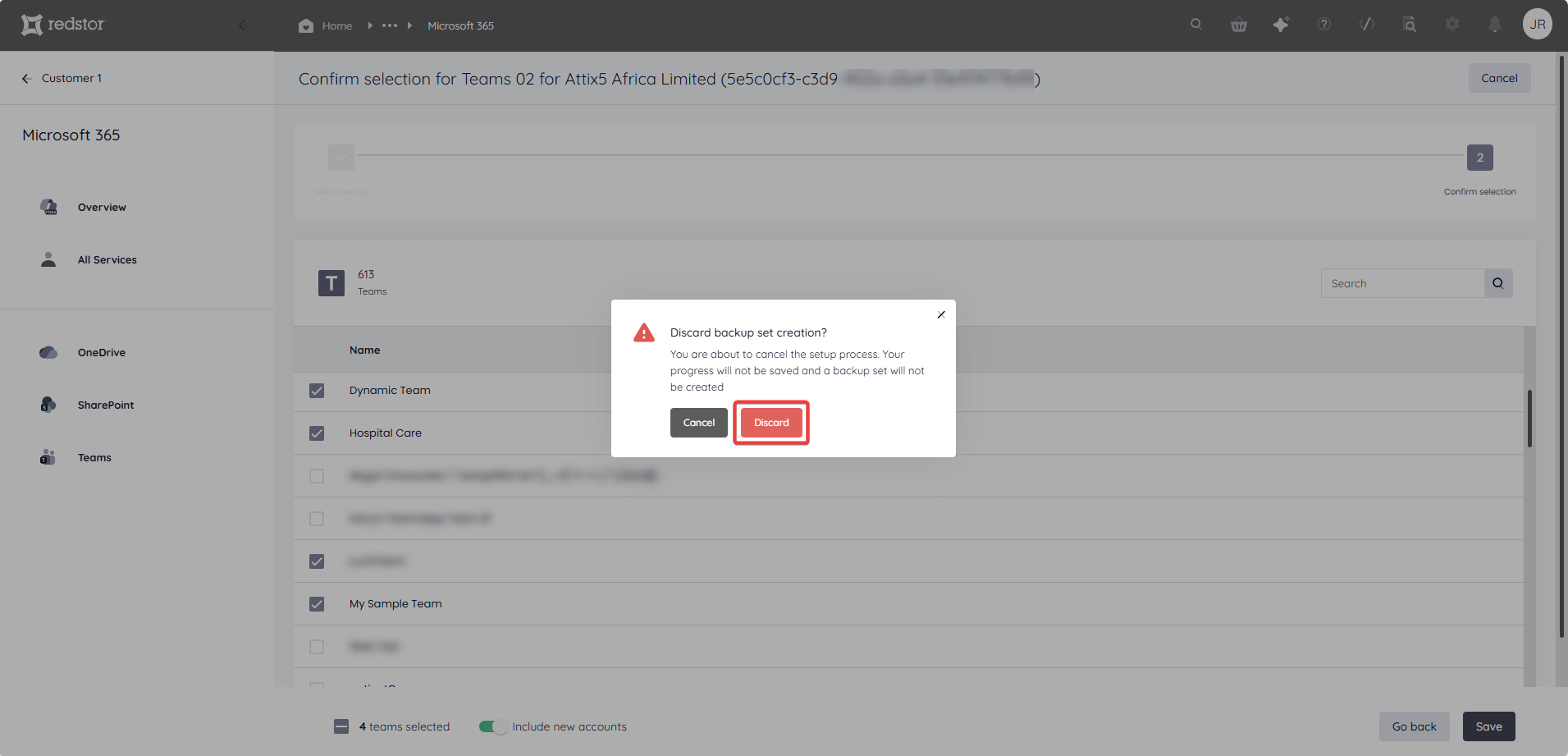
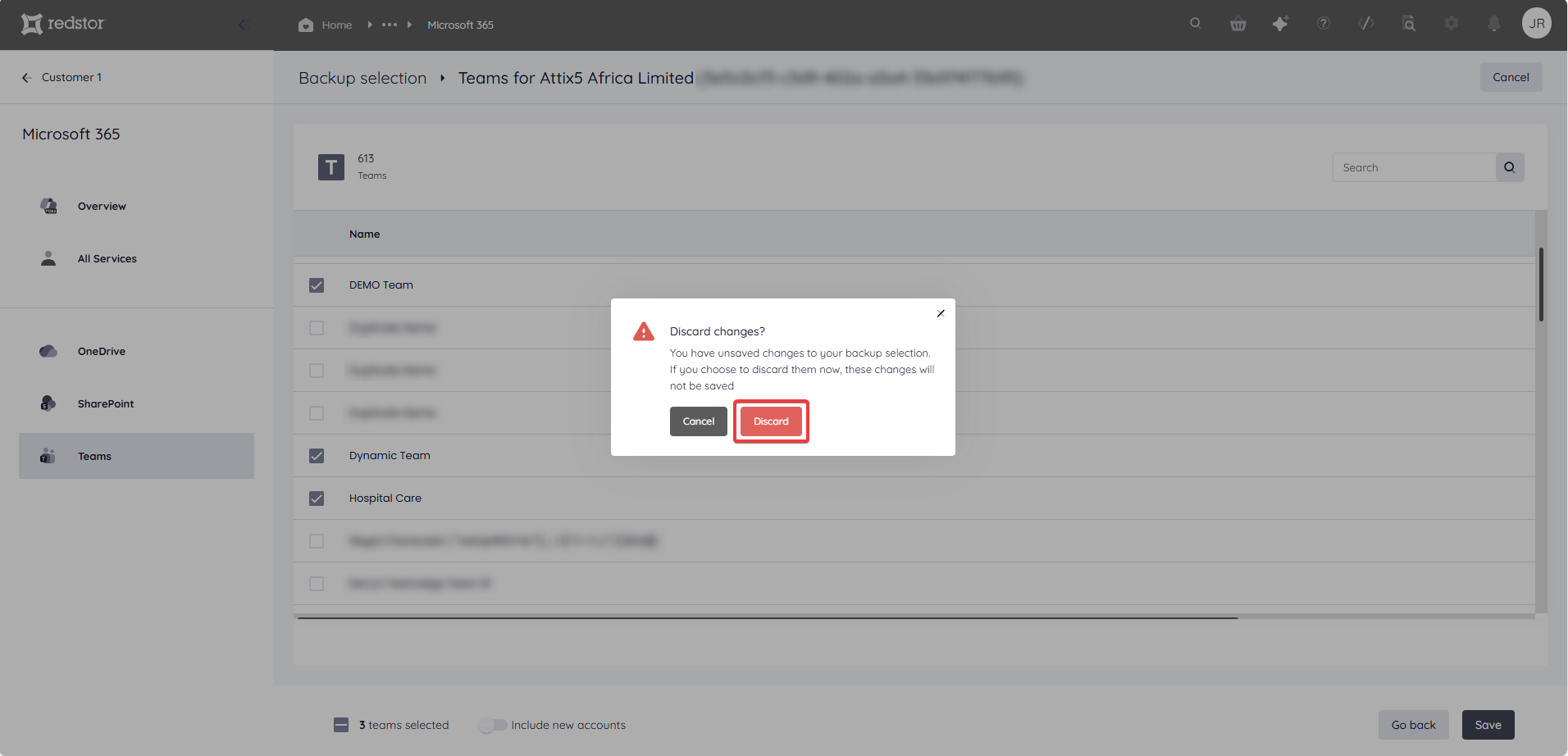
You will be asked to confirm that you want to discard the backup set. Click Discard.
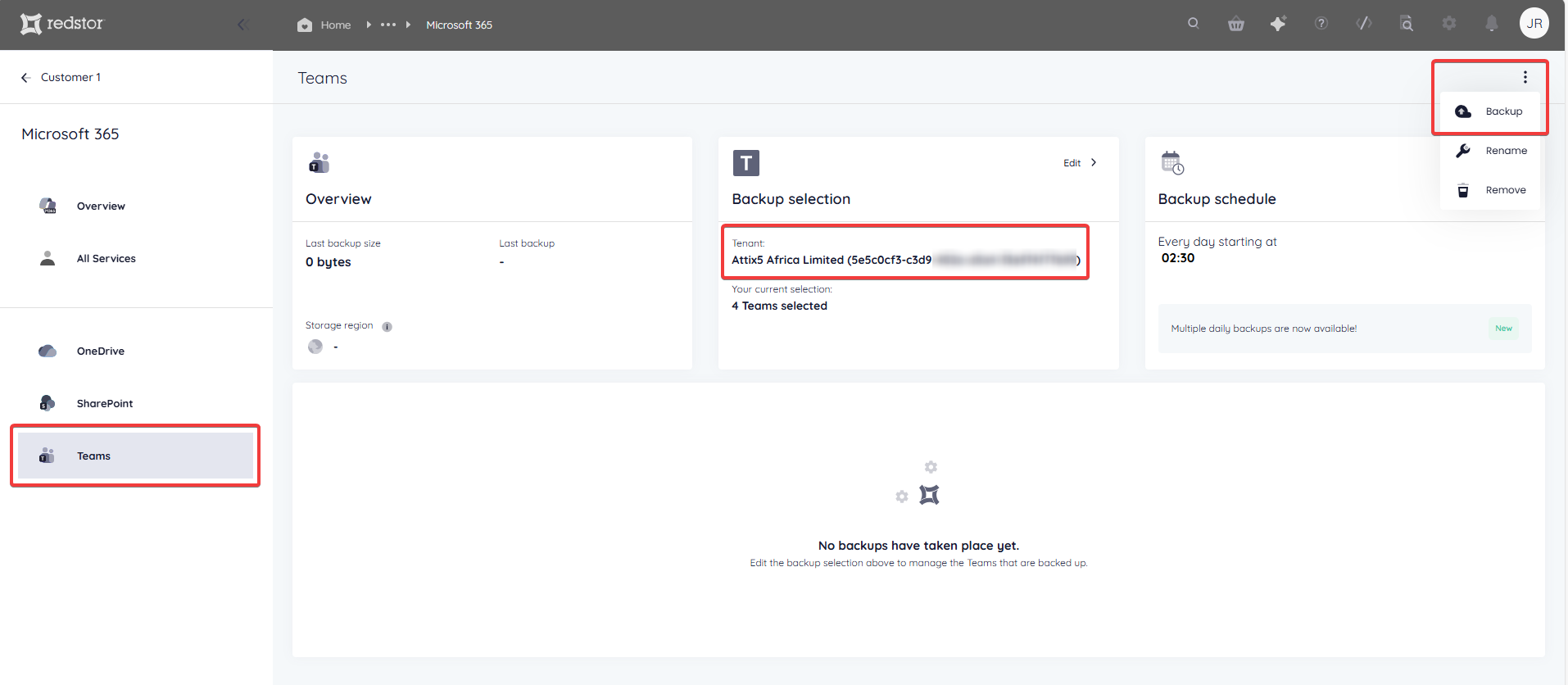
7. Once you have saved your selection, you will be taken to the home page for the new backup set, showing the relevant M365 tenant ID on the Backup selection card. The backup set name (in this case "Teams") will appear in the sidebar. To queue a backup immediately, click on the menu icon at the top right and go to Backup.
Note: For more on tenant naming, see Article 1643.
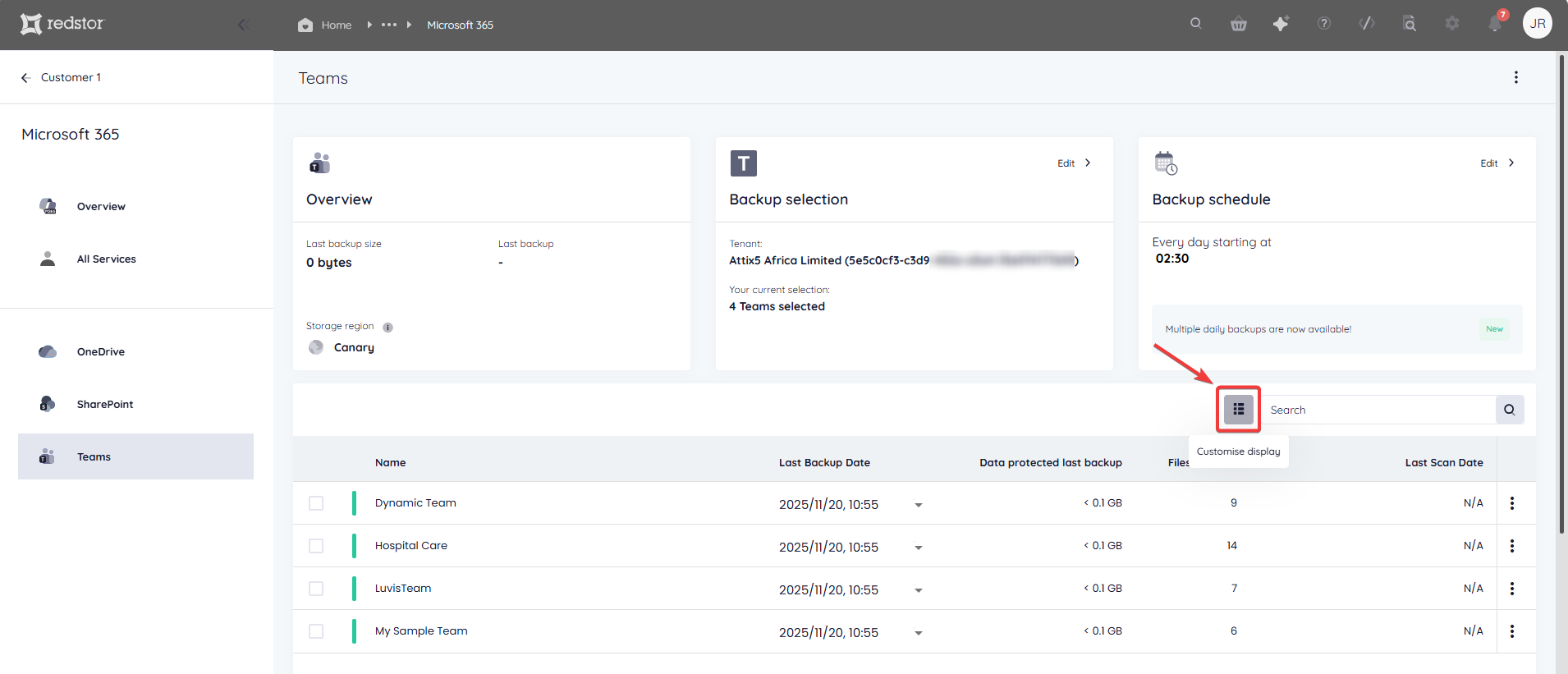
Once your first backup has completed, you can customise which columns you see in the backups table. To do this, click on the columns icon on the right, next to the search bar.
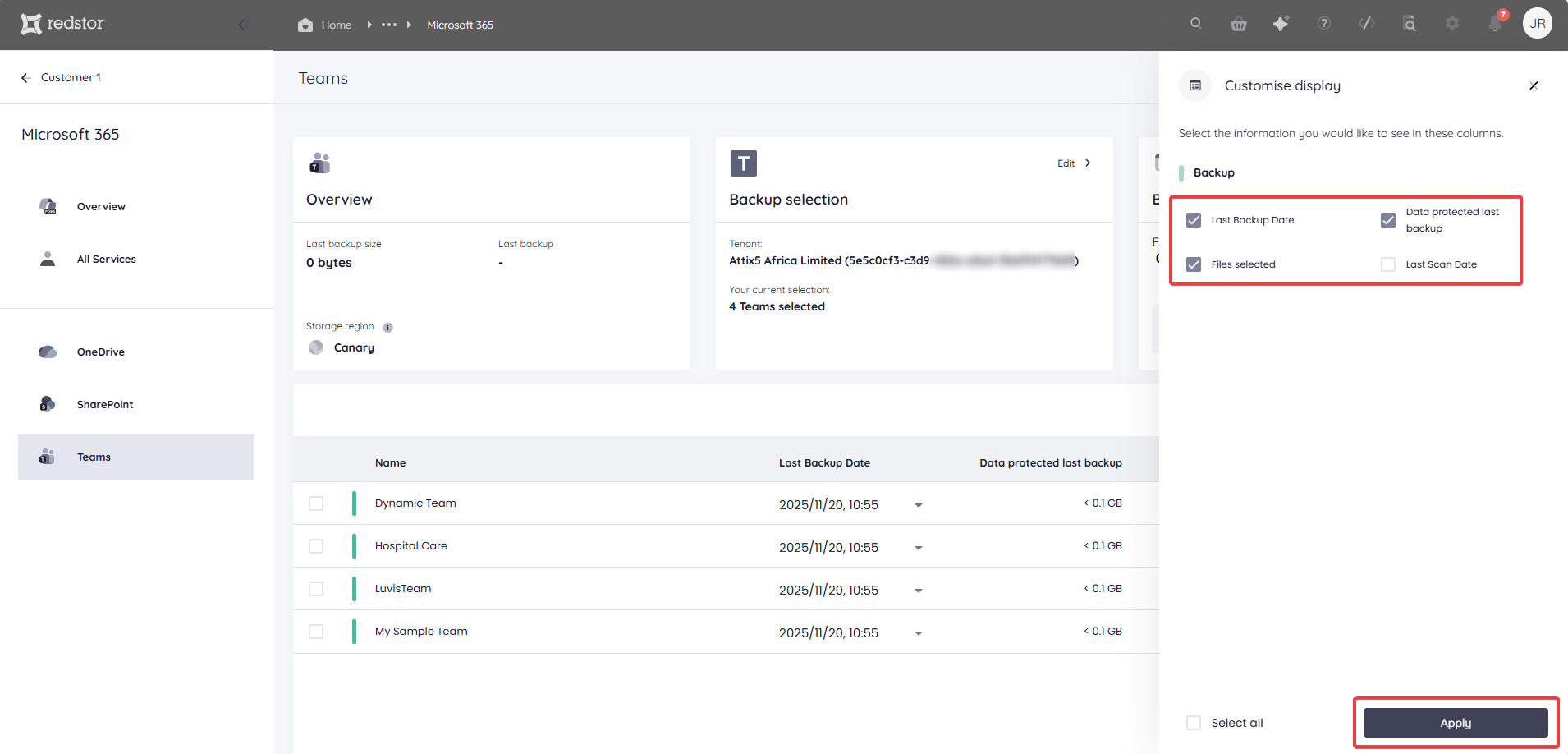
Select which columns you would like to see, then click Apply.
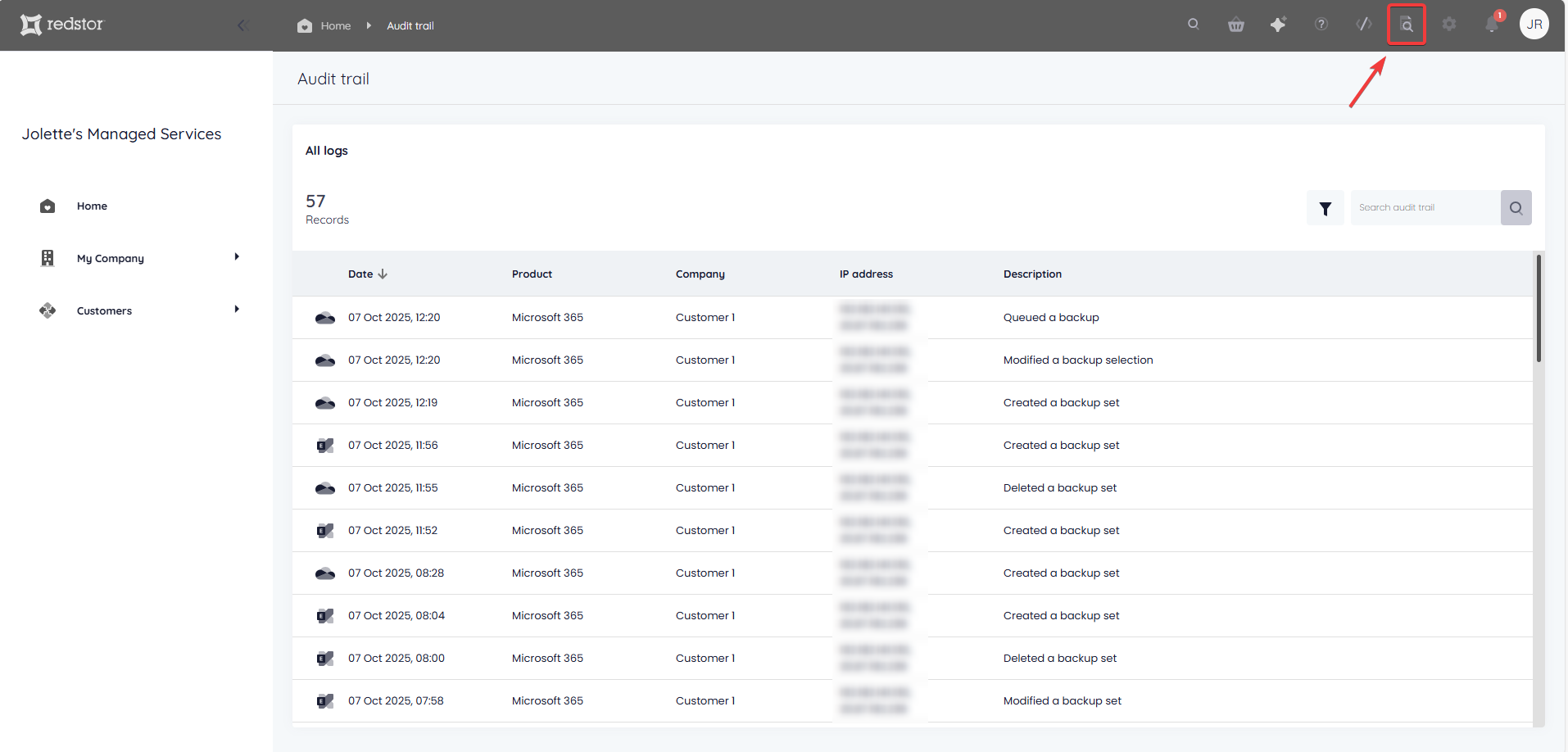
To view an audit trail of key actions and which users performed them, click on the inspect icon at the top right of the page.
How to edit a backup set
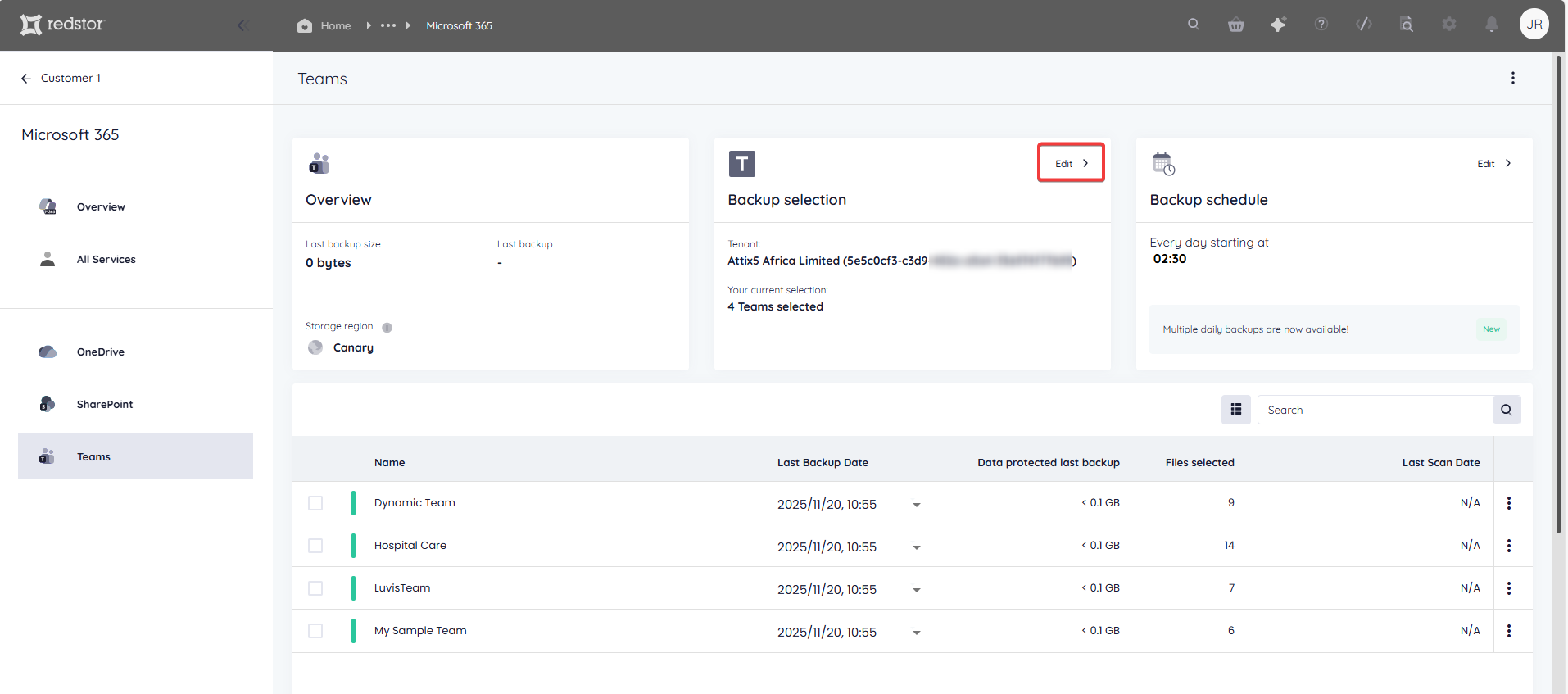
1. On the backup set home page, go to Edit from the Backup selection card.
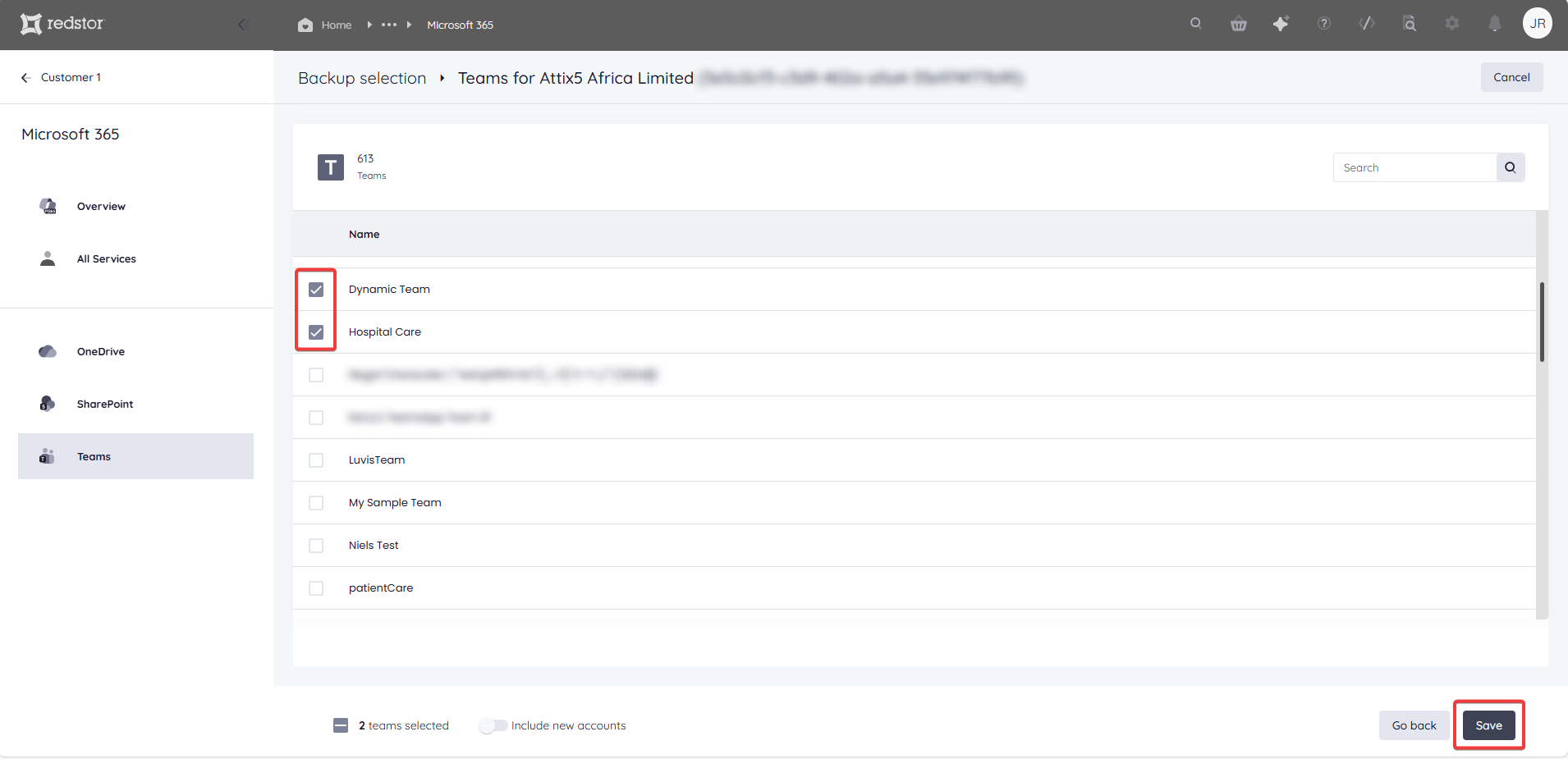
2. Select/deselect the team/s you want to add/remove and click Save to apply your changes.
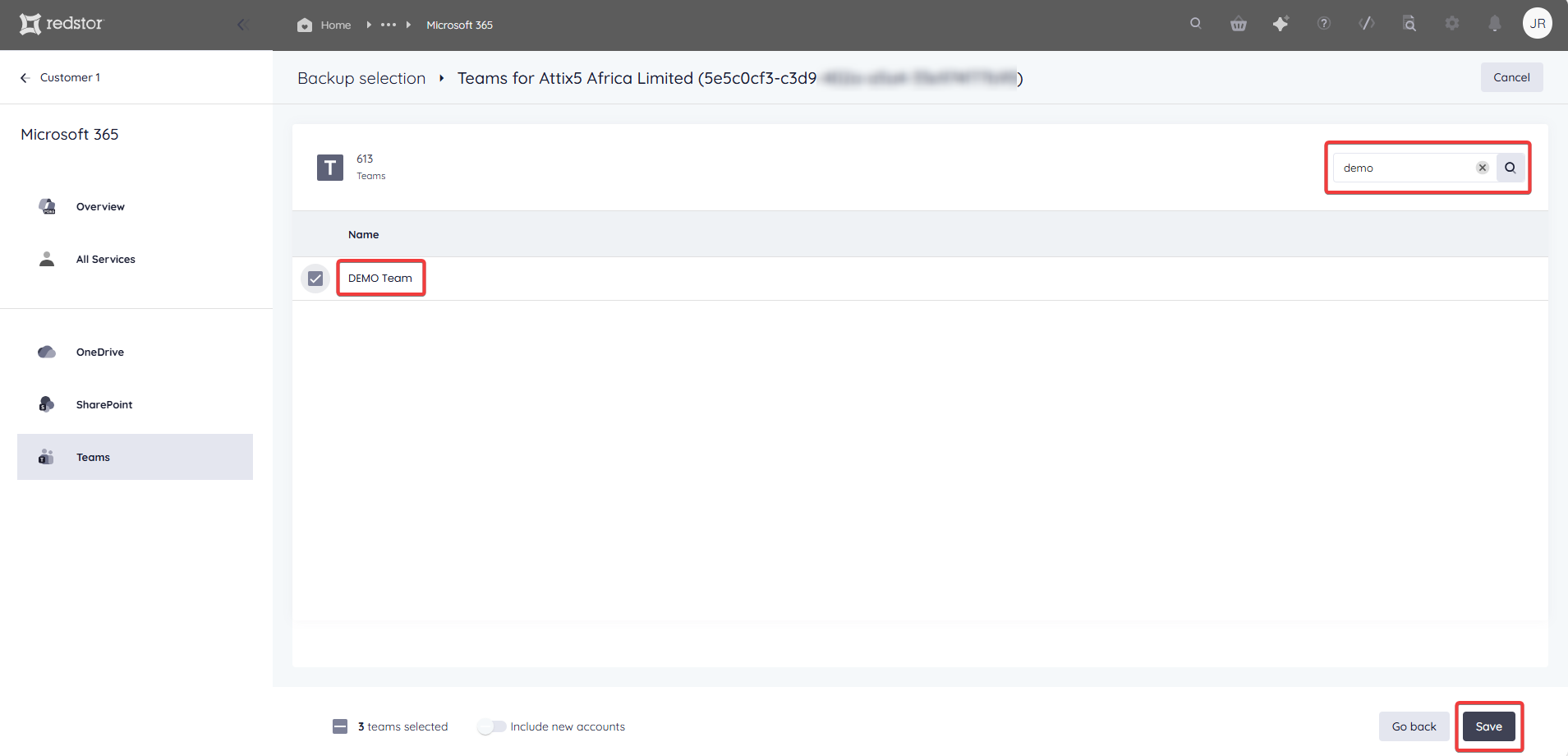
You can also use the search field to find a specific team. Click Save to add it to the backup selection.
To discard your changes, click Cancel at the top right.
You will be asked to confirm that you want to discard the changes. Click Discard.
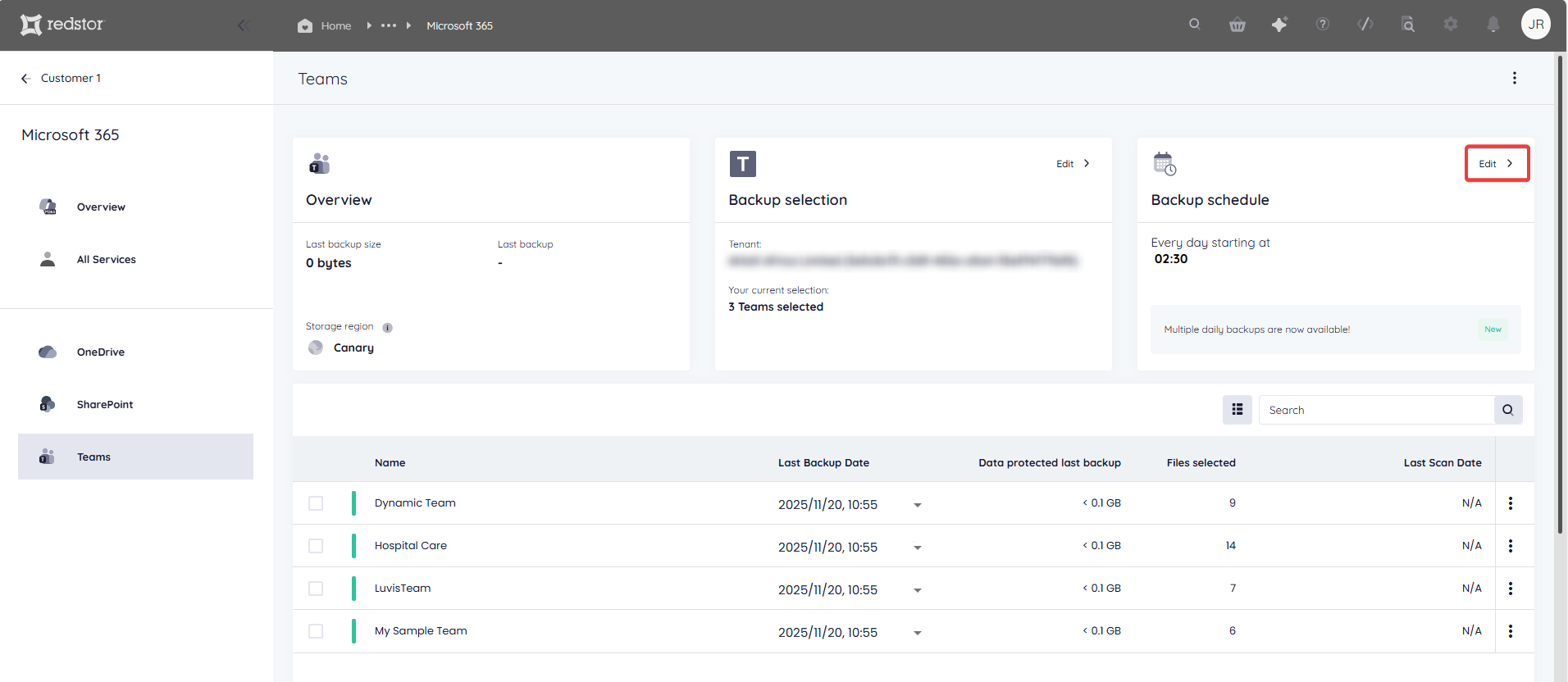
The new number of sites selected will show under Backup selection on the backup set's home page.

Note: Accounts that have been removed from the backup selection are still retained on the Storage Platform until you request that they be permanently deleted. Read more here.
How to configure the backup schedule for a backup set
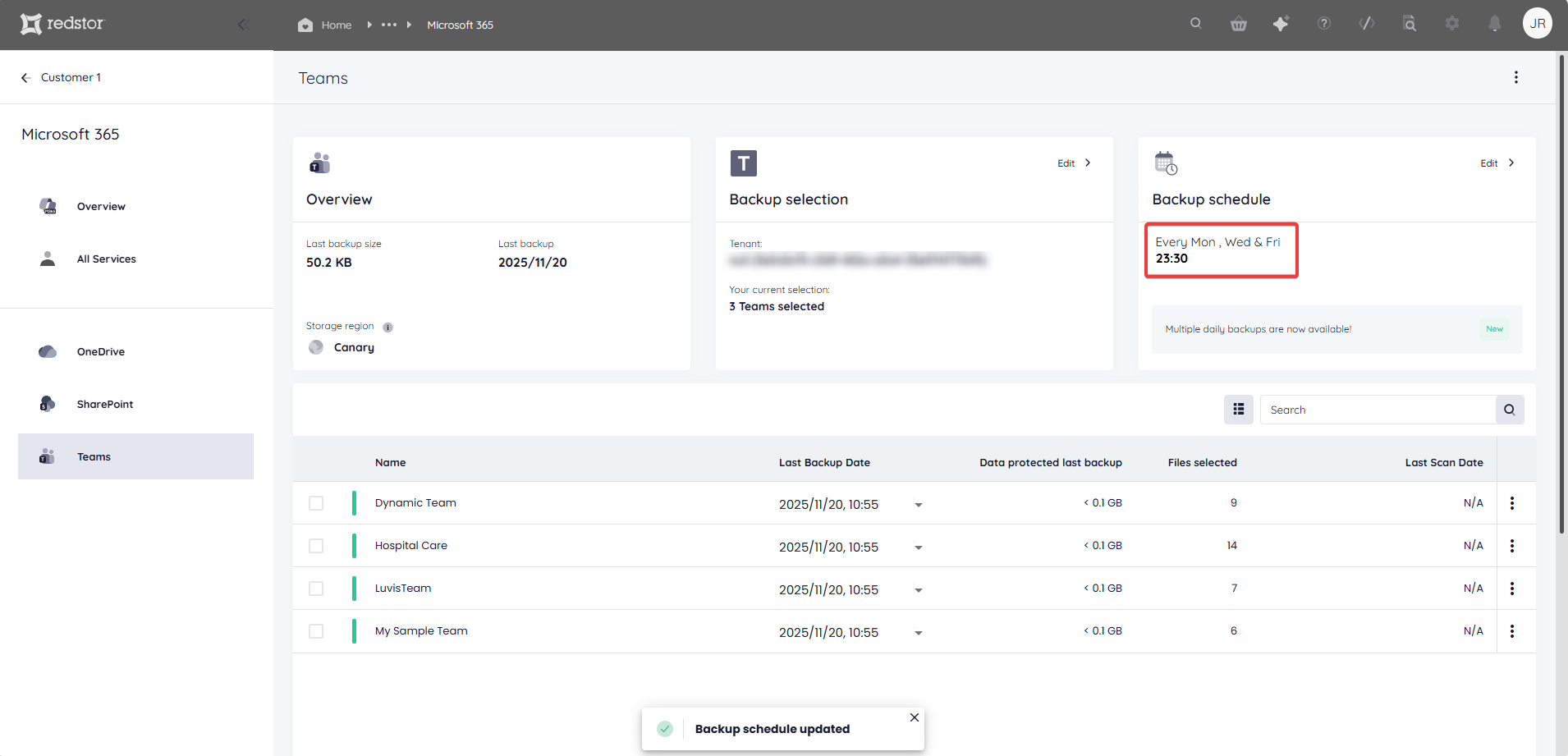
1. On the home page for the relevant backup set, click on Edit on the Backup schedule card.
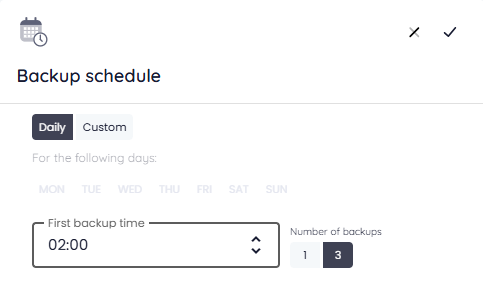
2. Select the days on which you would like backups to run, as well as a backup time. You can choose between daily and custom backups.
- For daily backups, select the number of backups per day (1 or 3). In the case of 3 backups per day, the backups will run at the specified backup time, as well as 8 hours after and 16 hours after the specified time. For example, if the specified time is 02:00, backups will run at 02:00, 10:00, and 18:00. Running multiple daily backups instead of a single daily backup will not incur additional costs.
 Note: Multiple daily backups is only available as part of our M365 Premium edition. If you do not see the option to schedule multiple daily backups, you are on a legacy pricing plan. If you would like to enable multiple daily backups, please speak to your account manager about upgrading.
 - For custom backups, select the days and time that you want your backups to run.
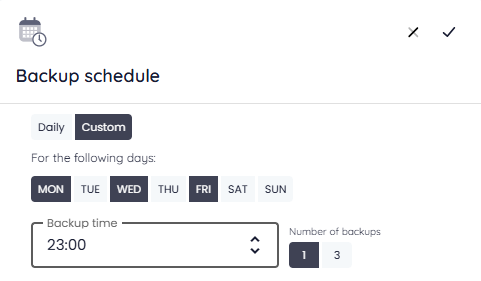
3. Click the check mark at the top right to save your settings. The Backup schedule card will now show the updated backup time/s.
How to recover a backup set
To do a first recovery, you need to be both a RedApp company administrator, and a Microsoft 365 global administrator for your tenant organisation. To do subsequent recoveries, you only need to be a RedApp company administrator and a Microsoft 365 Teams admin. Read more about Microsoft's admin roles in this article on their knowledge base.
Watch our video for an overview of your recovery options, or follow the steps below.
1. Select data for recovery
In all cases, you will need to select the team/s or item/s you want to recover, as well as the backup (date) you want to recover from.
There are different ways you can select data for recovery.
If you want to recover a specific team, use the Search function to find it.
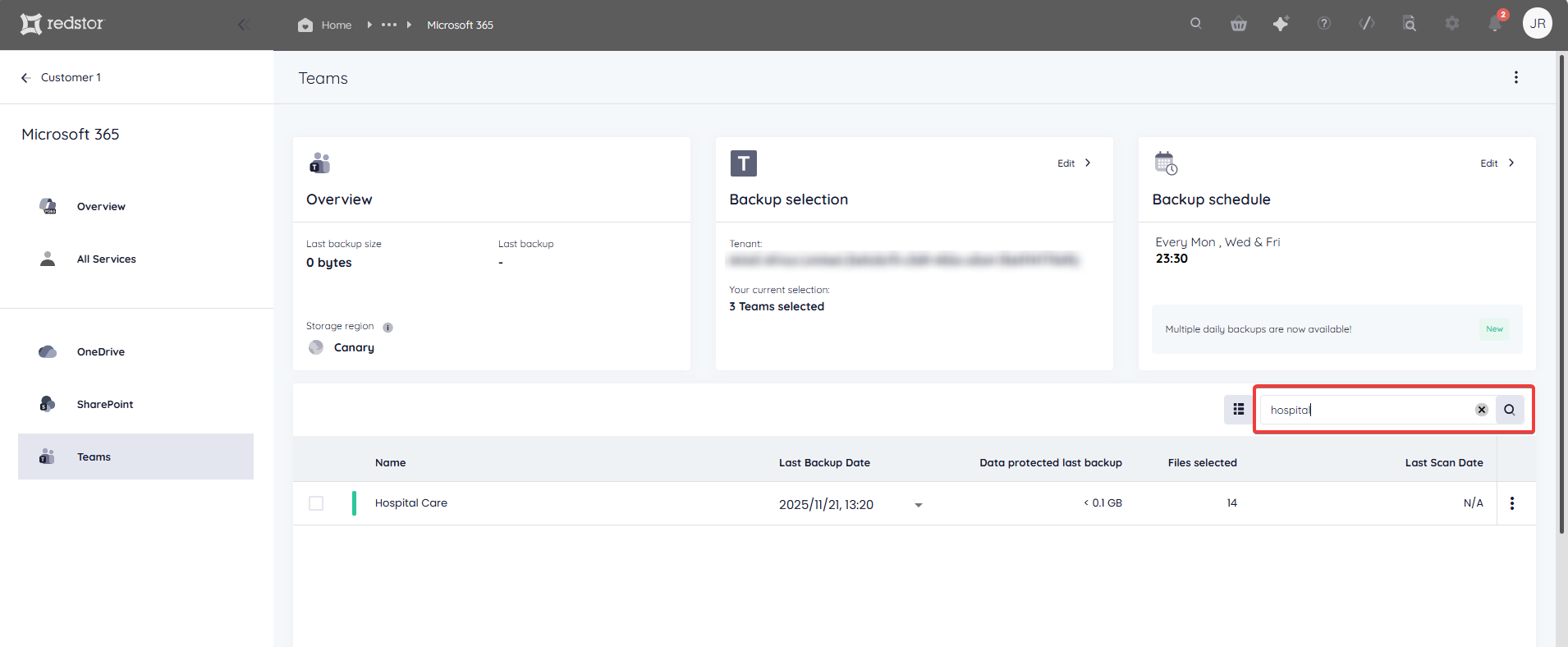
Under Last Backup Date, select the backup you want to recover from.
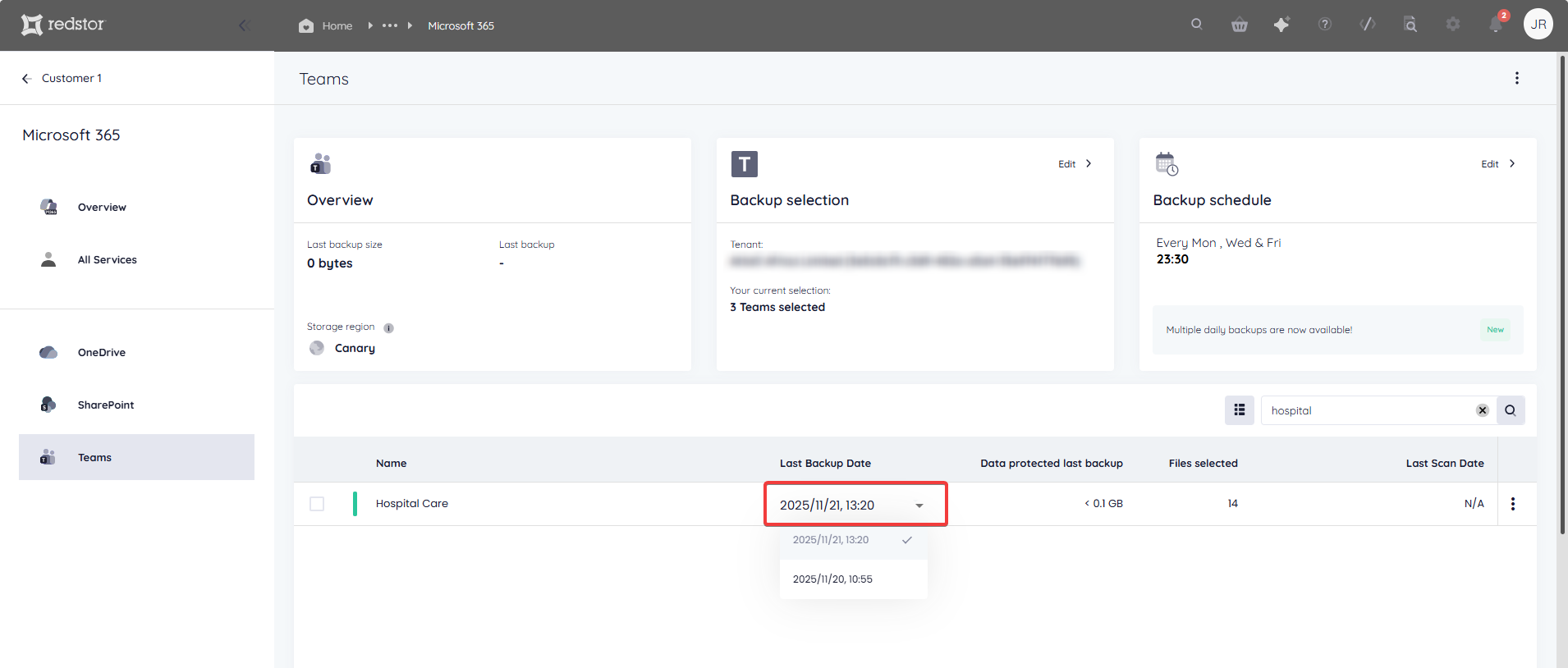
Click on the team's menu icon on the right and go to Recover to see your options.
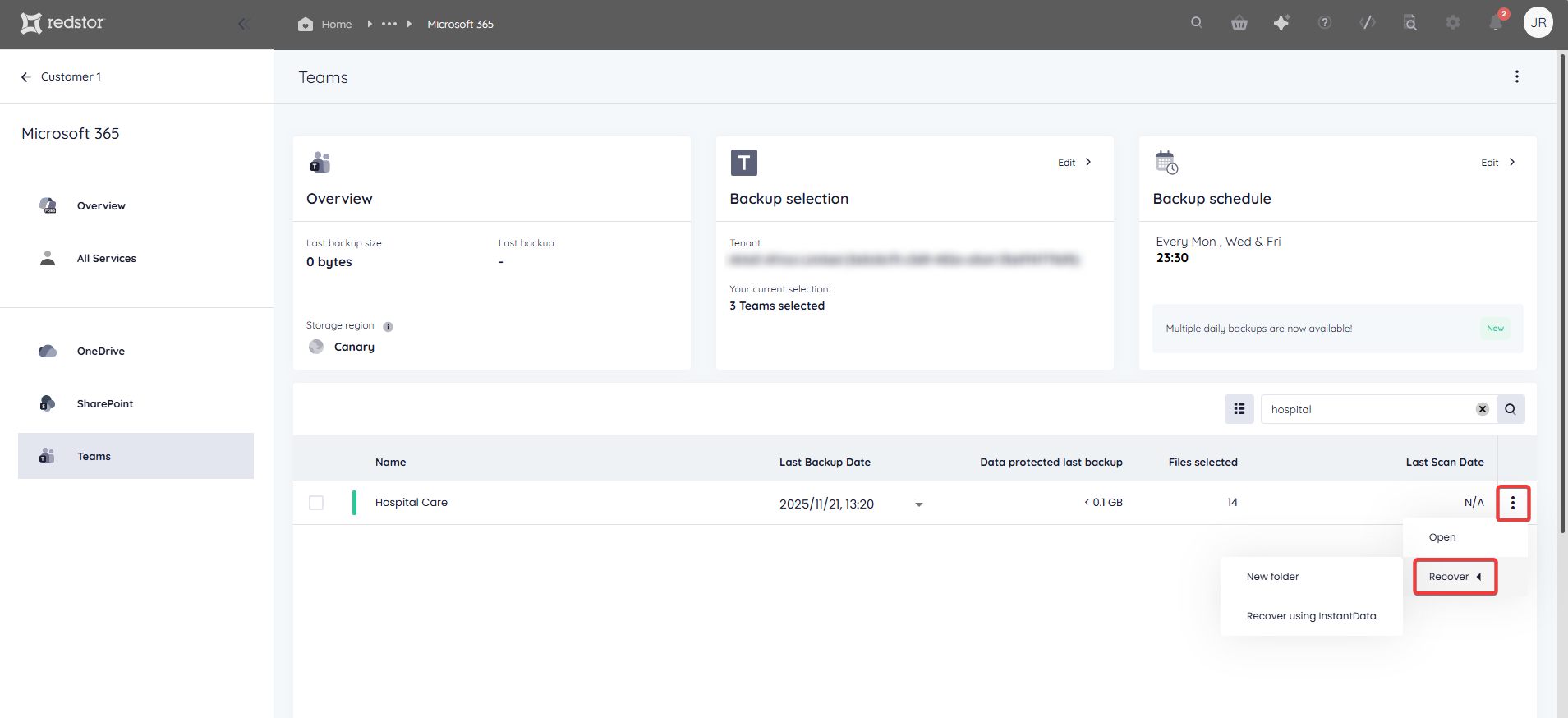
If you want to recover all data for multiple teams, select the teams and then select a backup date for each. You can select different backup dates for different teams.
Note: If you need to recover multiple teams, it is advised to recover them in bulk and not in sequence. It is not possible to queue a recovery while another recovery for the same backup set is in progress.

If you only want to recover one or more individual items from a team, click on the team name to expand its contents. Alternatively, click on the menu icon on the right and go to Open.
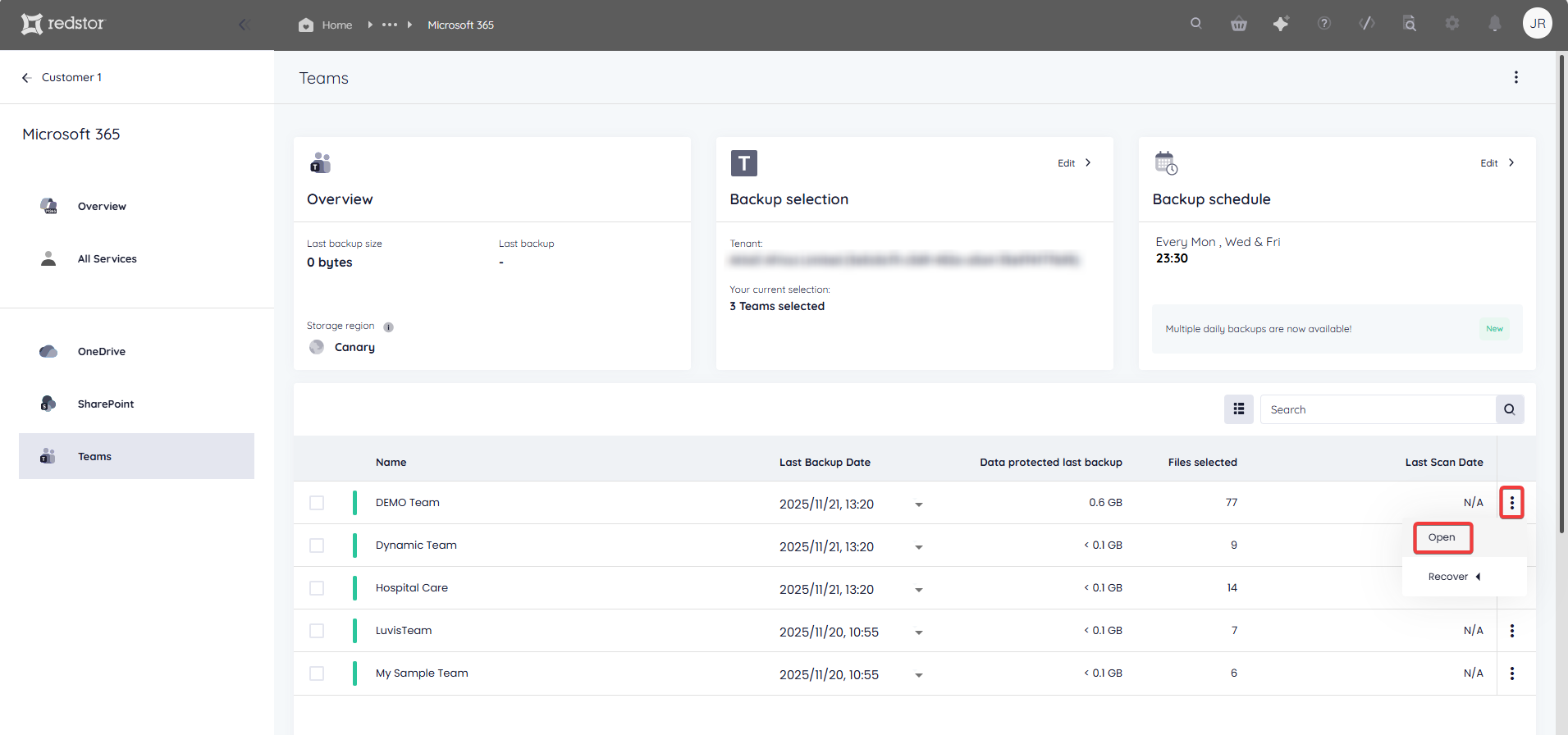
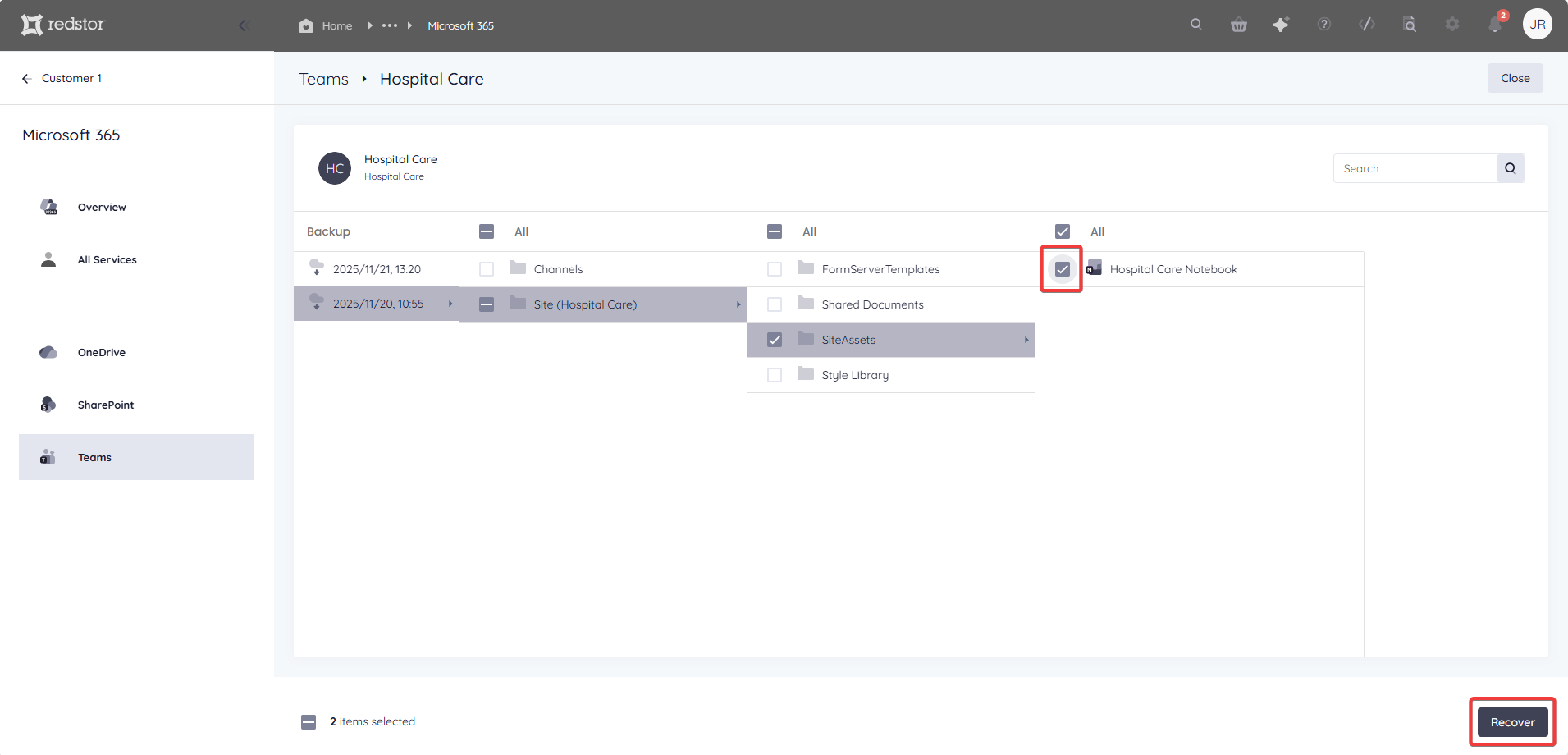
Drill down into the site contents and select what you want to recover. You can also use the Search field to find a specific item.
Select the item/s for recovery and click Recover. You will not see any recovery options as single item recovery is to a new folder by default. For more information, see What is supported? above.
2. Select the recovery method
When recovering one or more teams, you can choose how you want to recover your selected data.
- New folder recovers the team's data to a new team site containing all of the original channels. The new site's name will contain the letter R and the backup date's timestamp. Each channel's restored messages will appear in a OneNote folder with the backup timestamp as its name. Each channel's Files tab will contain its restored files.
- Recover using InstantData generates a shareable link that can be used to recover the site's data.
For single item recovery, you will not see different options as recovery is to a new folder by default.
Important note: Recovery of private channels back into Teams is not supported. If you select private channels for a New Folder recovery, the task will fail. Deselect all private channels before initiating the recovery.
3. Proceed with recovery
After choosing a recovery method, you will need to authenticate with your RedApp user through a one-time pin.
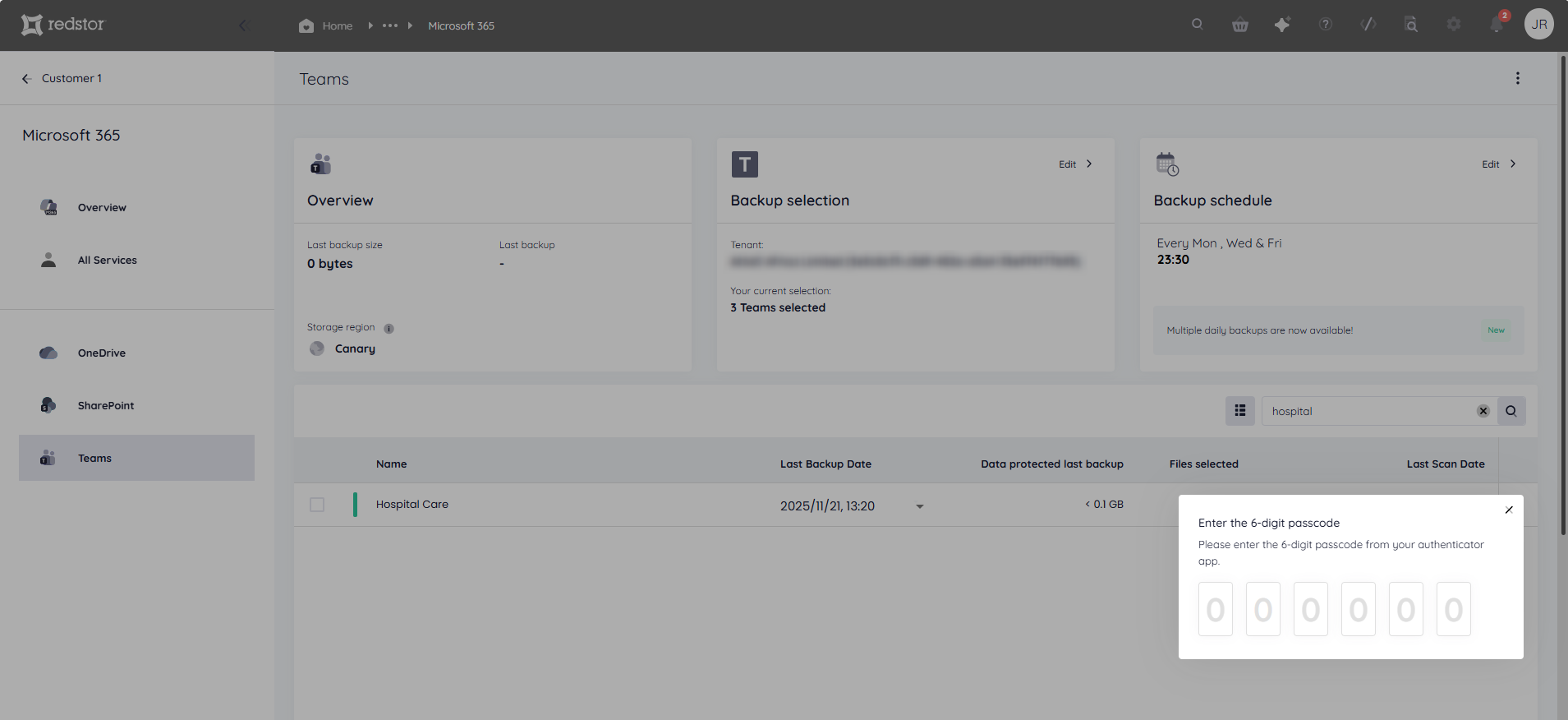
You will also need to authenticate with an appropriate Microsoft 365 user (global admin for first recovery, global or SharePoint admin for subsequent recoveries). A separate window containing an authentication screen will pop up. If you do not see it, you may have a pop-up blocker enabled. To proceed, allow the pop-up and reattempt the authentication.
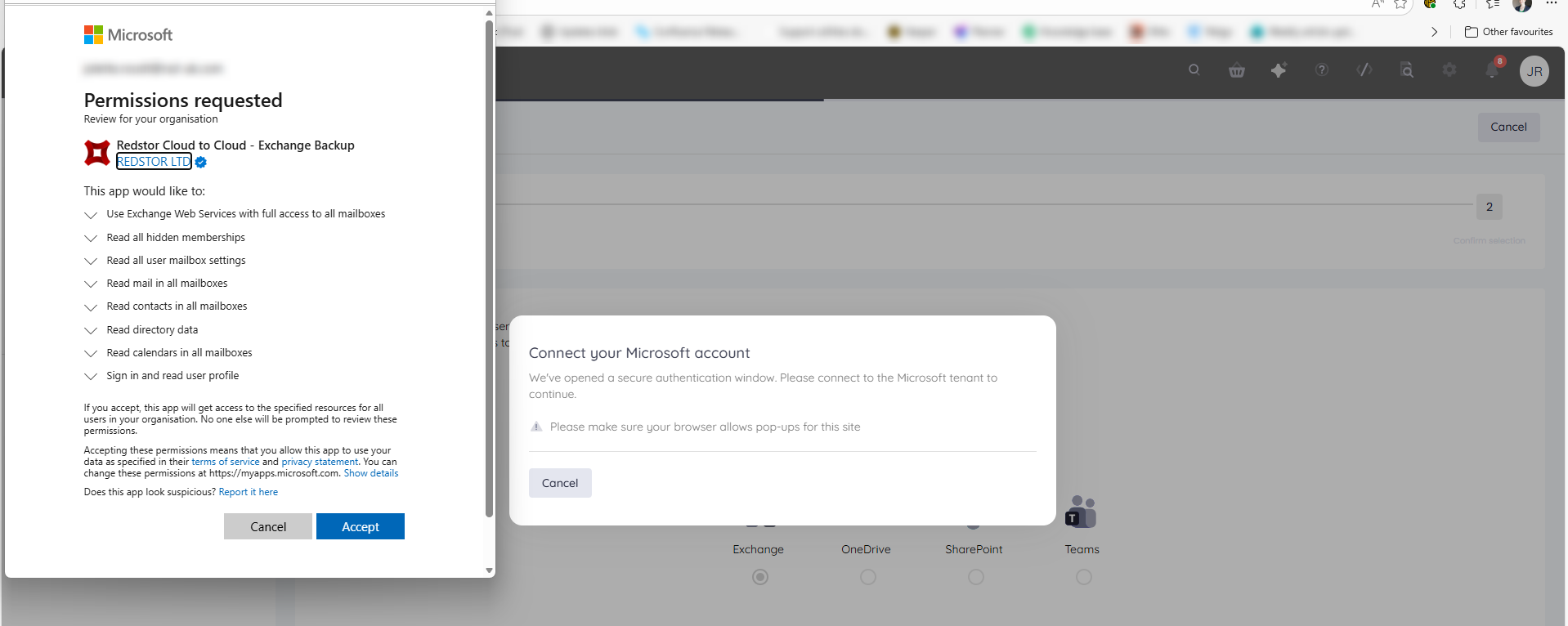
For New folder restores, you will not need to complete further steps. You will see a series of notifications at the bottom of the page to show that the restore has been initiated. A progress bar will also appear at the top of the page.
For InstantData restores, watch our video or follow the steps below to proceed.
Use the Copy option to share a link to the InstantData application, or Download the application immediately.
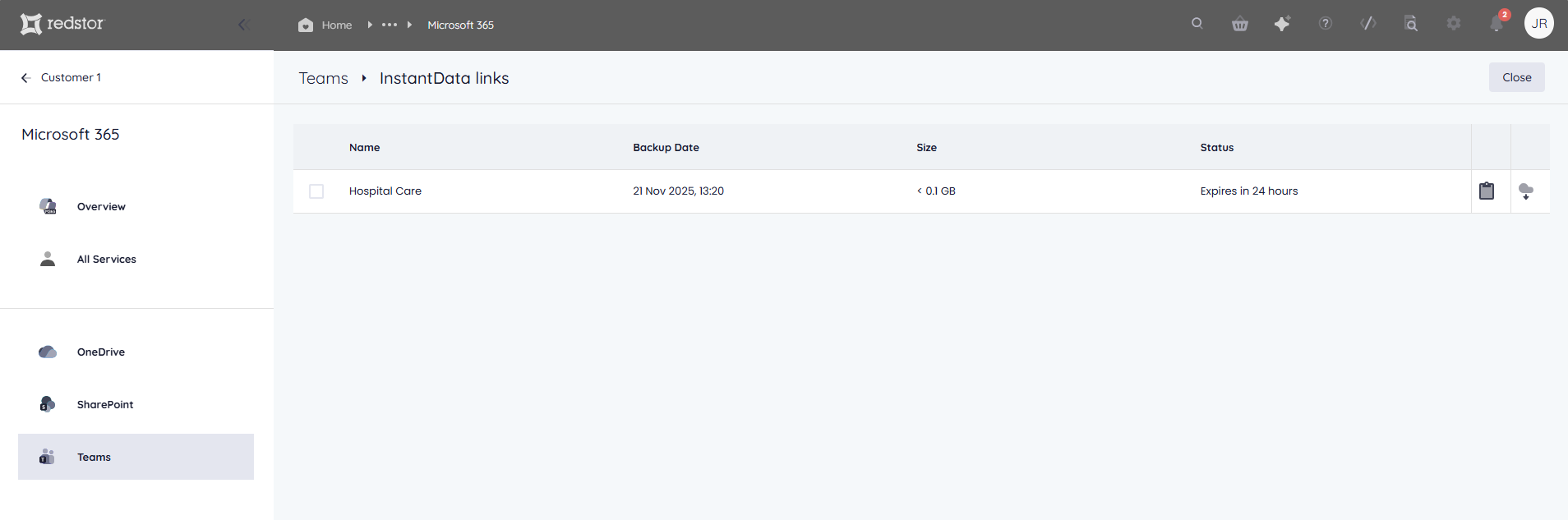
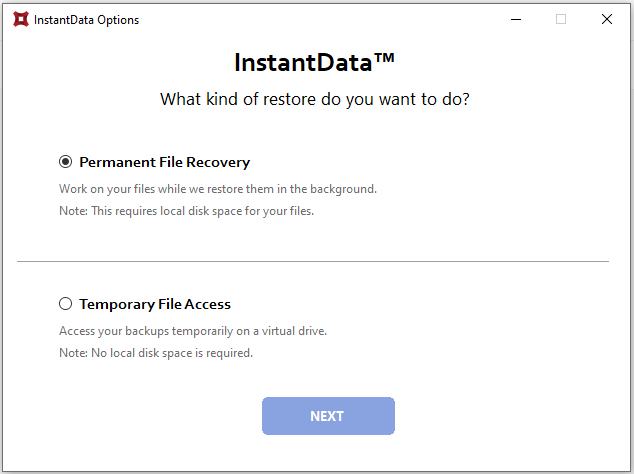
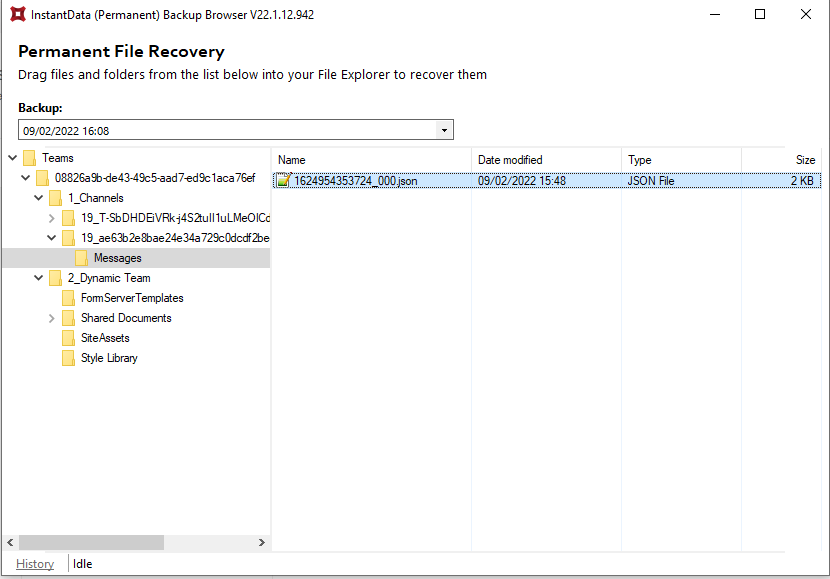
Run the application on the machine where you wish to recover the data. Select between Permanent and Temporary recovery, then simply drag and drop files from the application into your File Explorer to recover them.
How to delete a backup set
Note: This will delete all backed-up data for this backup set. This can only be undone within the first 336 hours (approximately 14 days) after deletion. To request an undelete, please log a ticket with our support team.
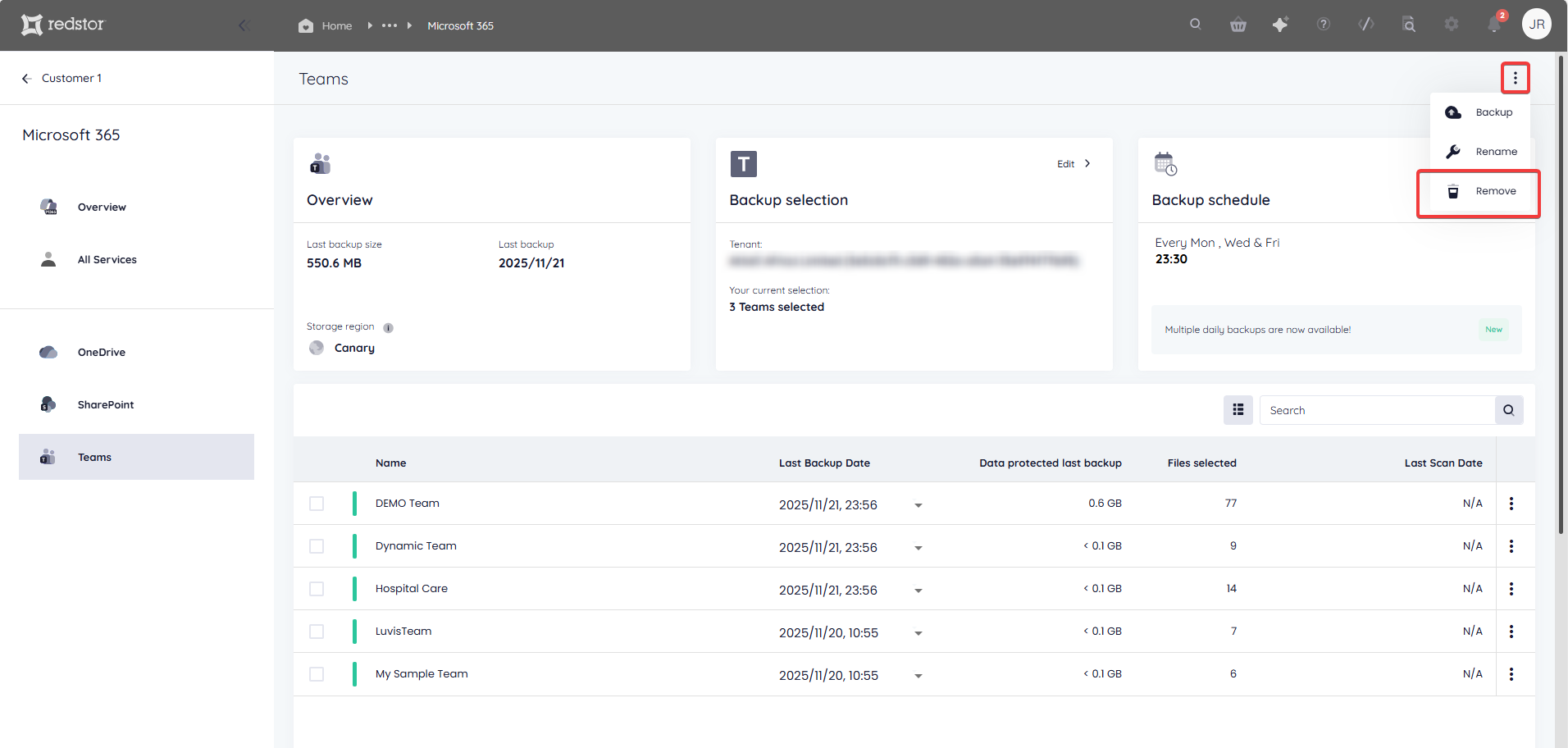
1. On the home page for the backup set, click on the menu icon at the top right and go to Remove.
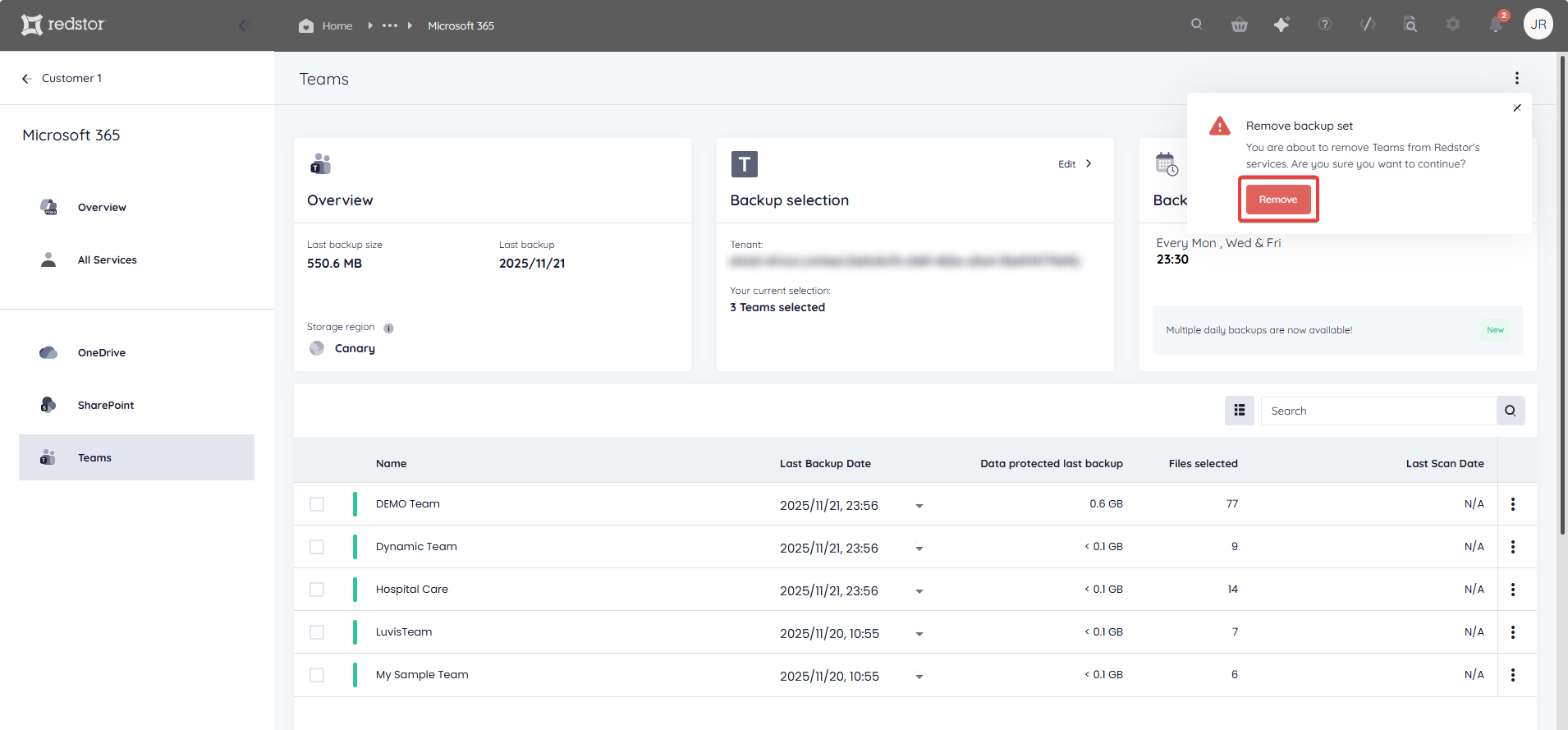
2. Confirm the deletion by clicking Remove. If you need to cancel the deletion, close the dialog box.
3. Authenticate with your RedApp user to proceed with the deletion.
How to change a backup set's name
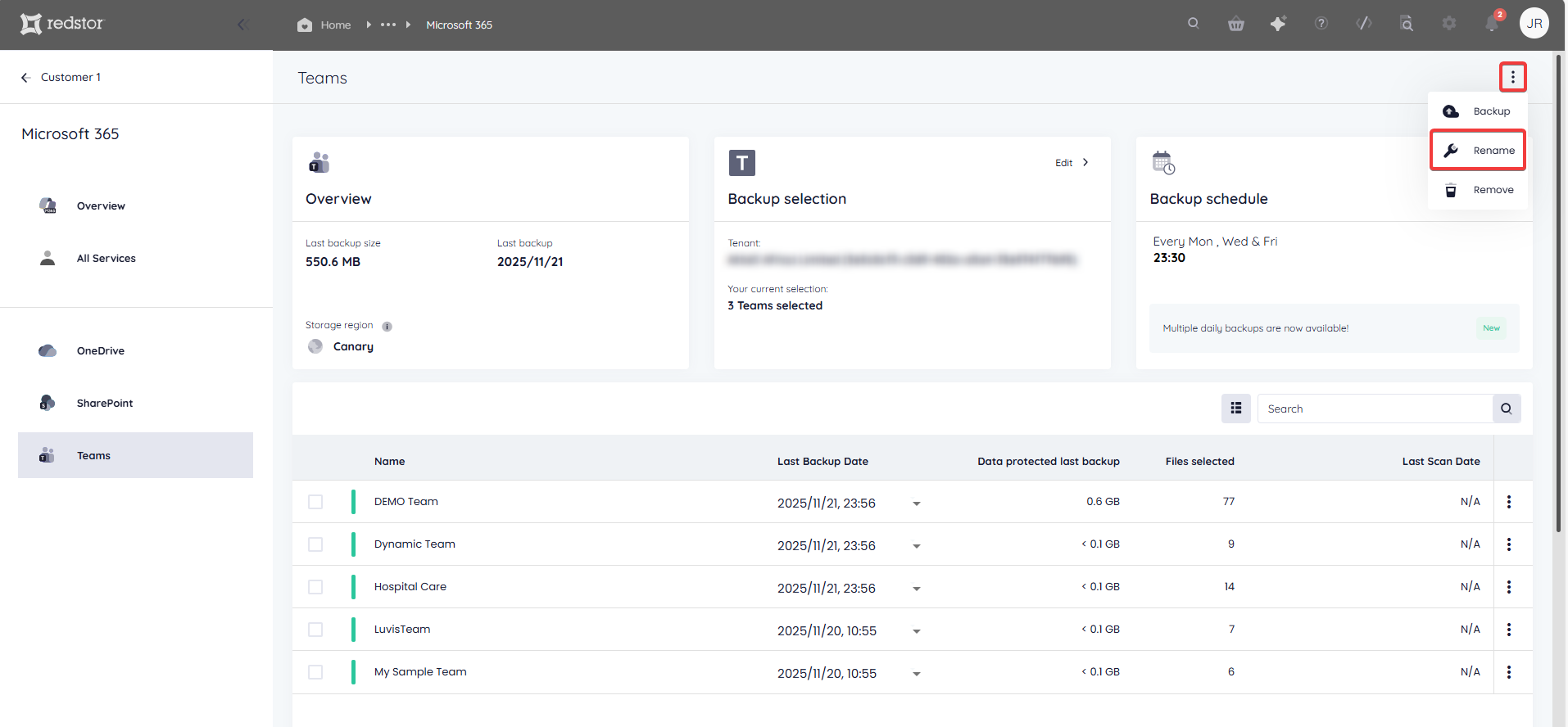
1. On the home page for the relevant Teams backup set, click on the menu icon to expand more options, then click Rename.
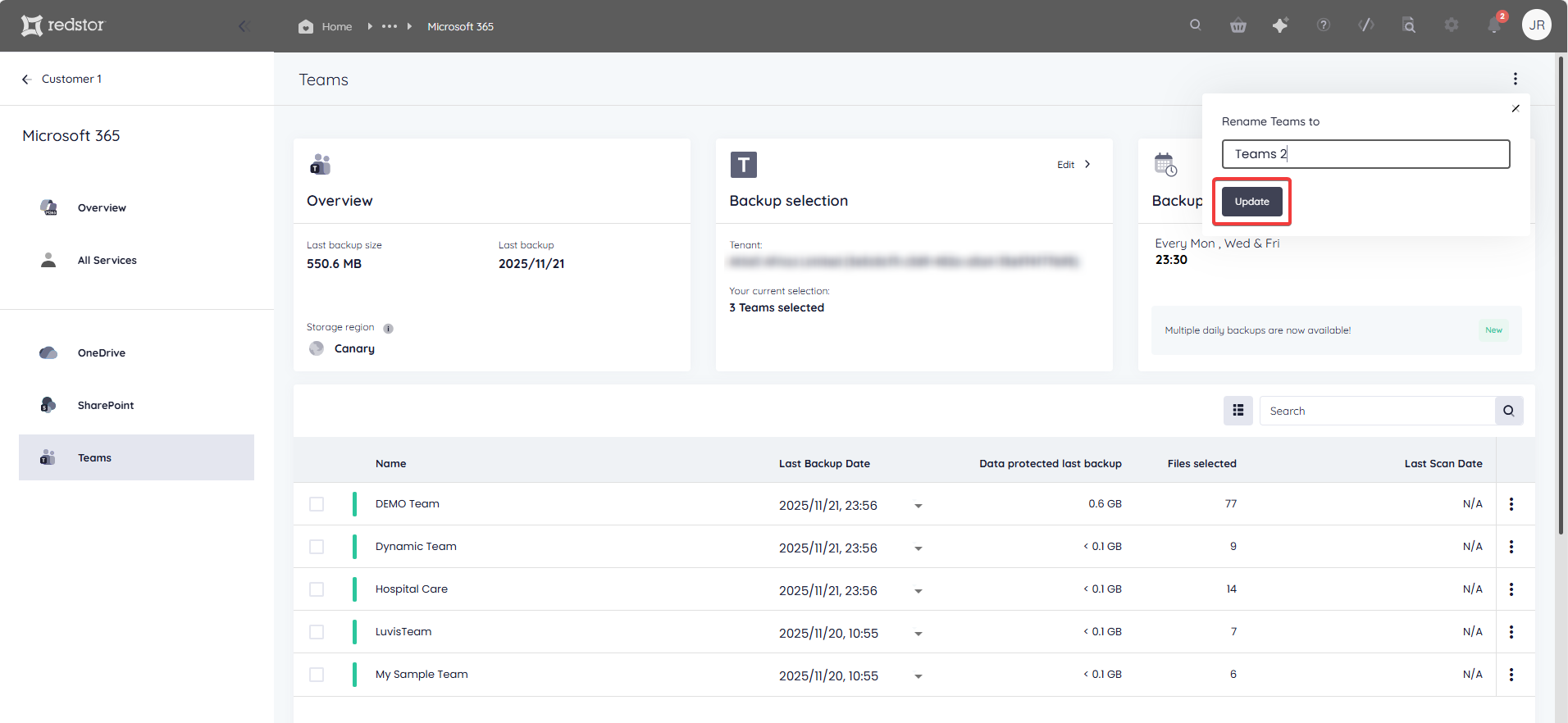
2. Enter the new name for the backup set and click Update. To cancel, close the dialog box.
 1.png)