
.png)




You can use the RedApp to add and remove products for your own organisation as well as for partners/customers.
PAGE CONTENTS
- How to add a product to your organisation
- How to remove a product from your organisation
- How to add a product to a partner/customer
- How to remove a product from a partner/customer
How to add a product to your organisation
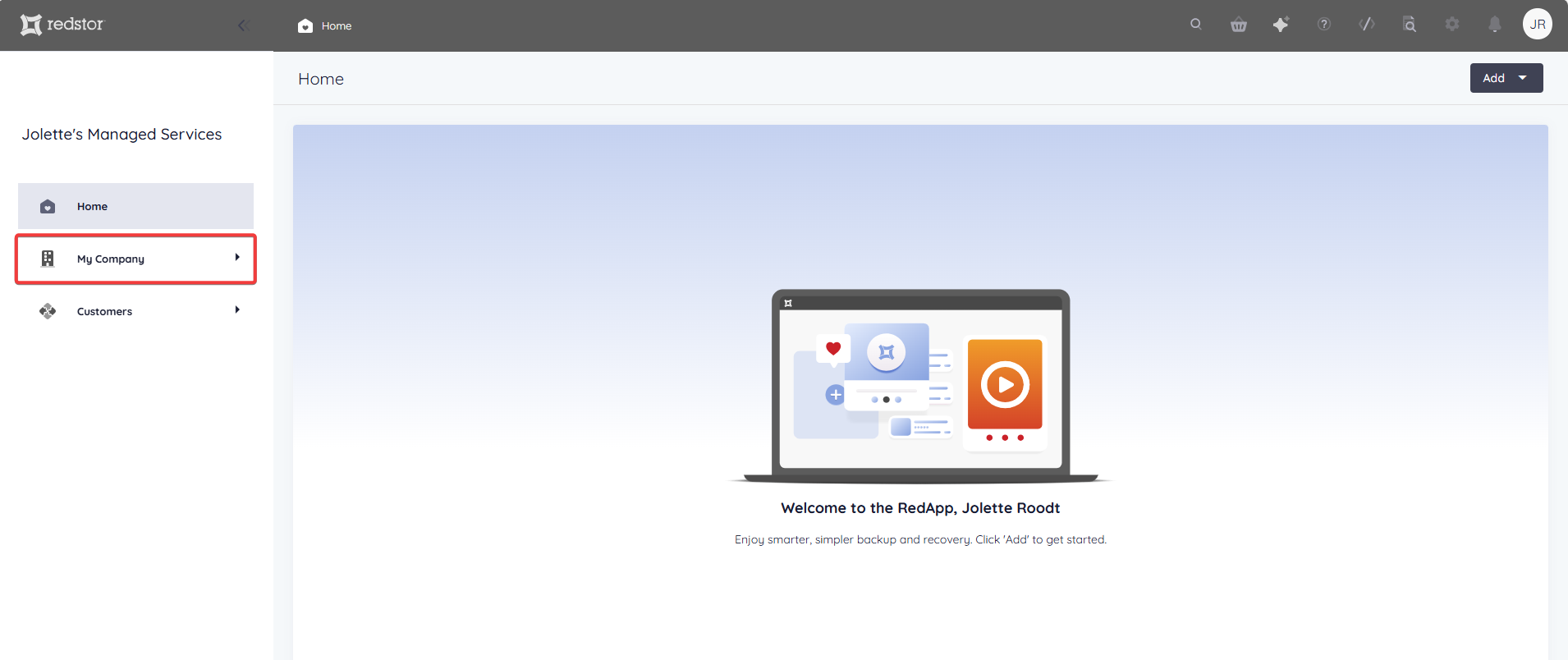
1. On the RedApp home page, go to My Company.
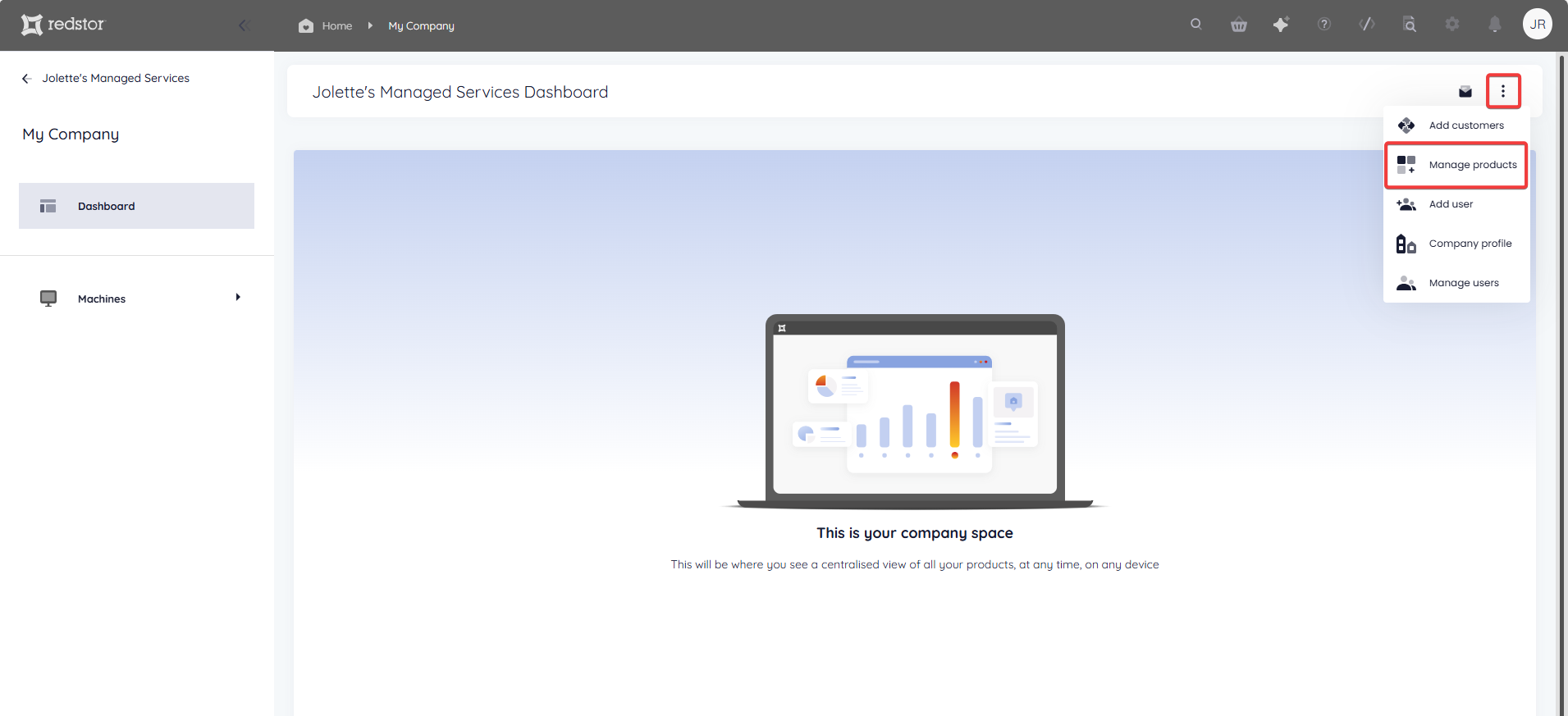
2. Expand the menu at the top right and go to Manage products.
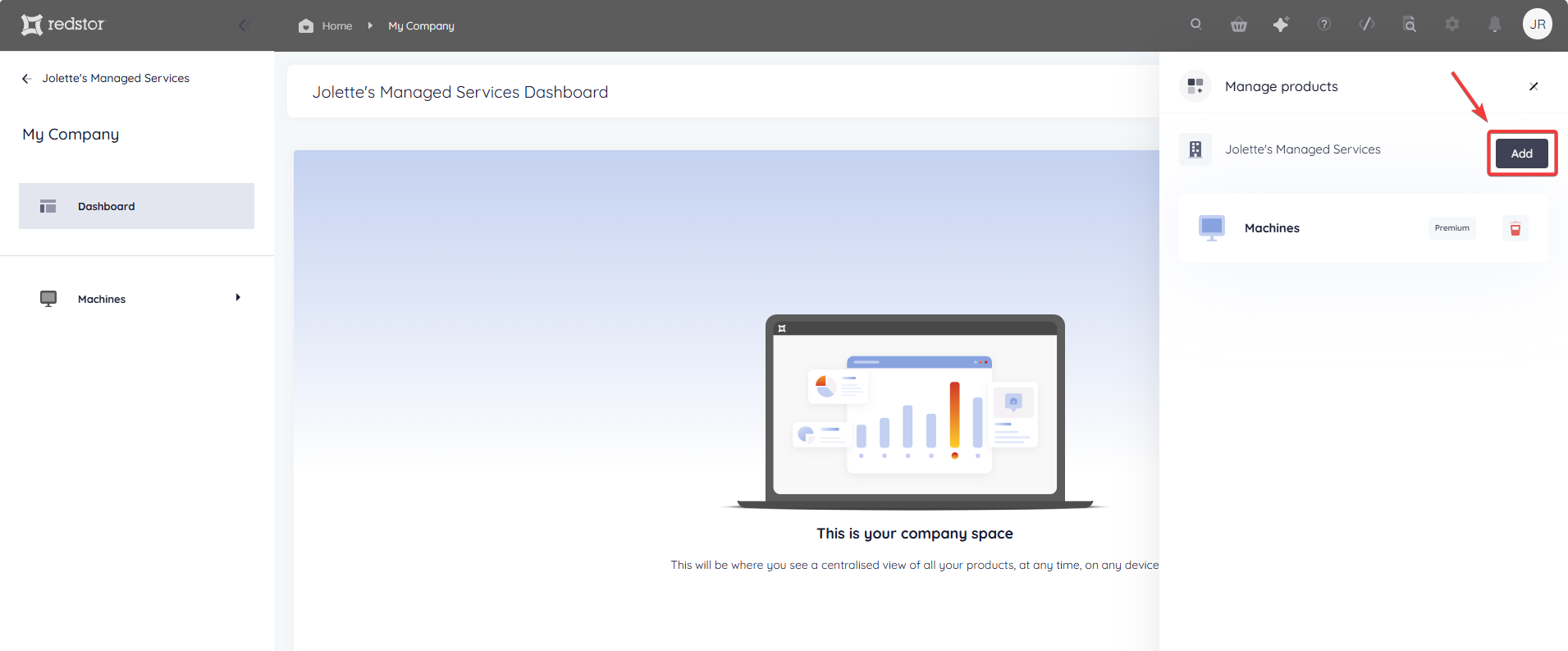
3. Click Add.
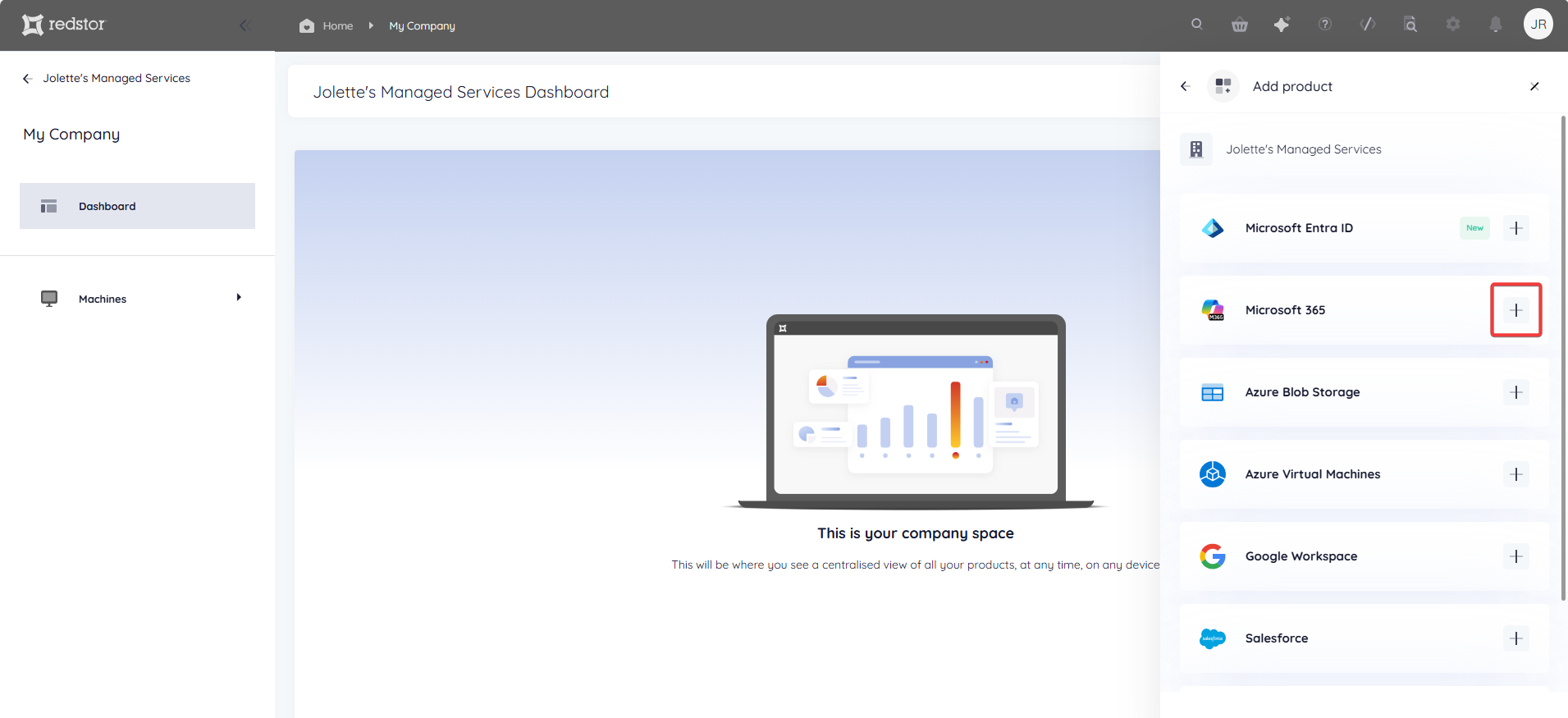
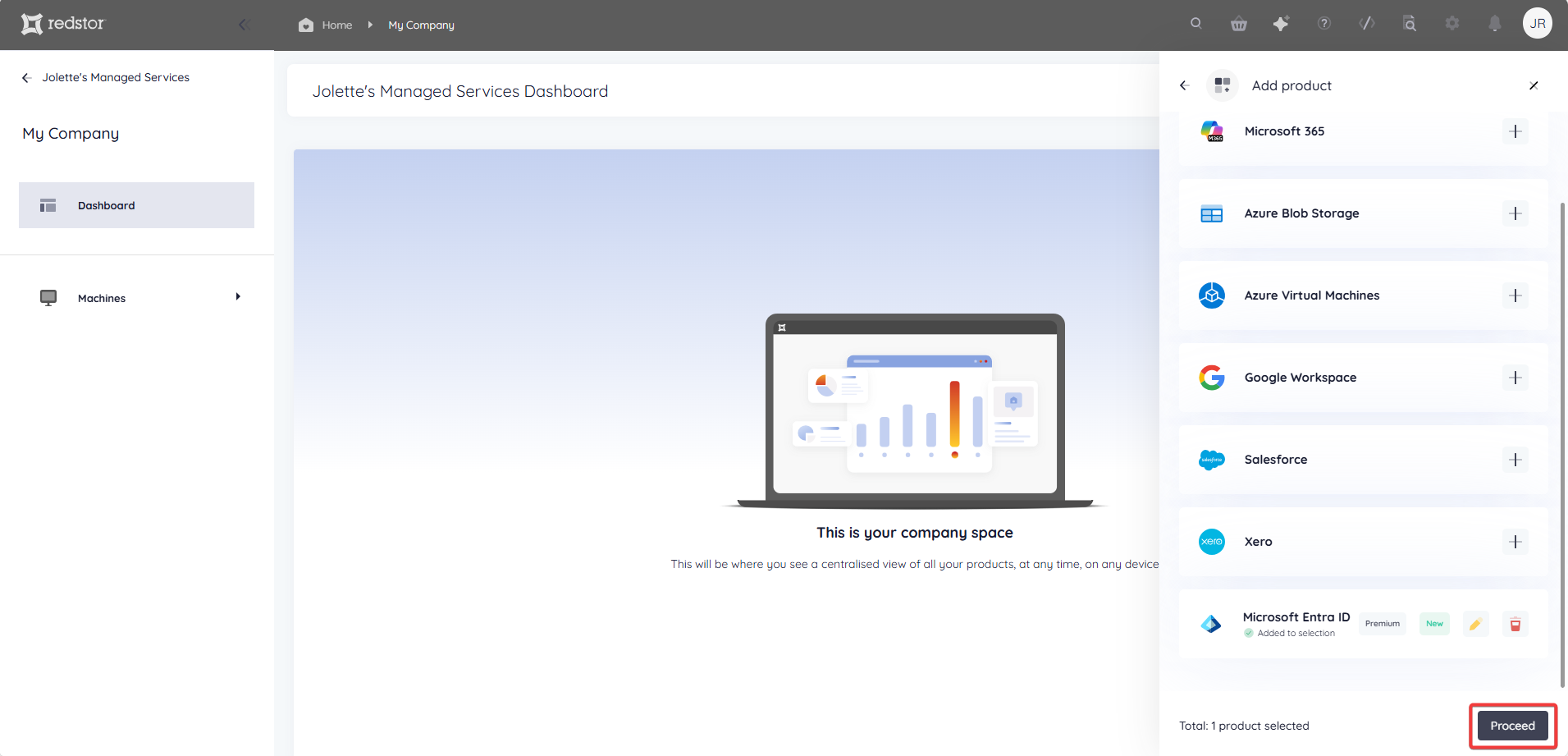
4. Click the plus sign (+) on the right for the product/s you want to add. When a product is added, the product entry will move to the bottom of the list.
5. Click Proceed at the bottom.
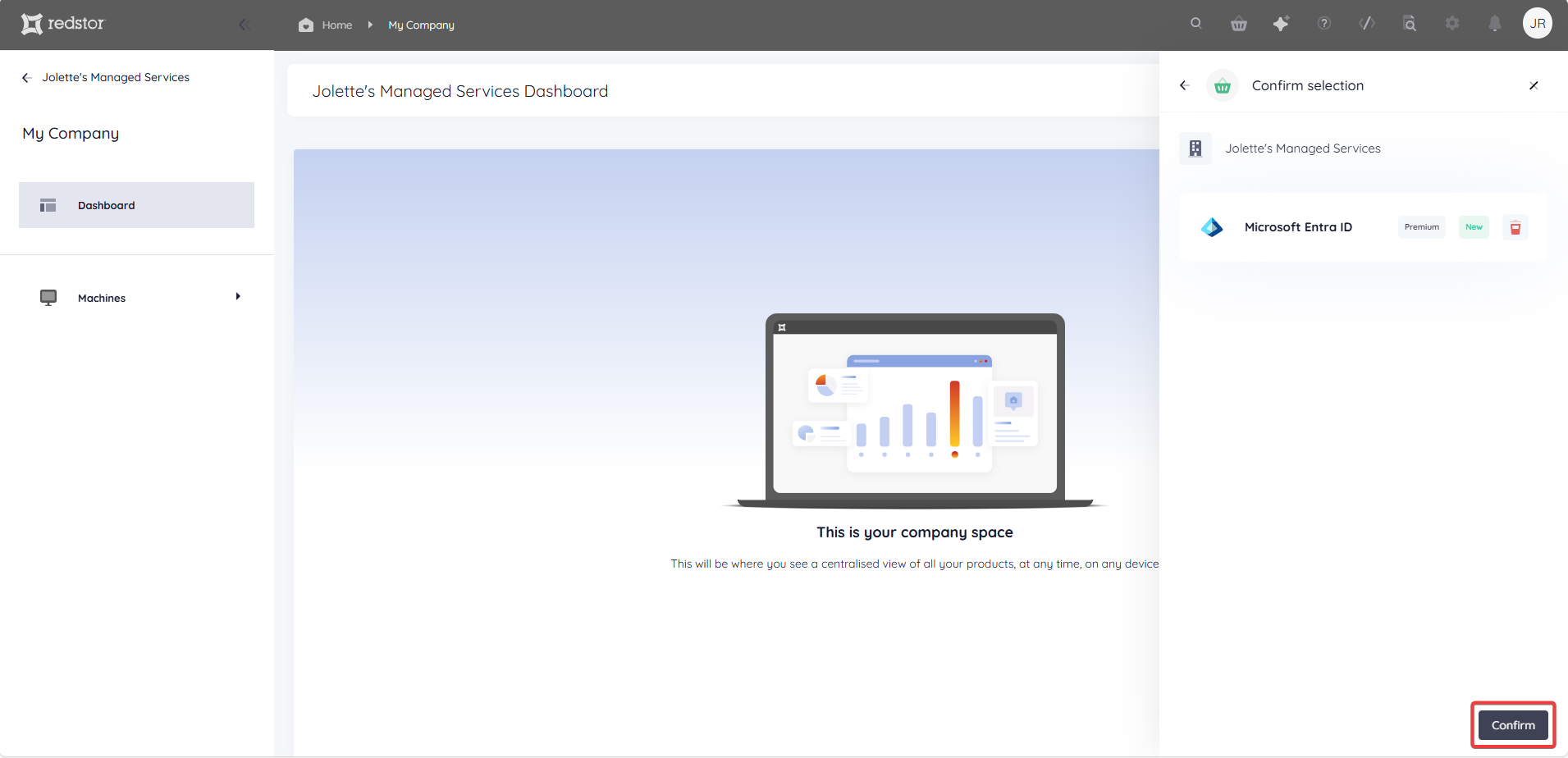
6. Click Confirm.
You will see a notification that your product/s have been added.
Note: If you encounter the error "Unable to add <product name>", clear your cache and retry the addition, or use a private browser.
- If you added one product, you will see the option Go to product.
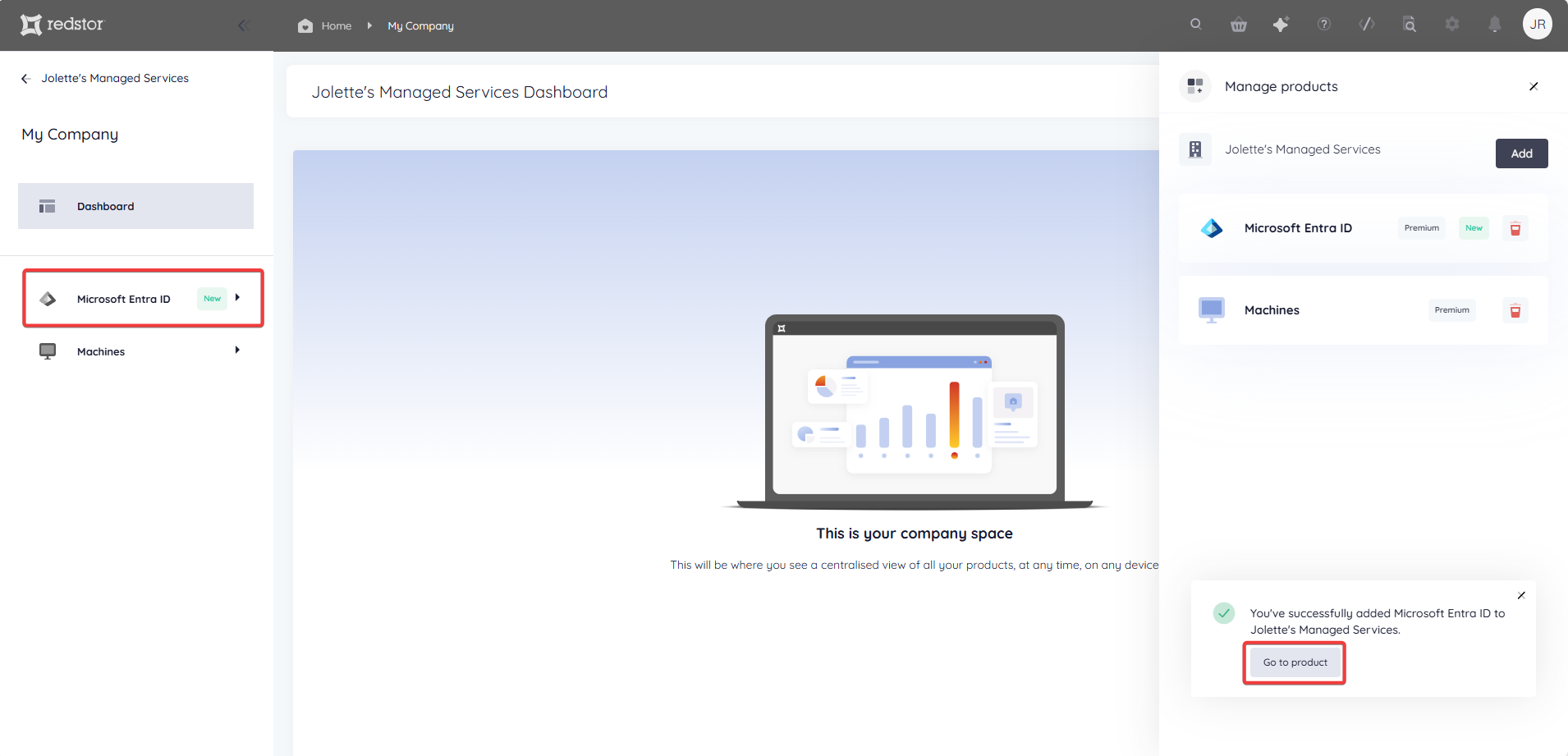 Click this button to go to the home page for the new product. From there, you can add backup sets and users for the product. Note that a product home page may take a few moments to become accessible.
- If you added multiple products, you will see the option Go to company.
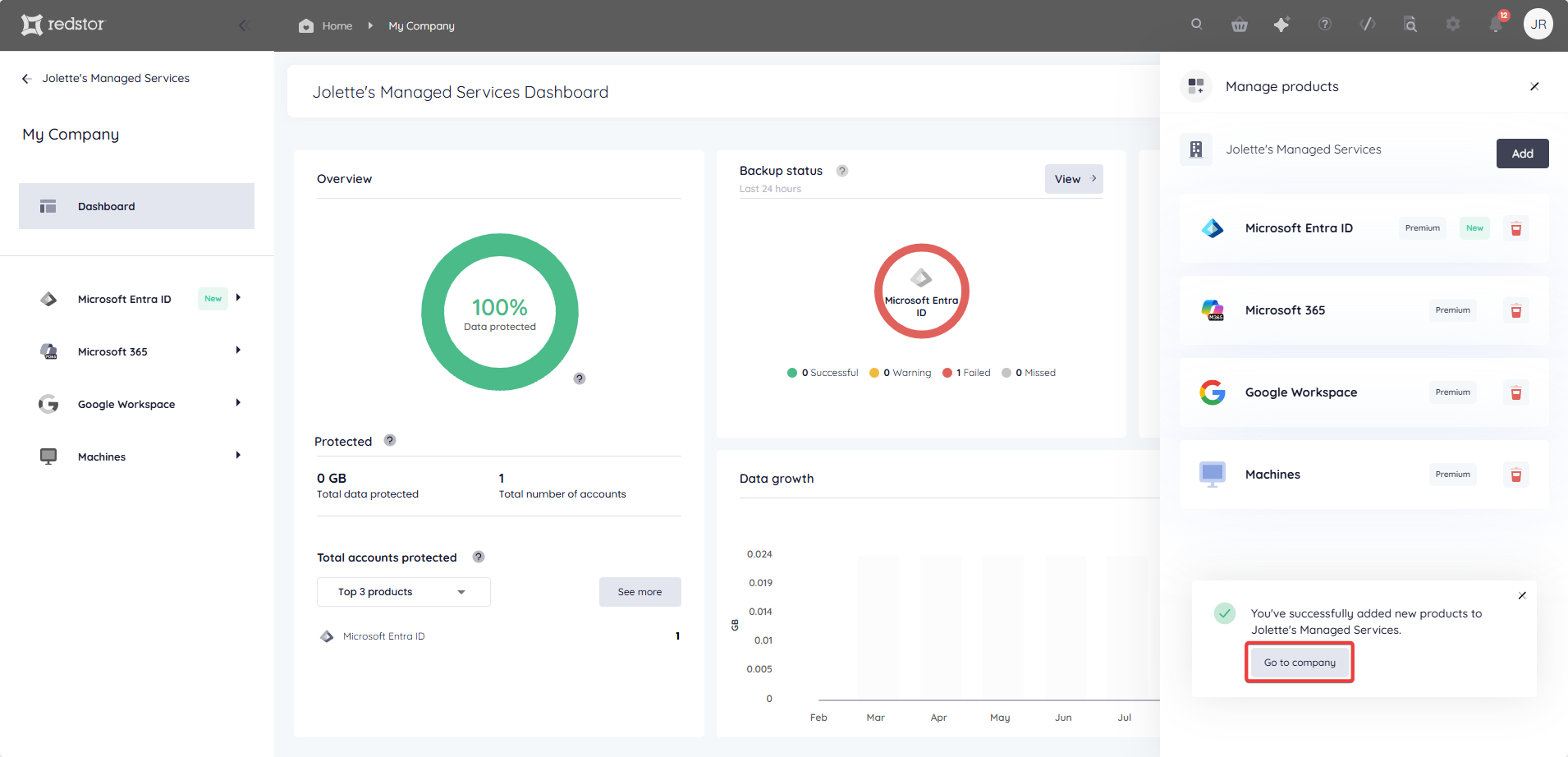 Click this button to close the products menu and return to your company dashboard. Your new products will be visible in the sidebar on the left.
You can access a product home page at any time by clicking on the product listing in the sidebar on the left.
How to remove a product from your organisation
1. On the RedApp home page, go to My Company.
2. Expand the menu at the top right and go to Manage products.
3. In the product list that appears, locate the product you want to remove and click on the bin icon to its right.
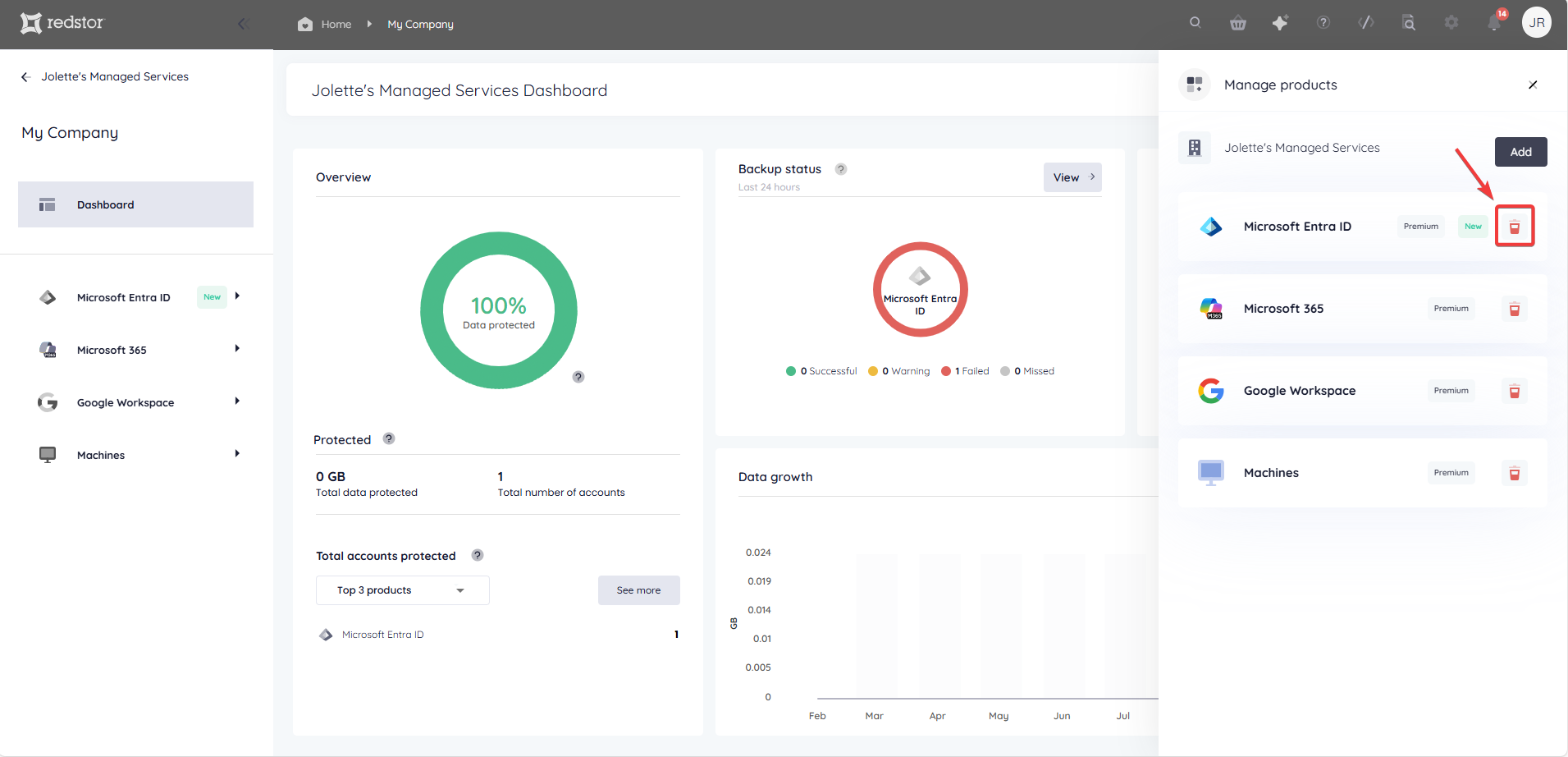
4. Click Remove to confirm.
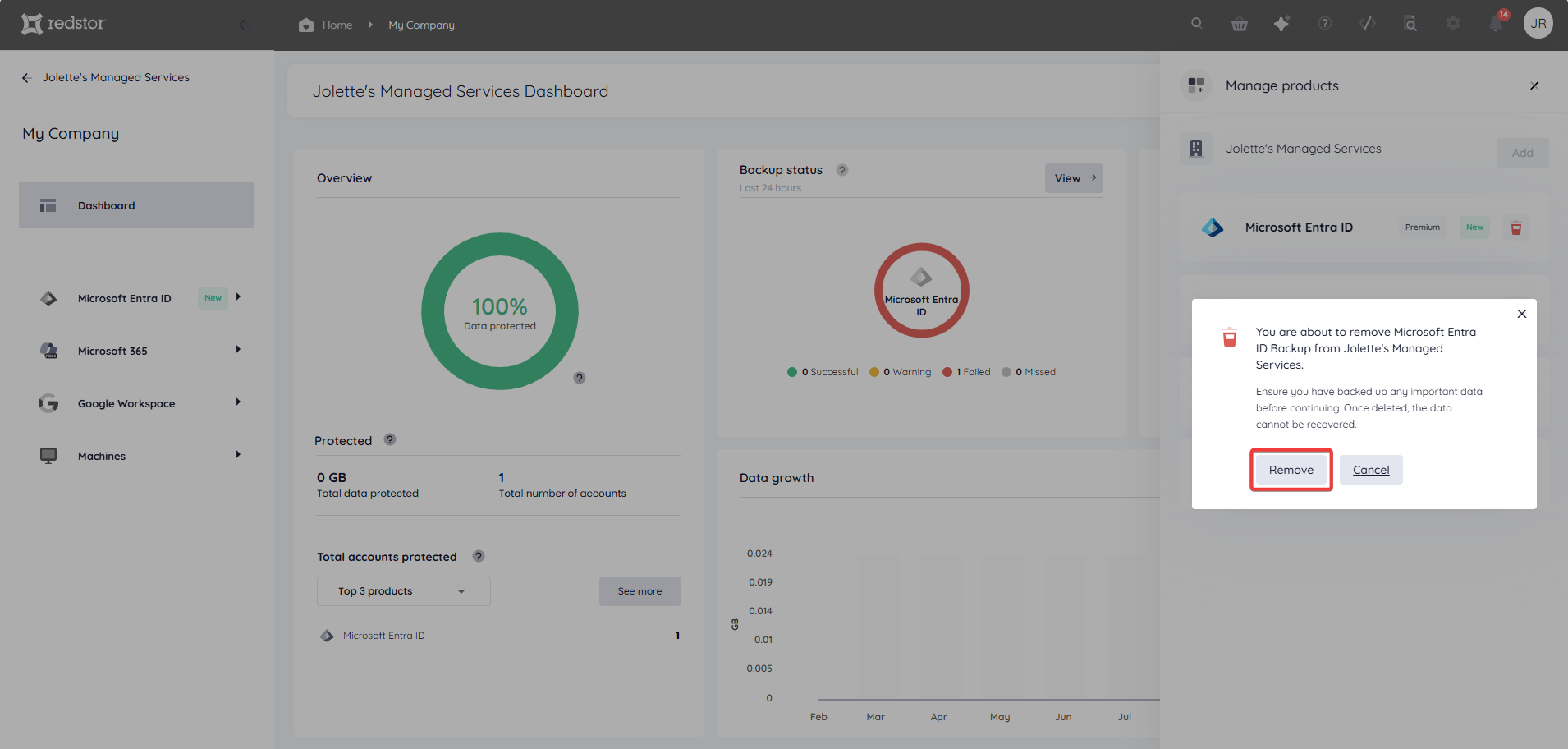
5. Authenticate with your RedApp user by entering the one-time pin shown on your authenticator app.
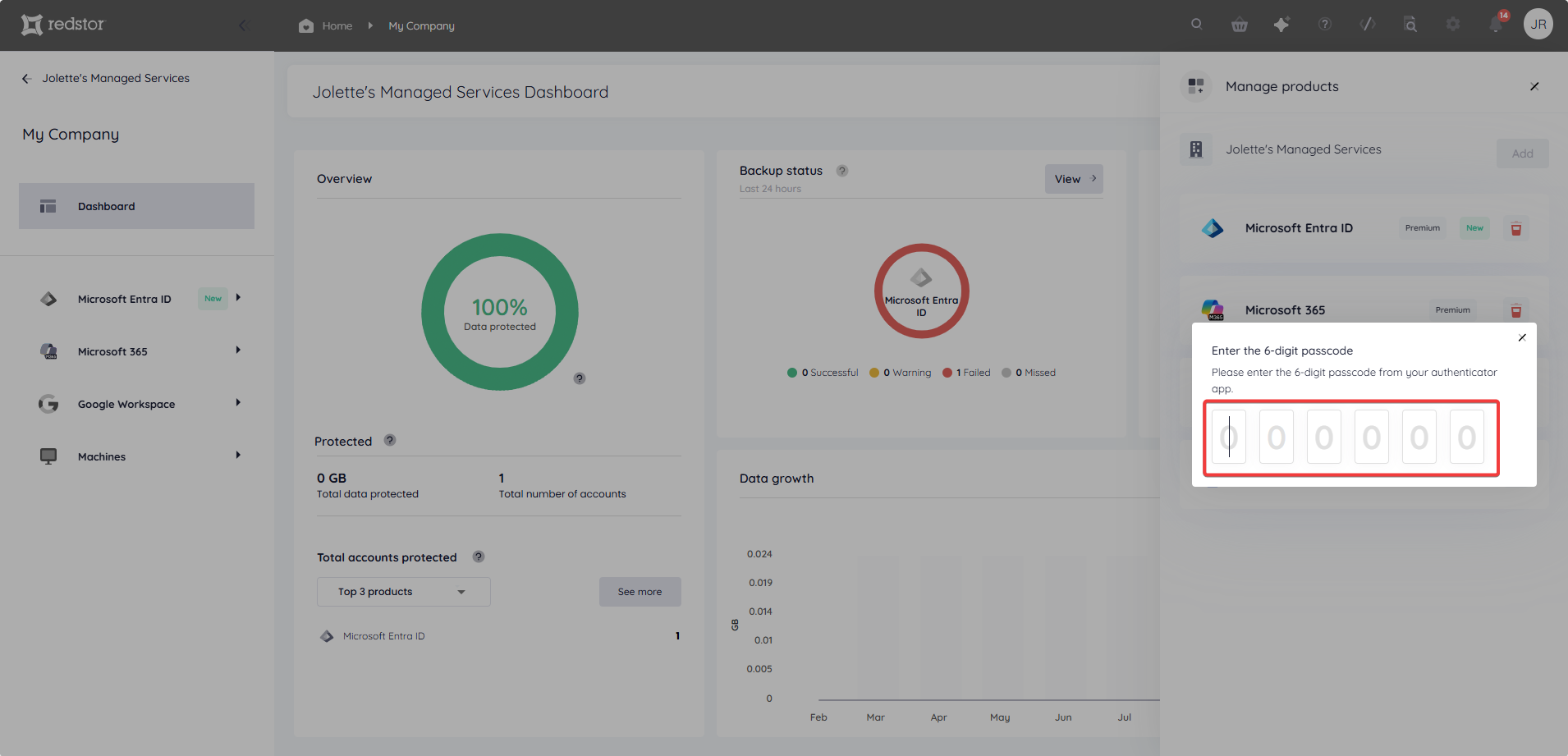
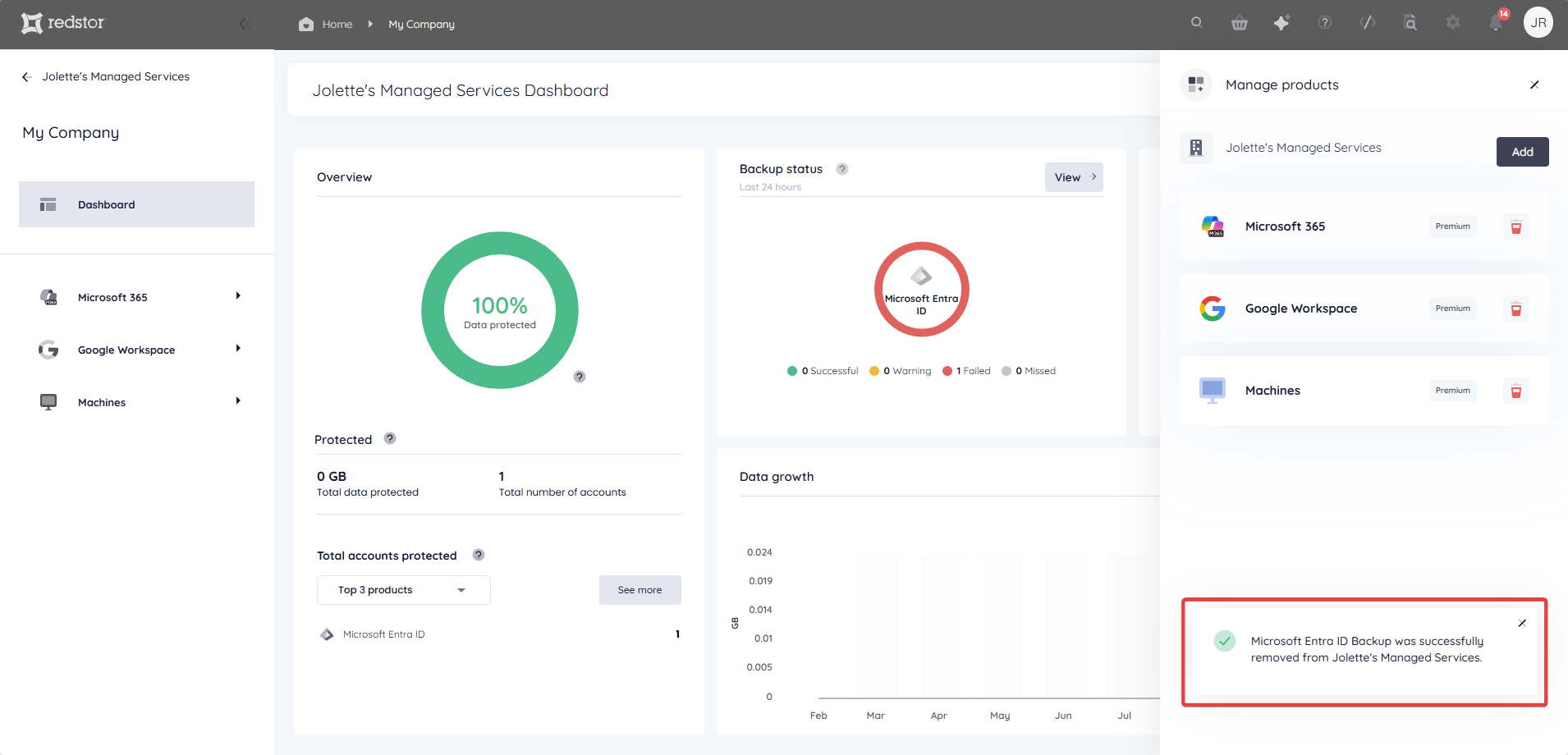
You will see a notification that the product has been removed. The listing for this product will no longer appear in the sidebar.
How to add a product to a partner/customer
Watch our video or follow the steps below.
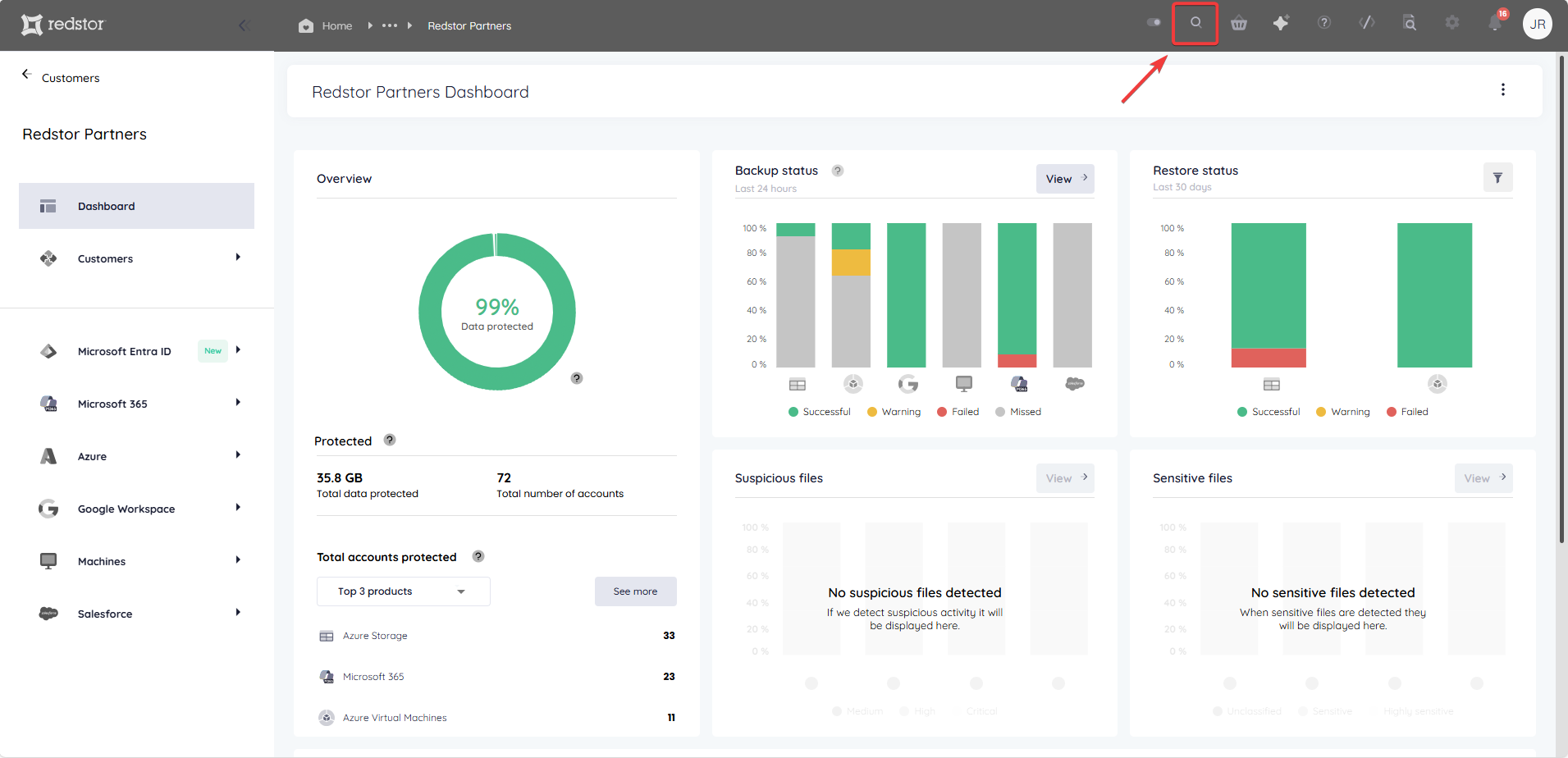
1. In the RedApp, go to the home page for the customer company you want to add backups for. Click on the search icon at the top right to find a specific customer.
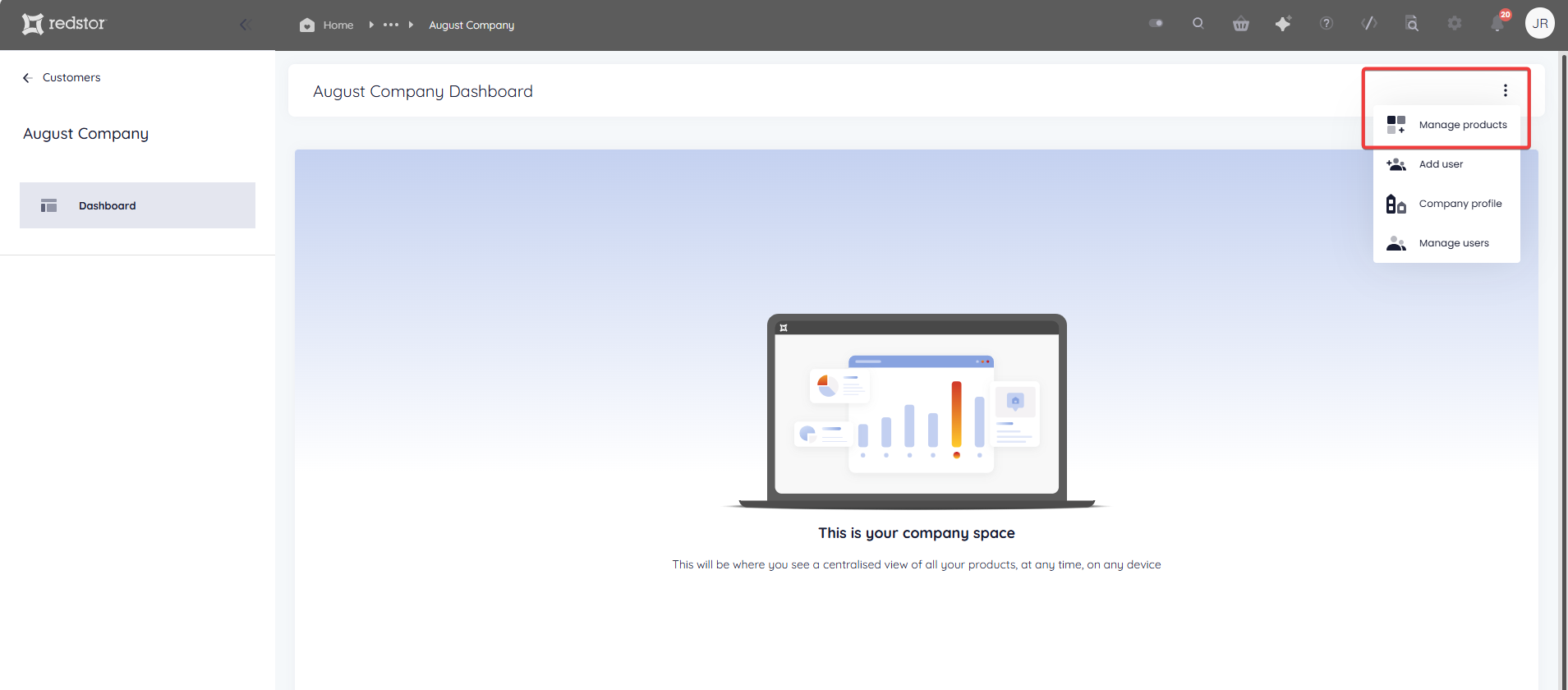
2. Expand the menu at the top right and go to Manage products.
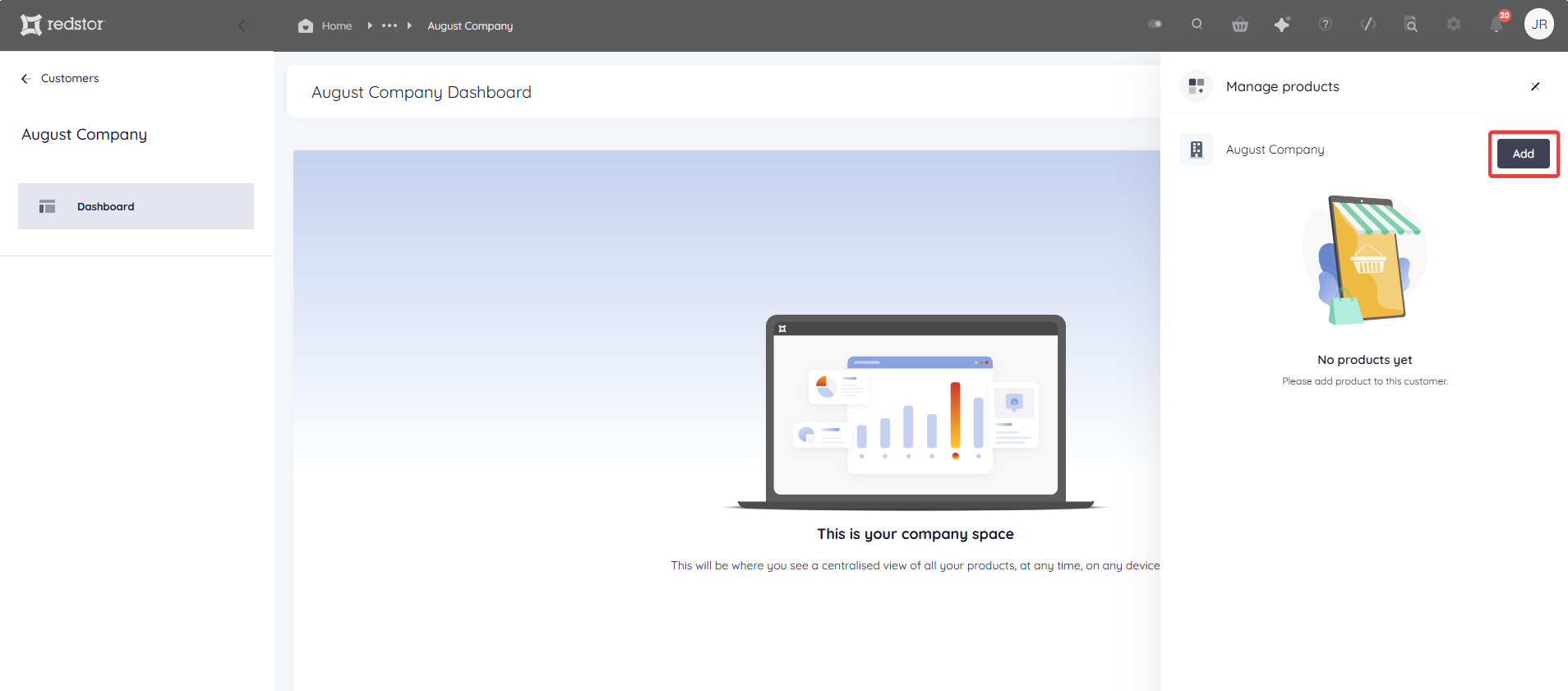
3. Click Add.
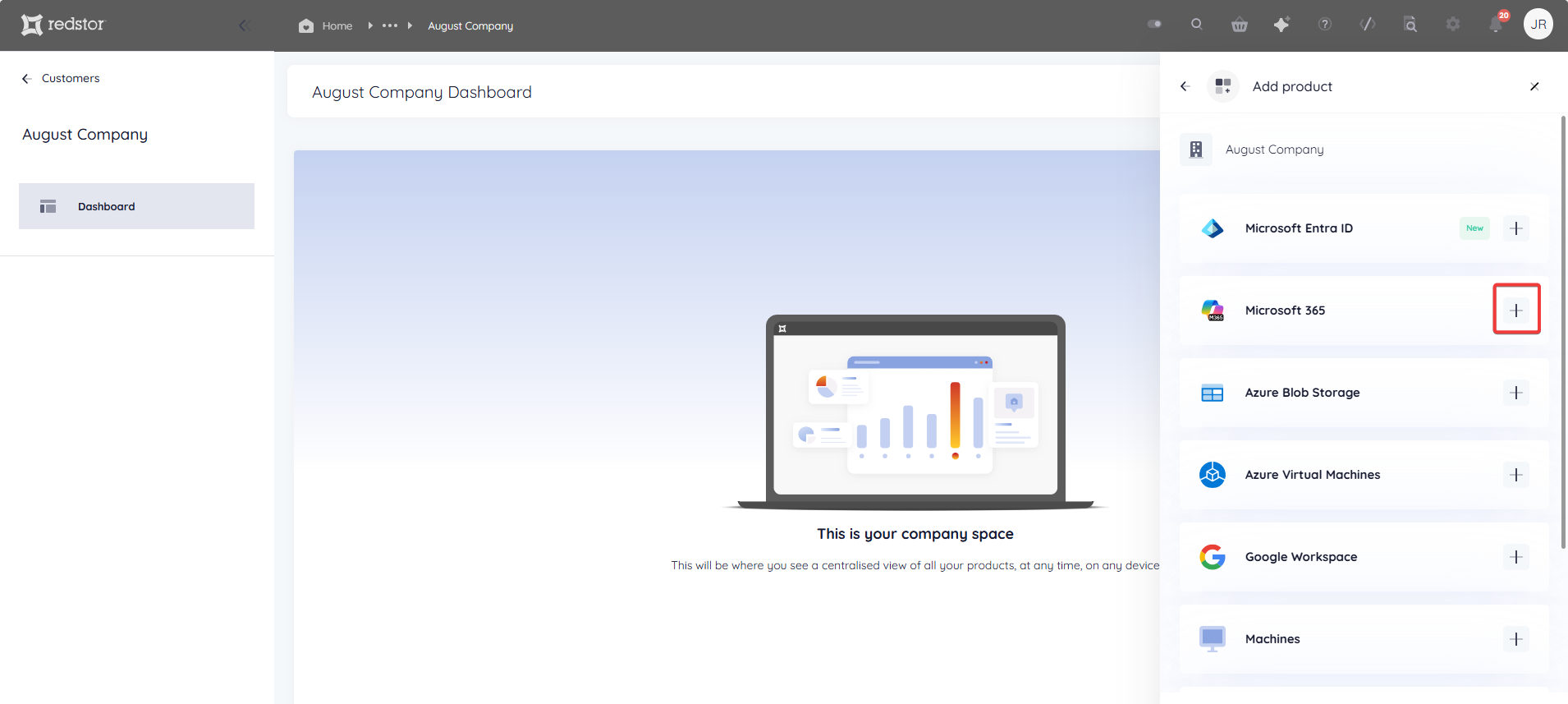
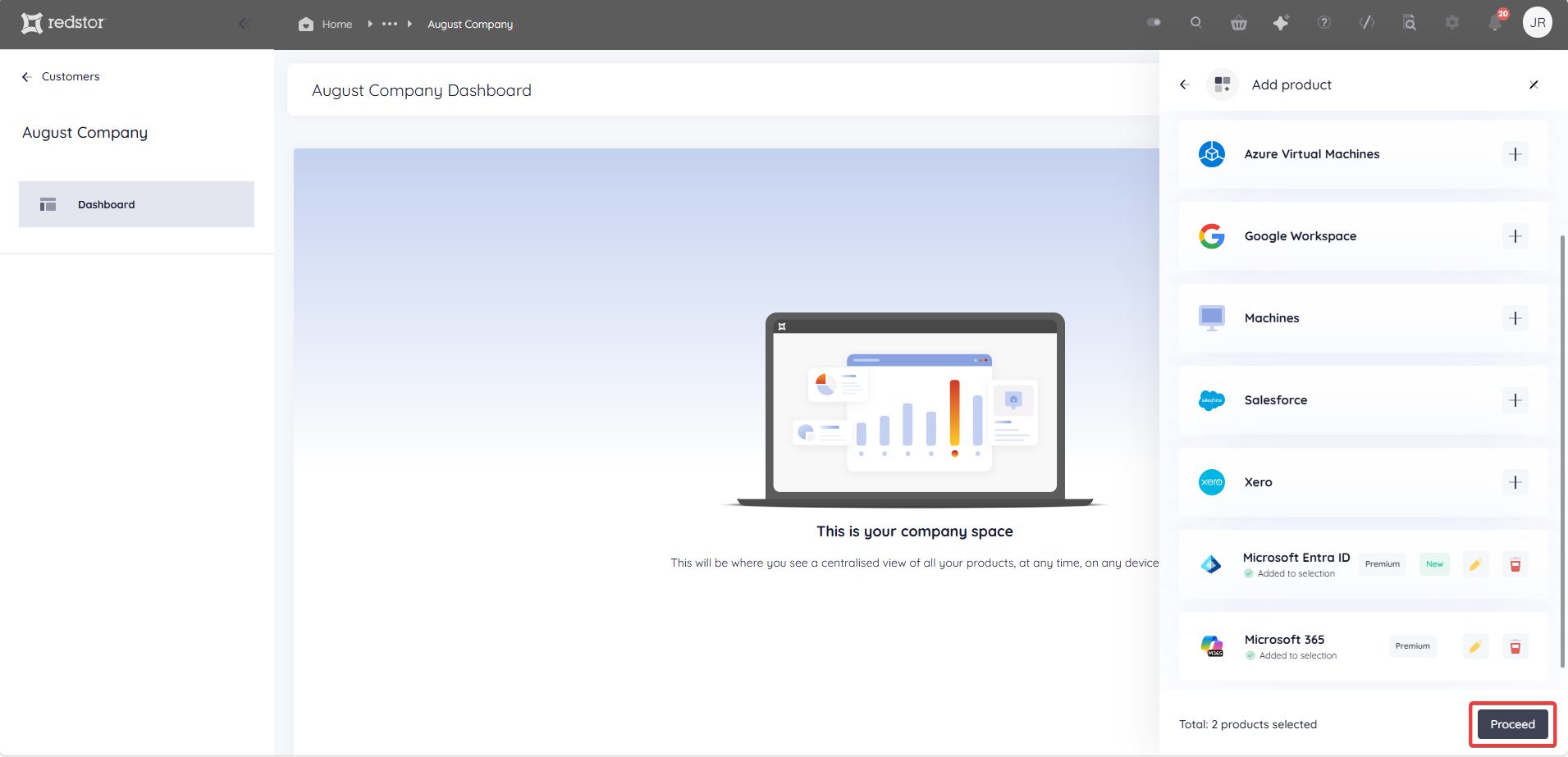
4. Click the plus sign (+) on the right for each product you want to add. When a product is added, the product entry will move to the bottom of the list.
5. Once you have added all the products you want, click Proceed at the bottom.
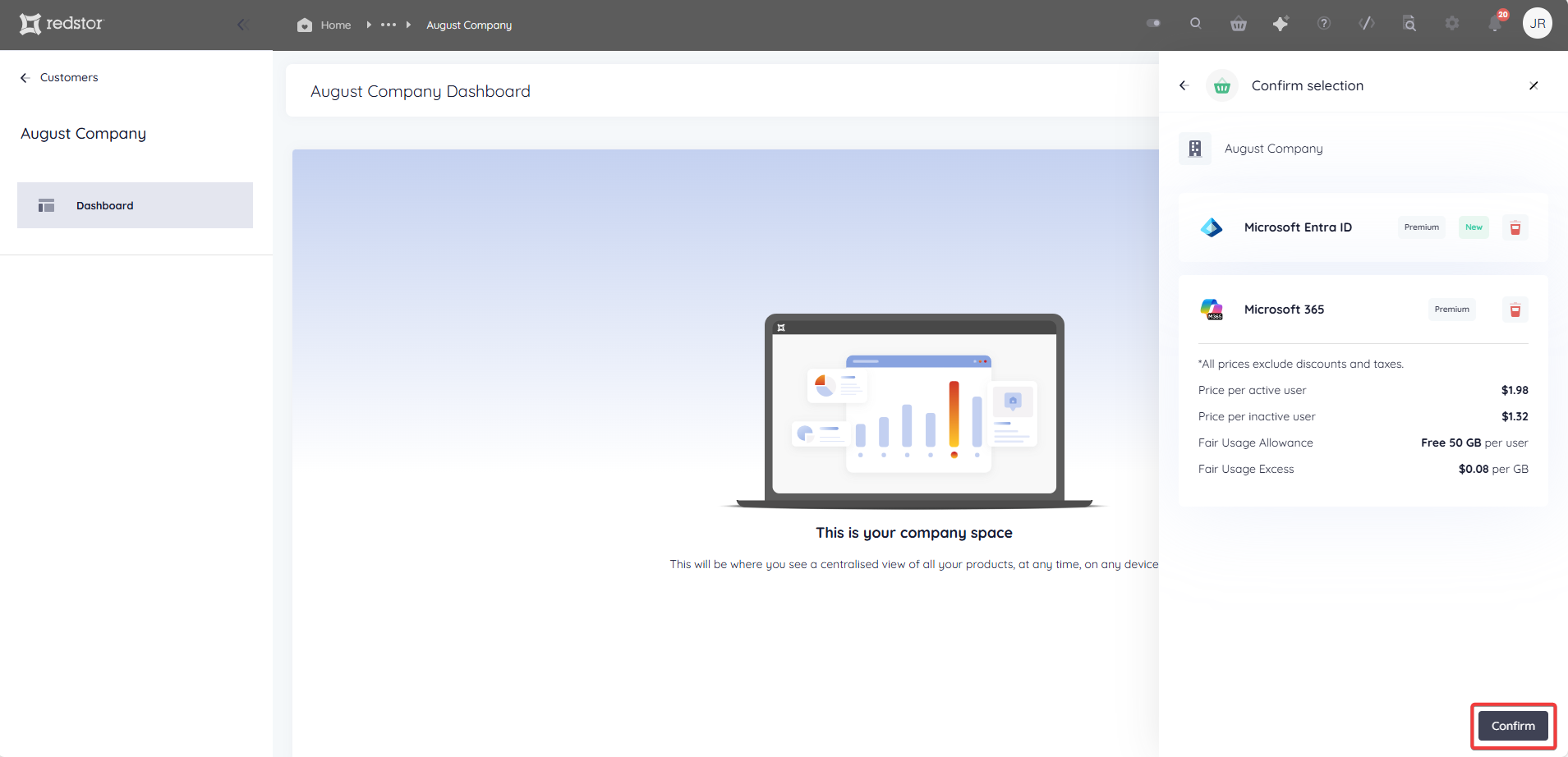
6. Review the product pricing and click Confirm. (The prices shown in the screenshot below are for illustration only.)
You will see a notification that your product/s have been added.
Note: If you encounter the error "Unable to add <product name>", clear your cache and retry the addition, or use a private browser.
- If you added one product, you will see the option Go to product.
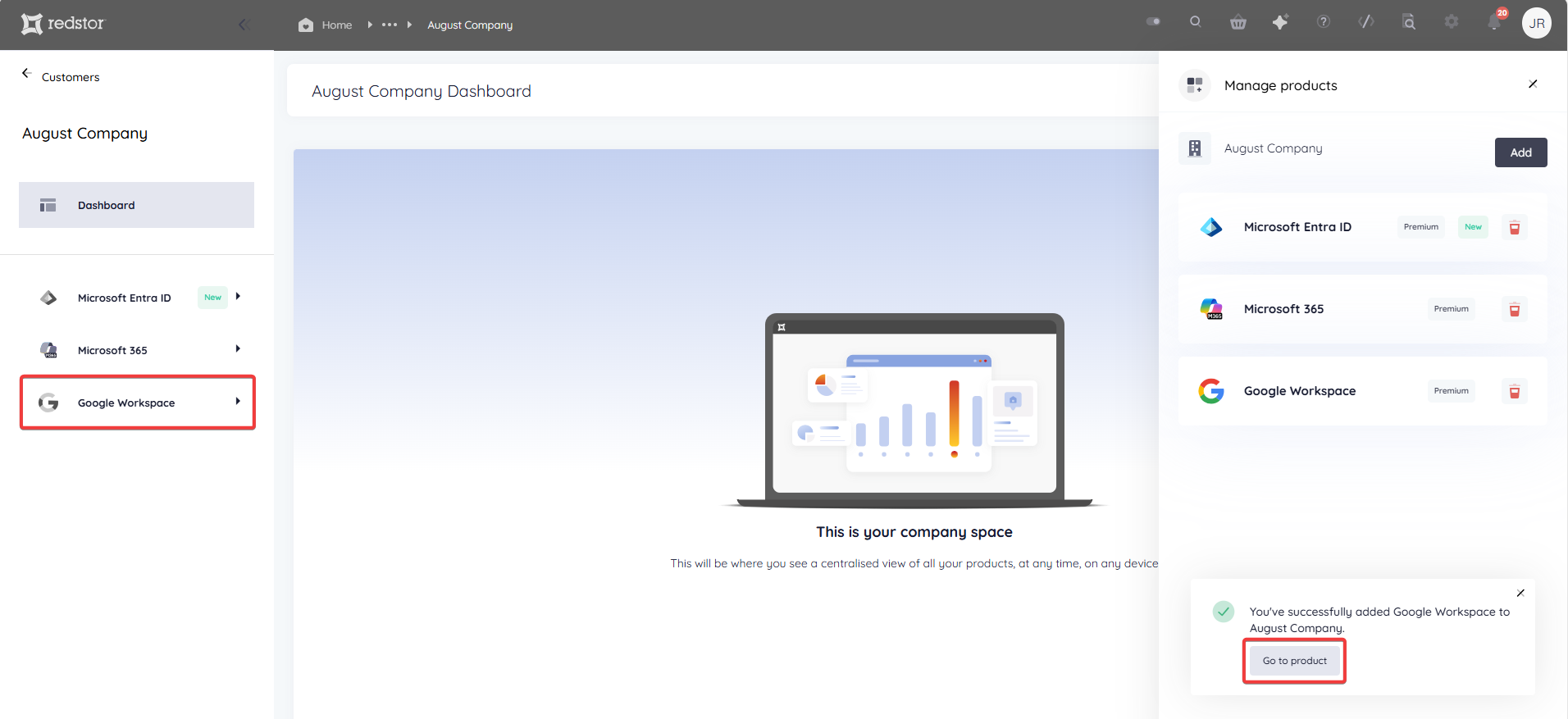 Click this button to go to the home page for the new product. From there, you can add backup sets and users for the product. Note that a product home page may take a few moments to become accessible.
- If you added multiple products, you will see the option Go to company.
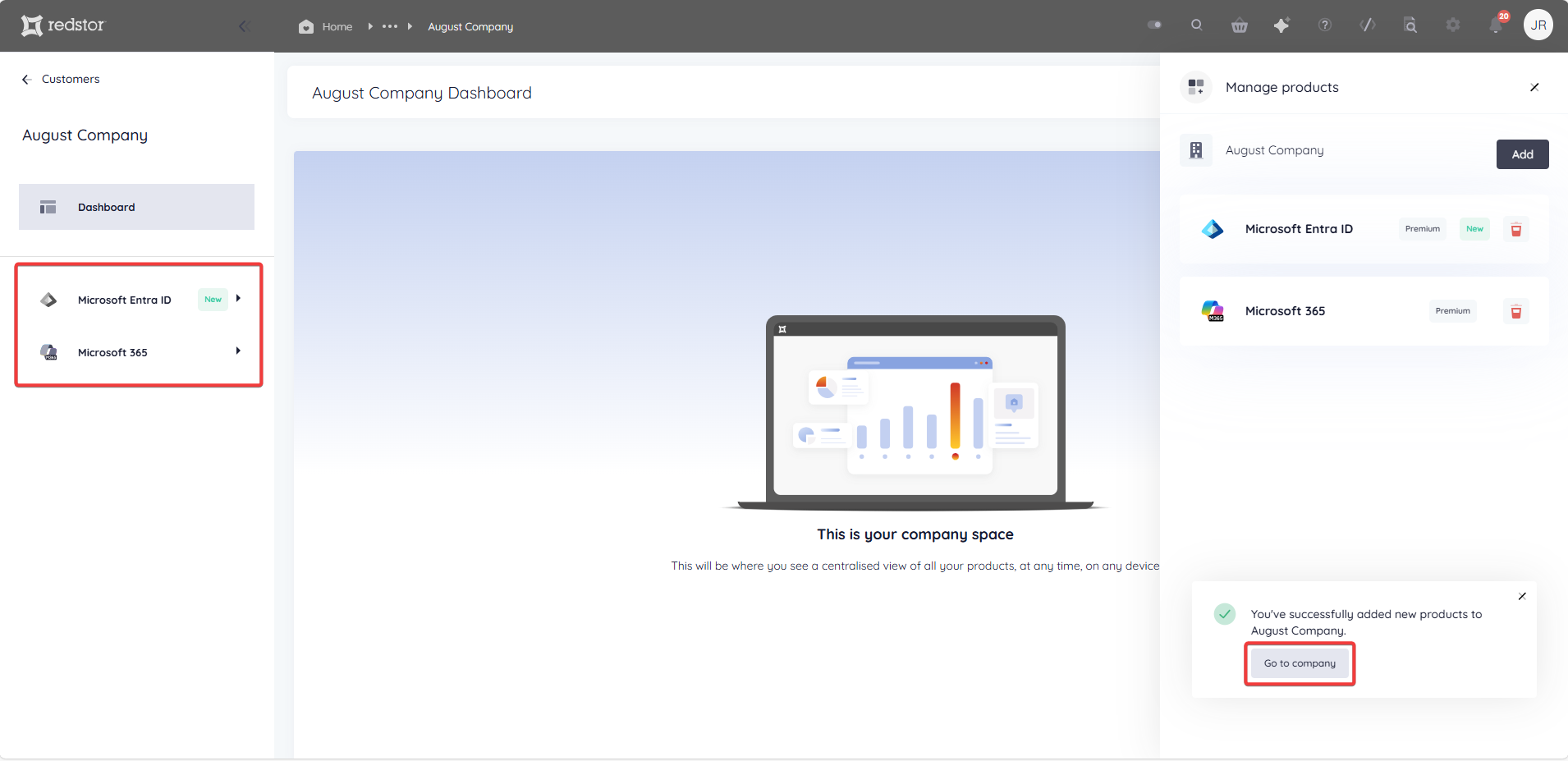 Click this button to close the products menu and return to your company dashboard. Your new products will be visible in the sidebar on the left.
You can access a product home page at any time by clicking on the product listing in the sidebar on the left.
How to remove a product from a partner/customer
1. In the RedApp, go to the home page for the customer company you want to add backups for. Click on the search icon at the top right to find a specific customer.
2. Expand the menu at the top right and go to Manage products.
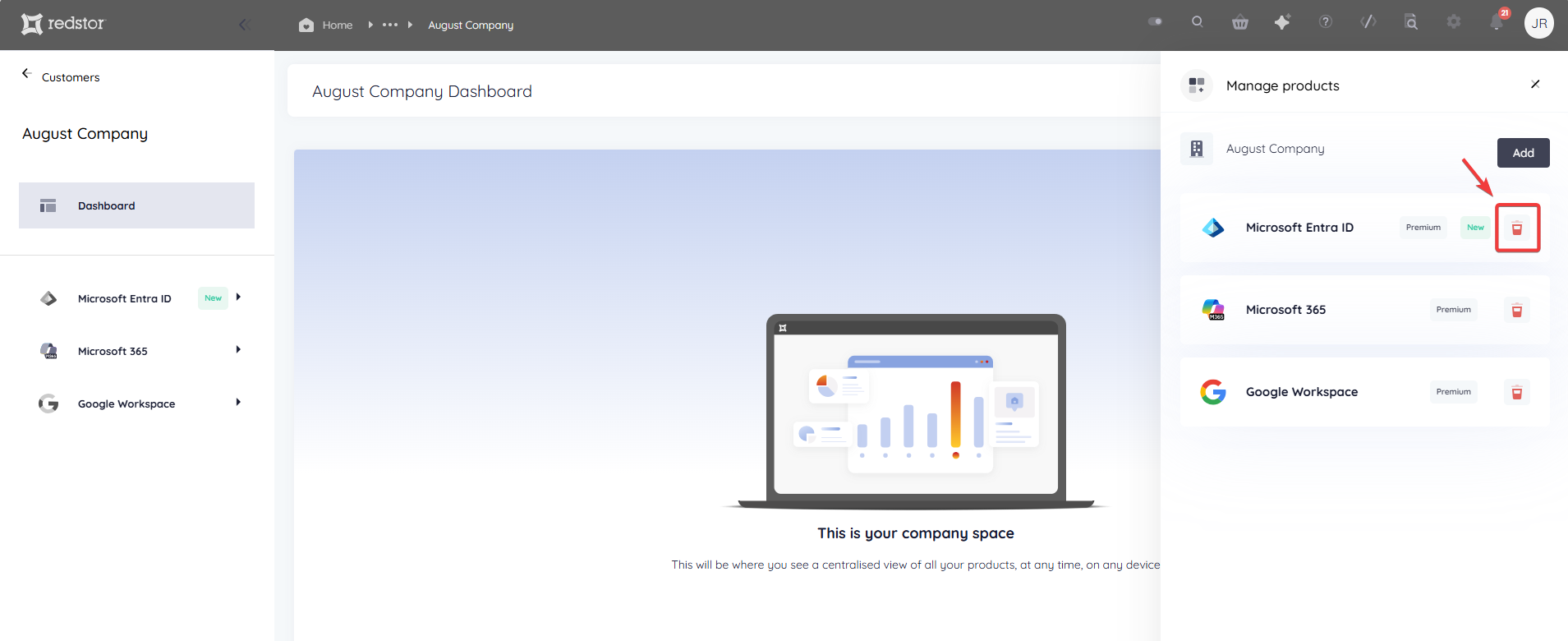
3. In the product list that appears, locate the product you want to remove and click on the bin icon to its right.
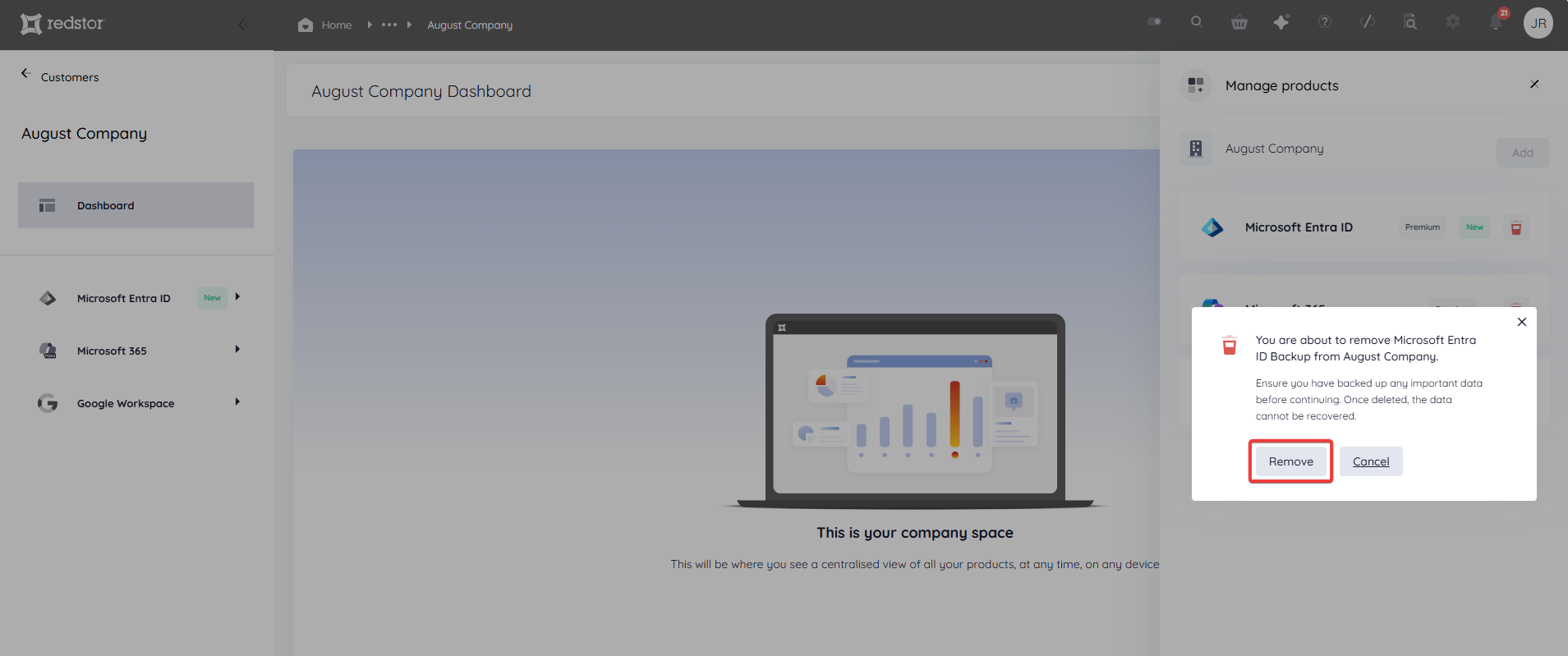
4. Click Remove to confirm.
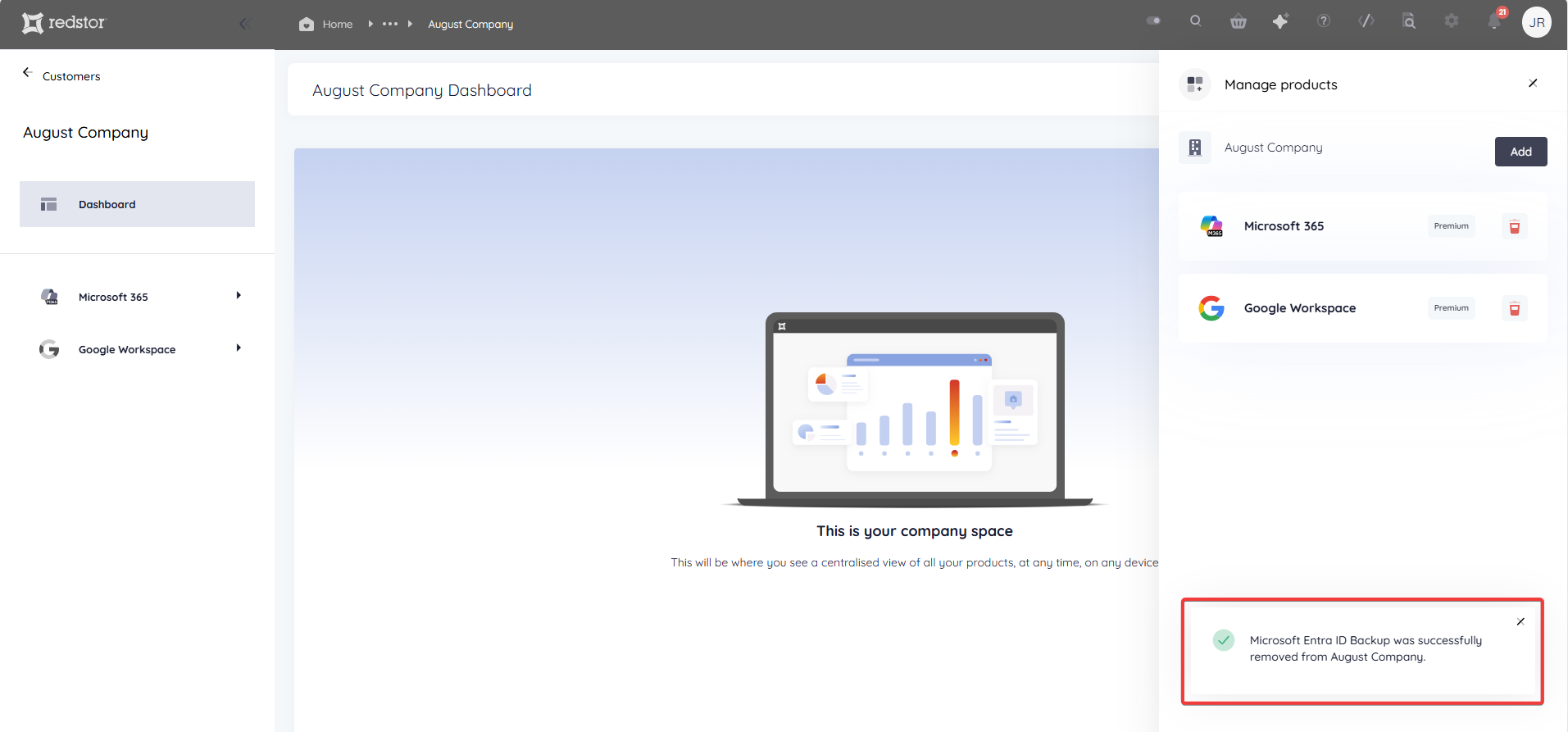
You will see a notification that the product has been removed. The listing for this product will no longer appear in the sidebar.
 1.png)