
.png)




Our bring your own key (BYOK) management functionality lets you integrate the management of your encryption keys for Microsoft 365, Entra ID and Google Workspace data through a third-party service such as Azure Key Vault or AWS Key Management Service (KMS). We give you the option to export a master encryption key, so you can recover your data even if your KMS or a cloud service becomes inaccessible.
Note: If you want to export your encryption key without adding third-party key management, follow the steps in Article 1655.
Before you begin
- If you are setting up Azure Key Vault, follow the steps in Article 1654.
- If you are setting up AWS Key Management Service, follow the steps in Article 1663.
How to set up key management
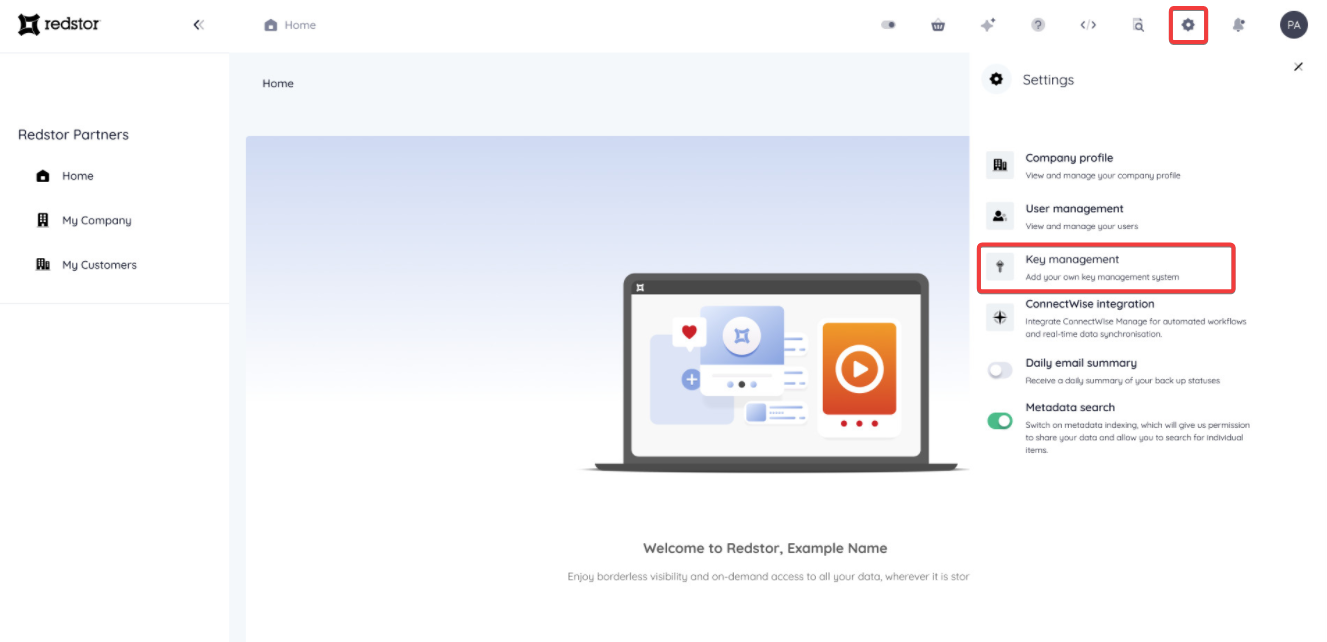
1. In the RedApp, go to Settings > Key management.
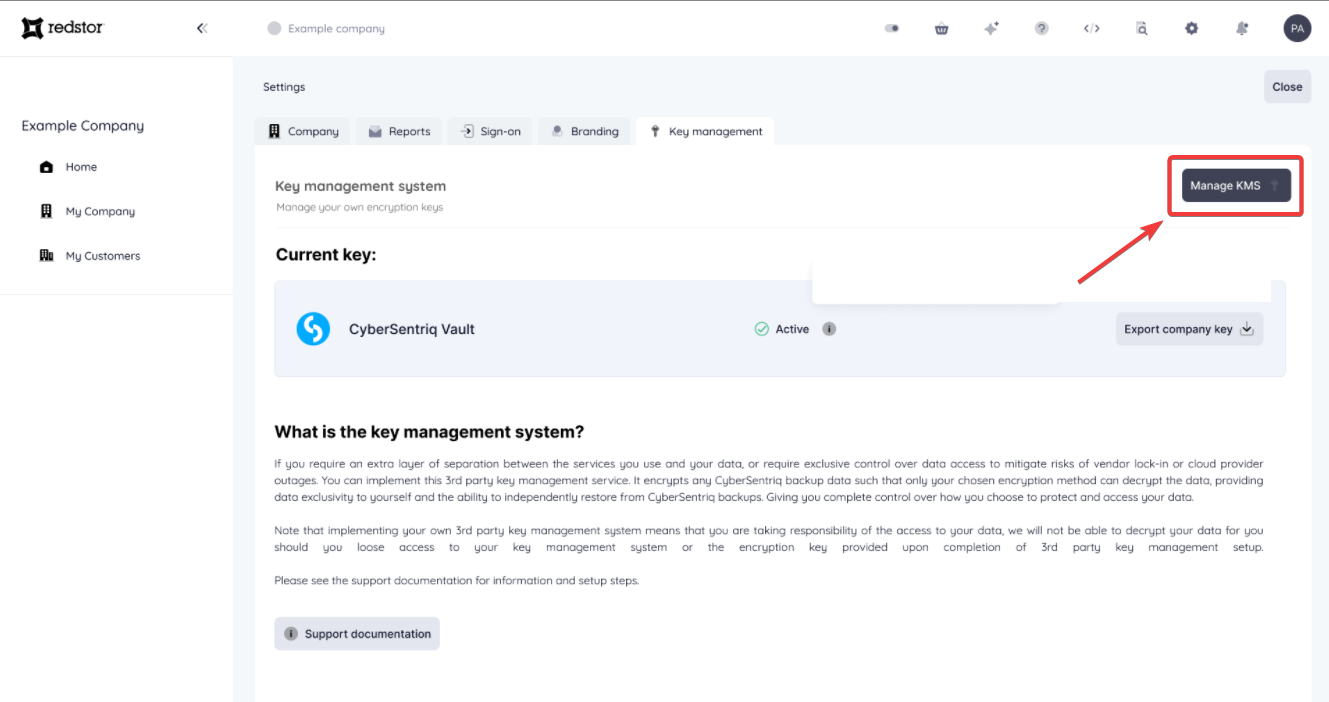
2. Click on Manage KMS at the top right.
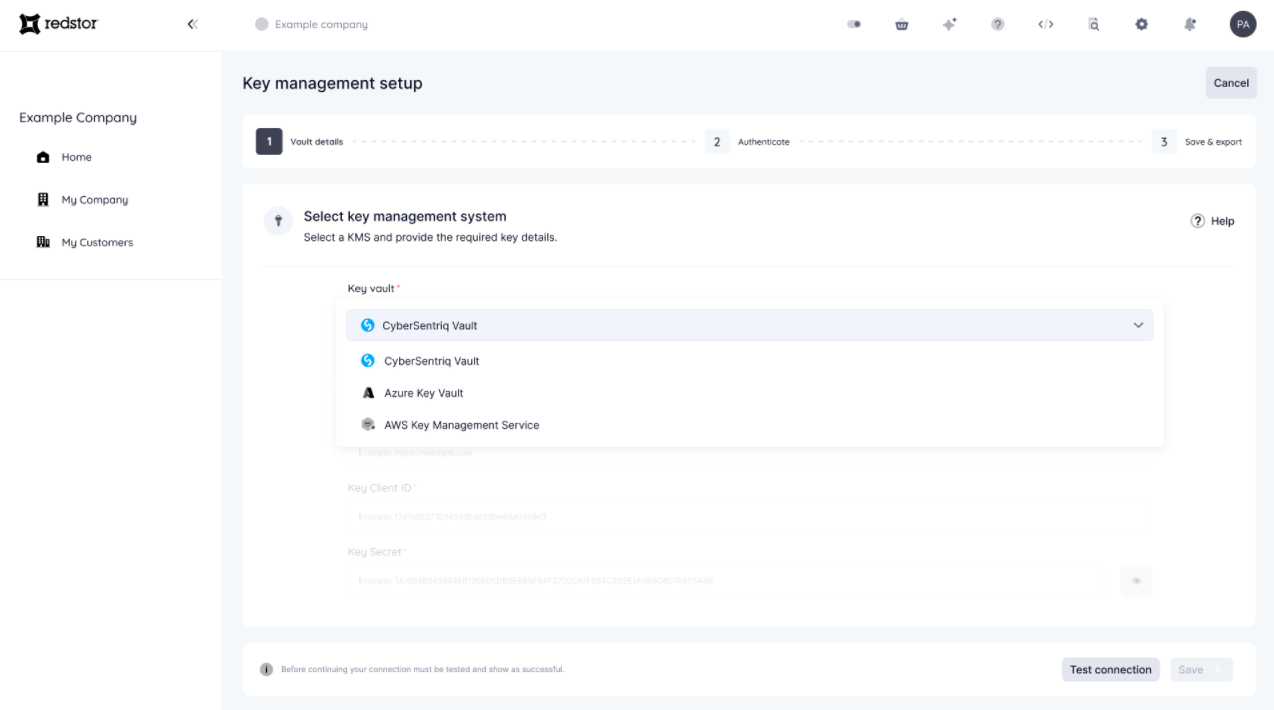
3. Select a key management system (KMS).
4. Enter the details for your provisioned KMS and click Test connection.
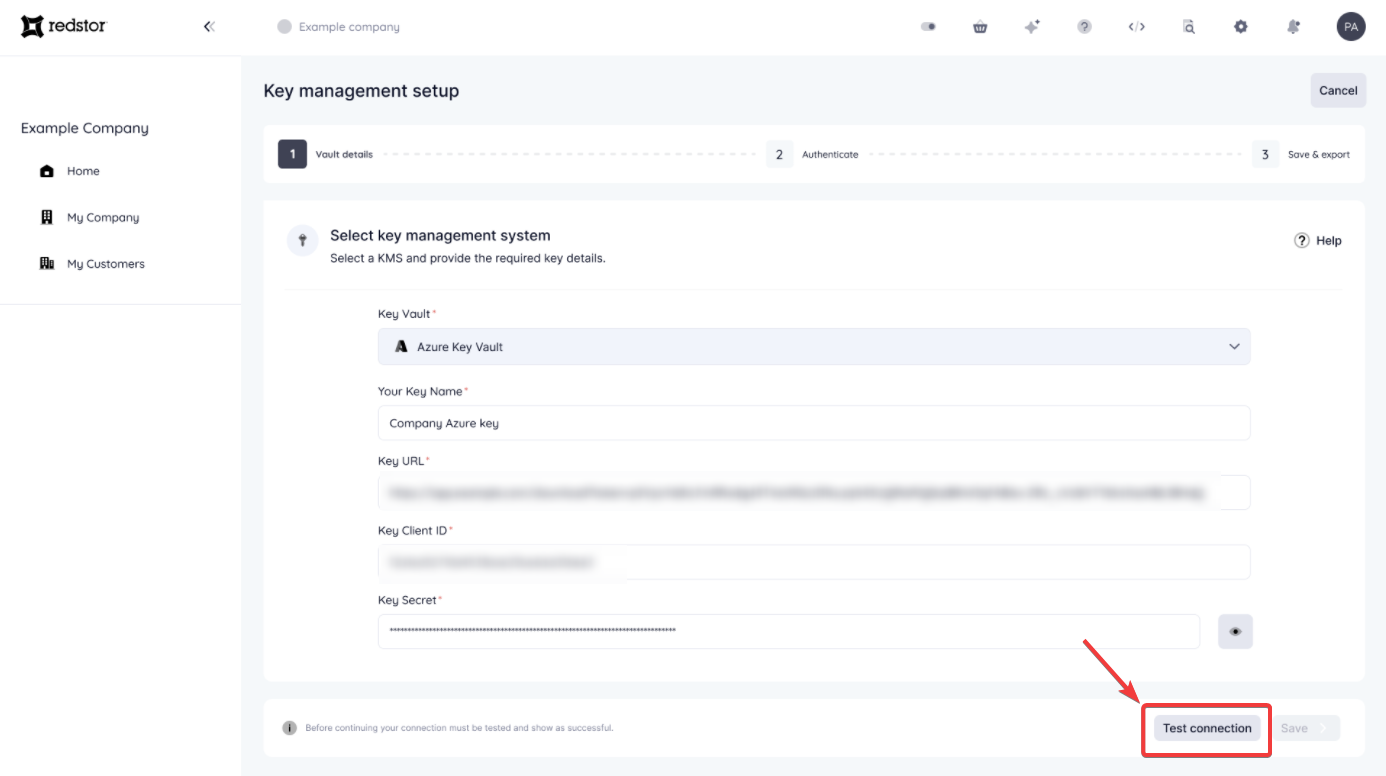
You will now need to grant consent for a service principal to be created in your Azure tenant. After admin consent is granted, a service principal called CyberSentriq KMS Connector will appear in your Azure tenant. Your Azure admin must then assign this service principal the Key Vault Crypto User role on your Key Vault by following the steps in Article 1654.
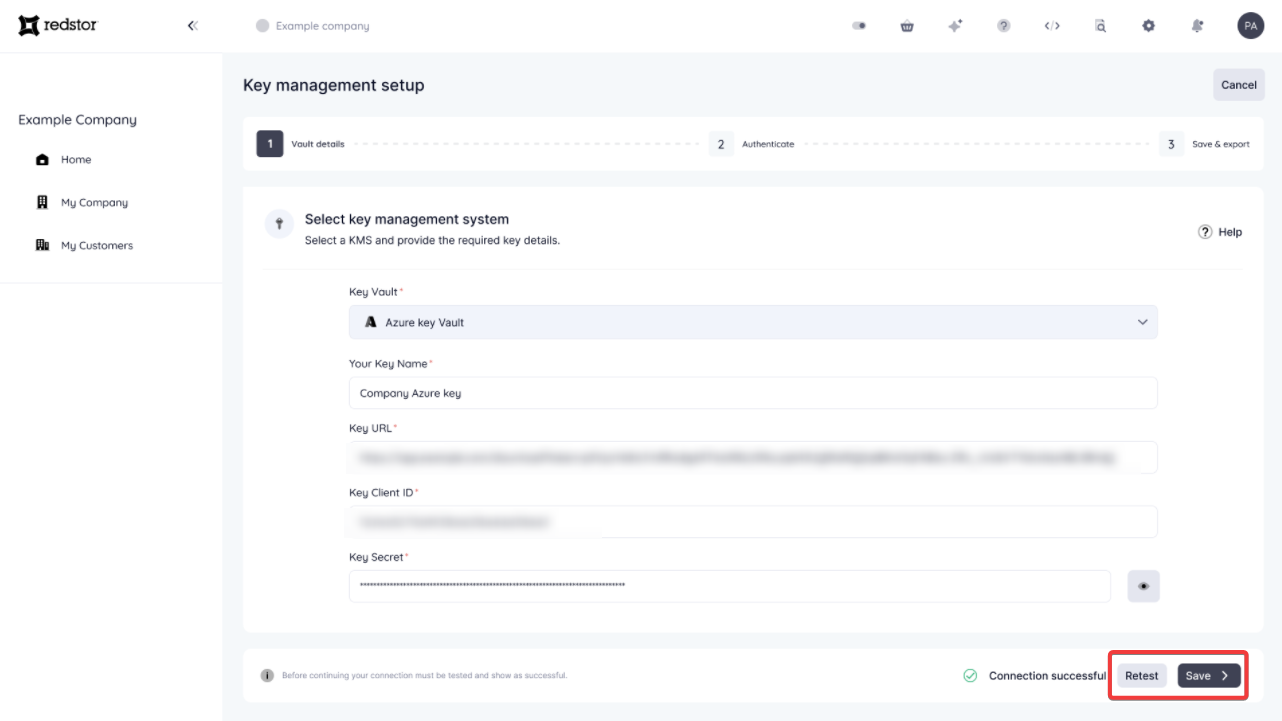
Once the role has been assigned, you can reattempt the connection test. If the connection is successful, click Save to proceed.
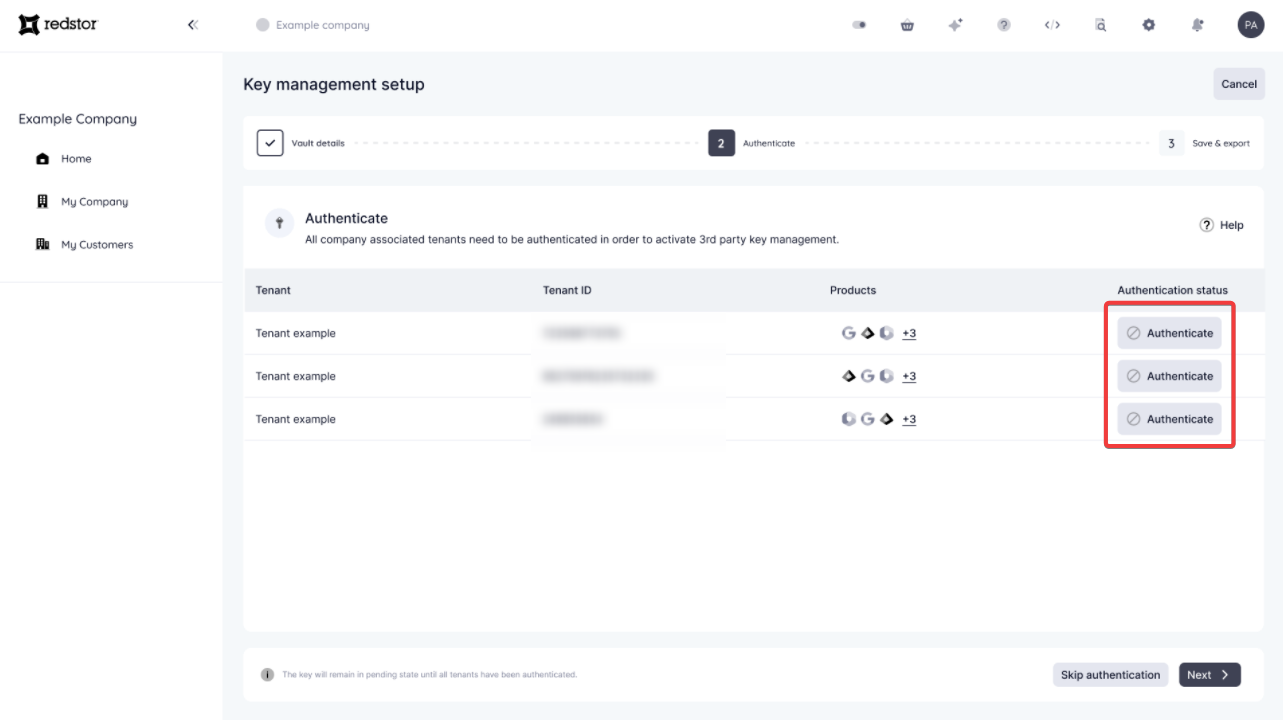
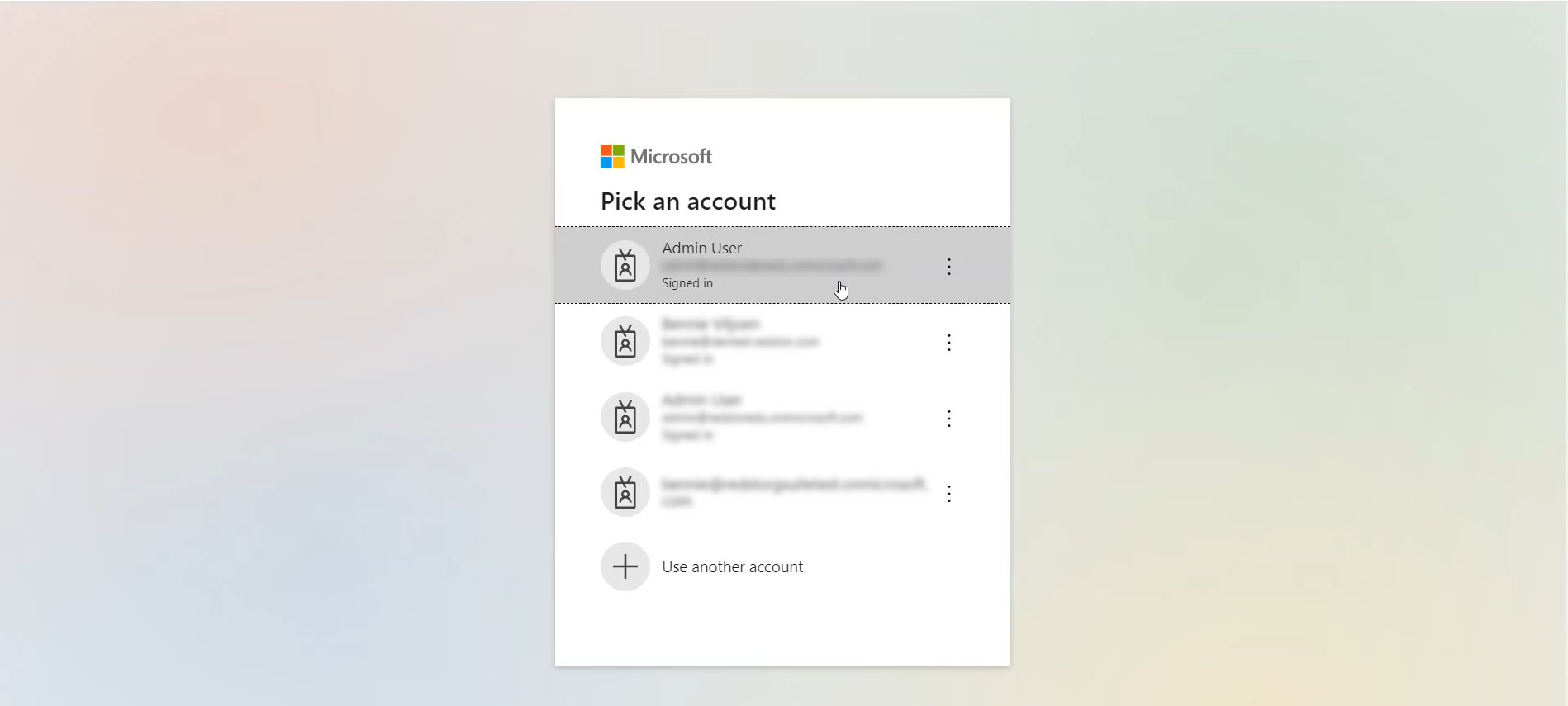
5. You will now need to authenticate all tenants associated with your organisation. For each tenant, click Authenticate and then sign into Microsoft.
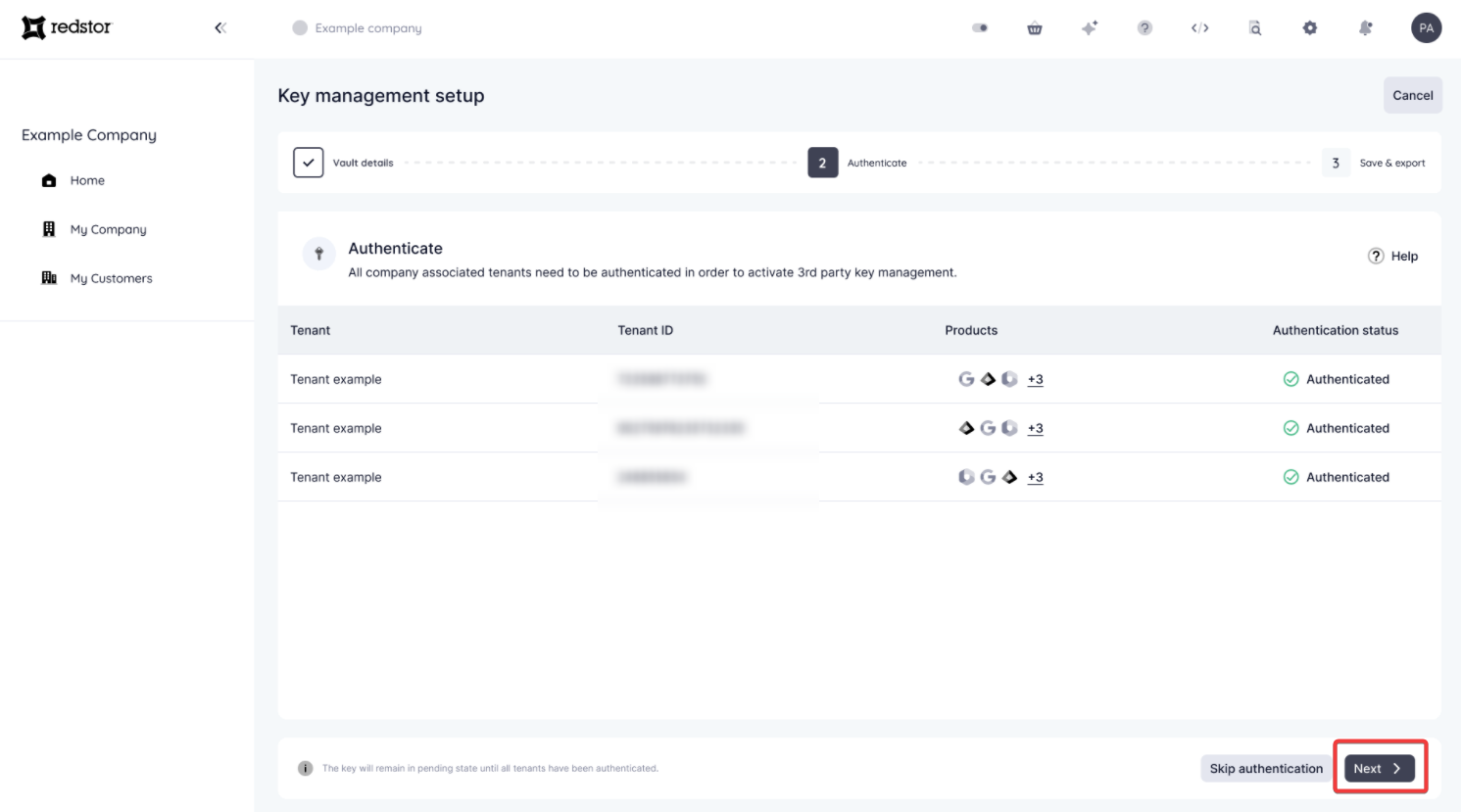
Once all tenants have been authenticated, click Next.
6. Enter a passphrase of maximum 16 characters. You will need to present this passphrase whenever you use your encryption keys. When you're ready, click Export key.
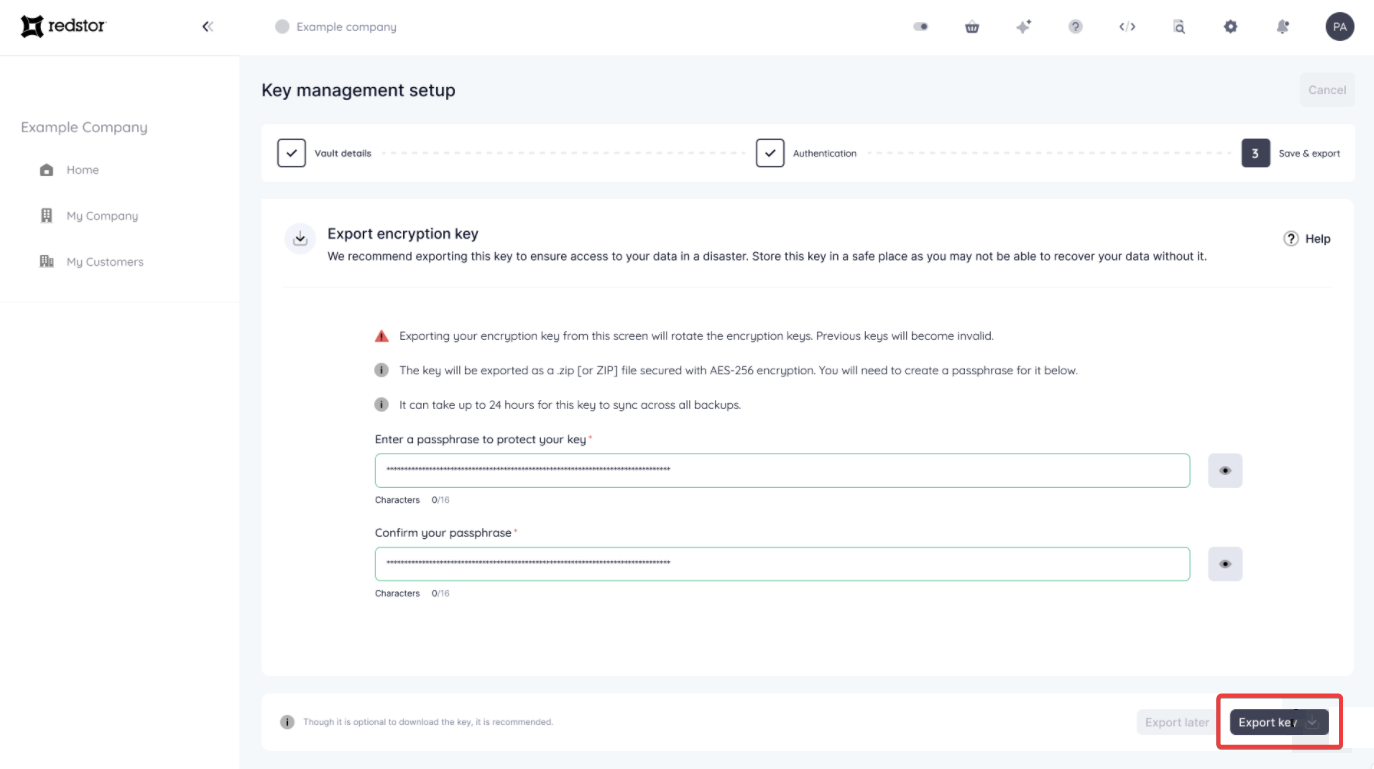
You will see a notification if your export was successful. If the export is unsuccessful after multiple attempts, you can log a ticket with our support team.
 1.png)