
.png)




Pattern filtering lets you block or accept messages based on patterns that appear their contents. Admins can set patterns in the form of "contains" and "regex" rules for email subject, header, and/or body, and decide what happens to mail that contains these patterns.
Rules can be added from the MSP or Customer level. Customers inherit MSP rules, and they cannot edit or delete these inherited rules. However, customers can add, edit and delete their own rules, which do not affect the MSP.
Where two pattern filtering rules overlap, a rule where the Action is set to Remediate (block) takes precedence over a rule where the Action is set to Deliver (allow).
PAGE CONTENTS
- How to add a rule
- How to edit a rule
- How to delete a rule
- How pattern filters work with your other security checks
Find pattern filtering under Email Security > Configuration > Pattern filtering.
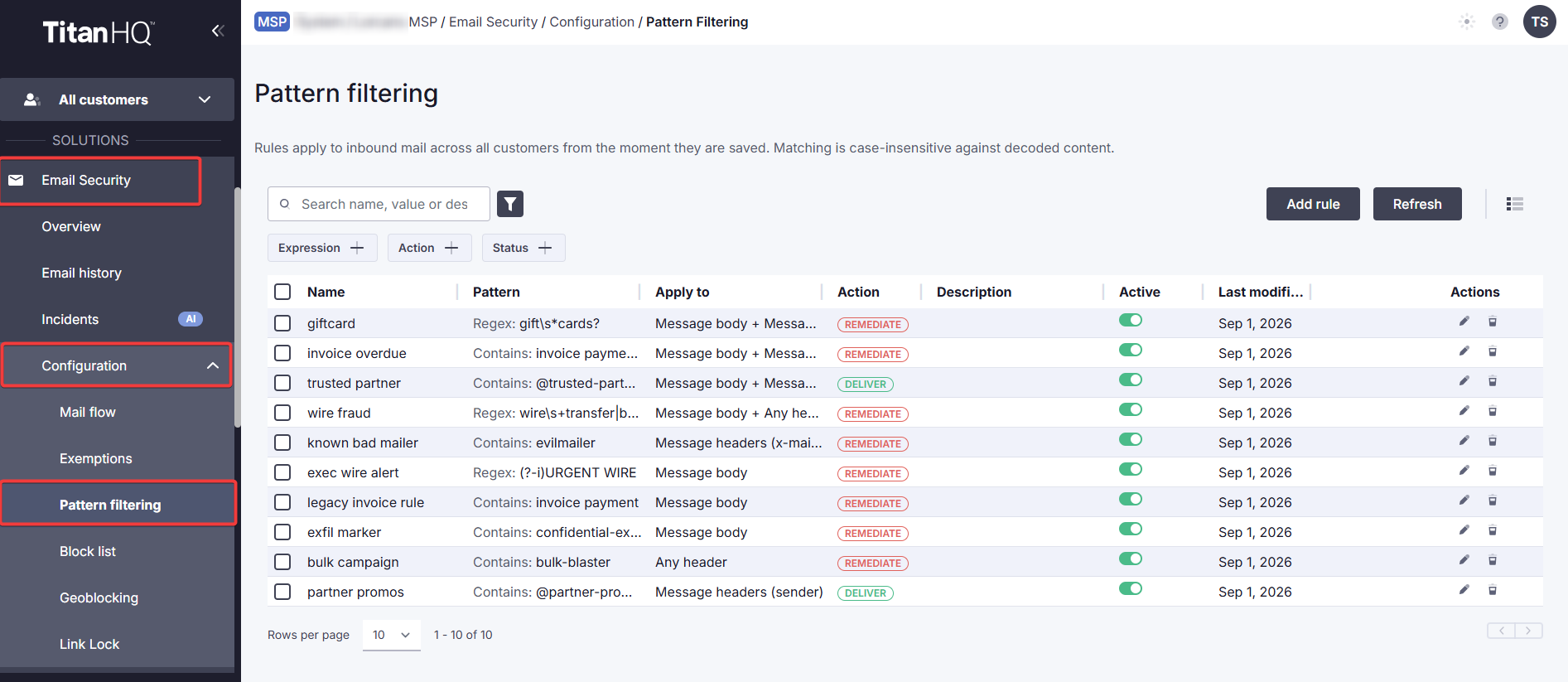
How to add a rule
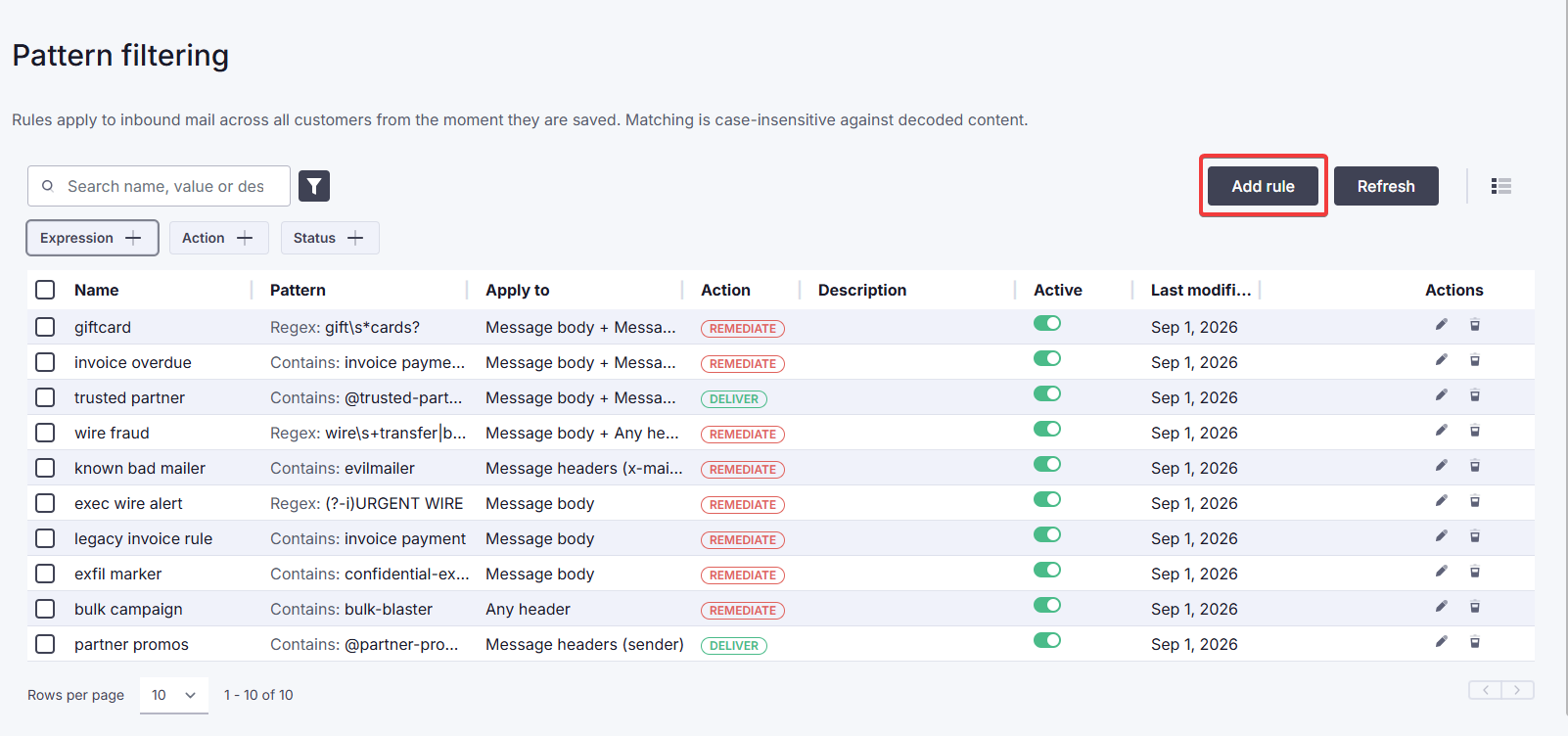
1. On the Pattern filtering overview, click Add at the top right.
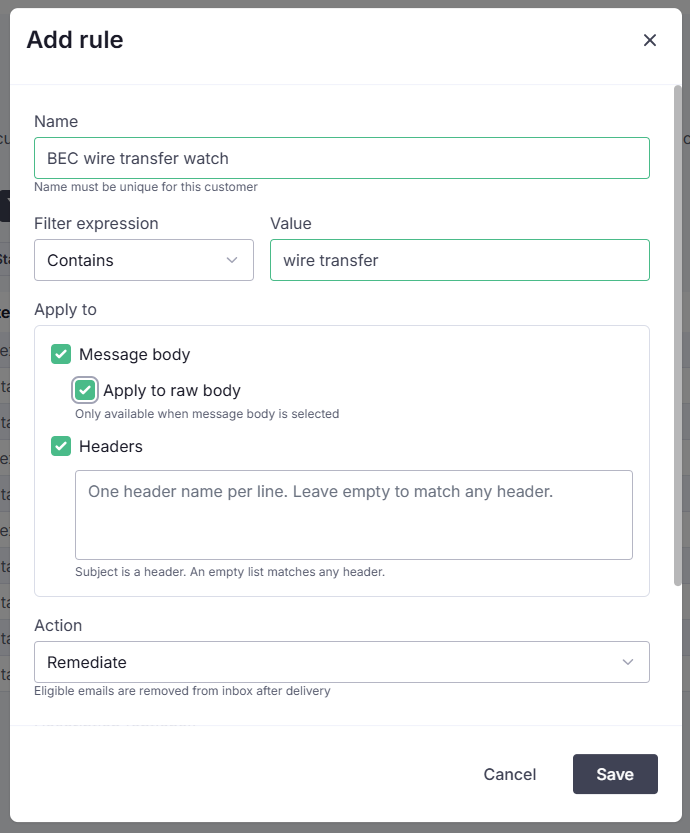
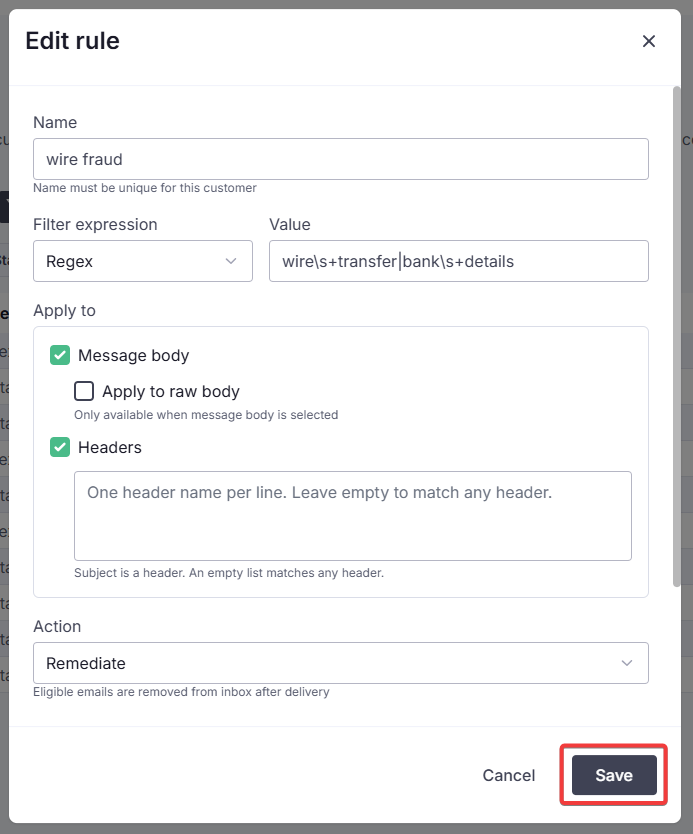
2. Enter a name for the rule. Select which type of expression to filter by (Contains or Regex) and the value to filter on. Select if the rule should apply to the message body, raw message body, and/or headers.
3. Under Action, select the action to take when an email meets the criteria for this rule. Remediate (default) removes eligible emails from your inbox after delivery.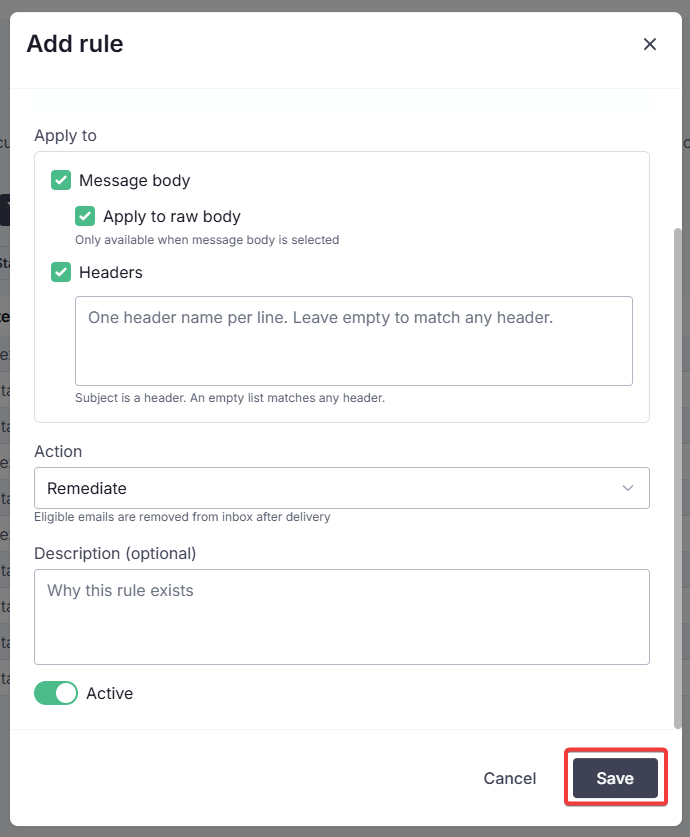
The rule will be active by default, but can be disabled now or at any time by editing the rule. When you're ready, click Save.
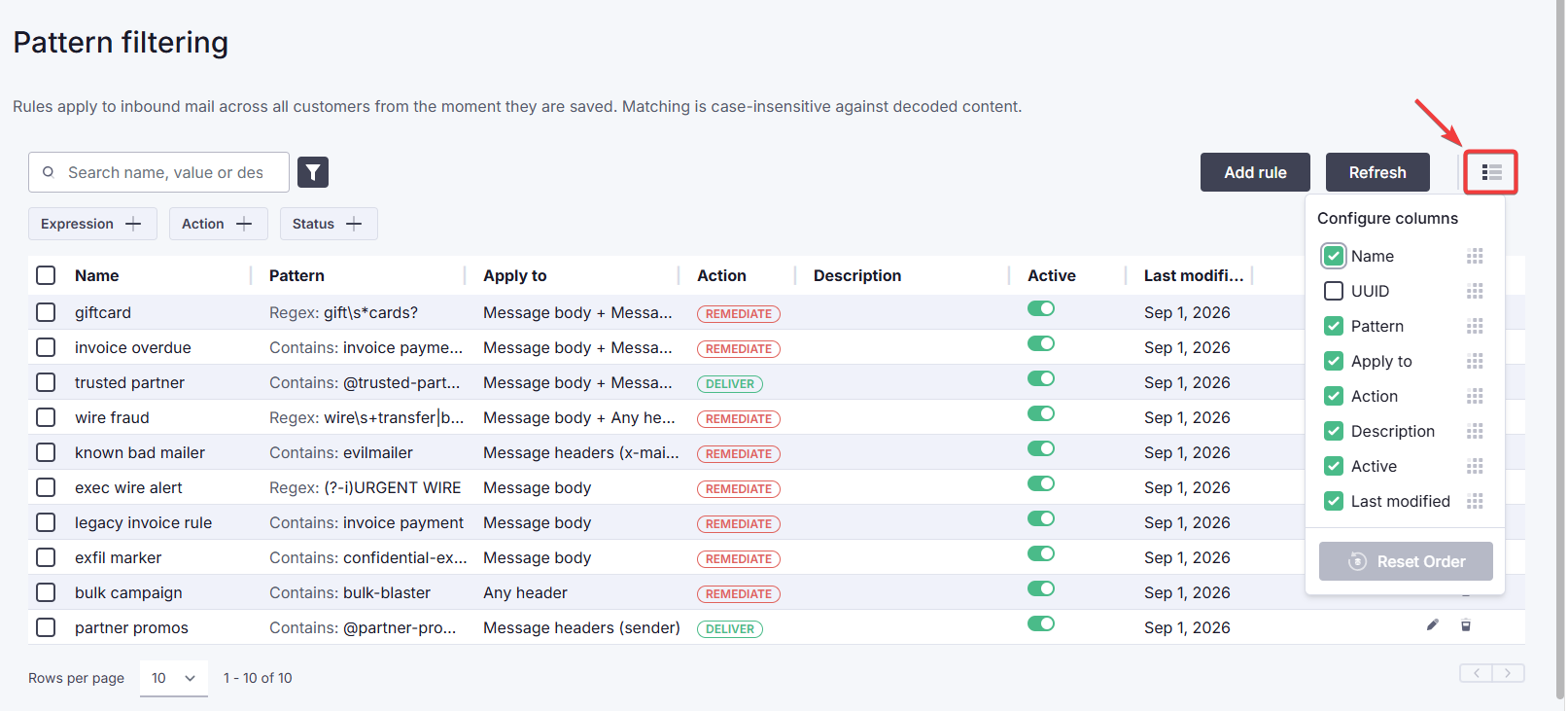
The new rule will now appear in the pattern filtering table. You can customize the table columns by clicking on the columns icon.
How to edit a rule
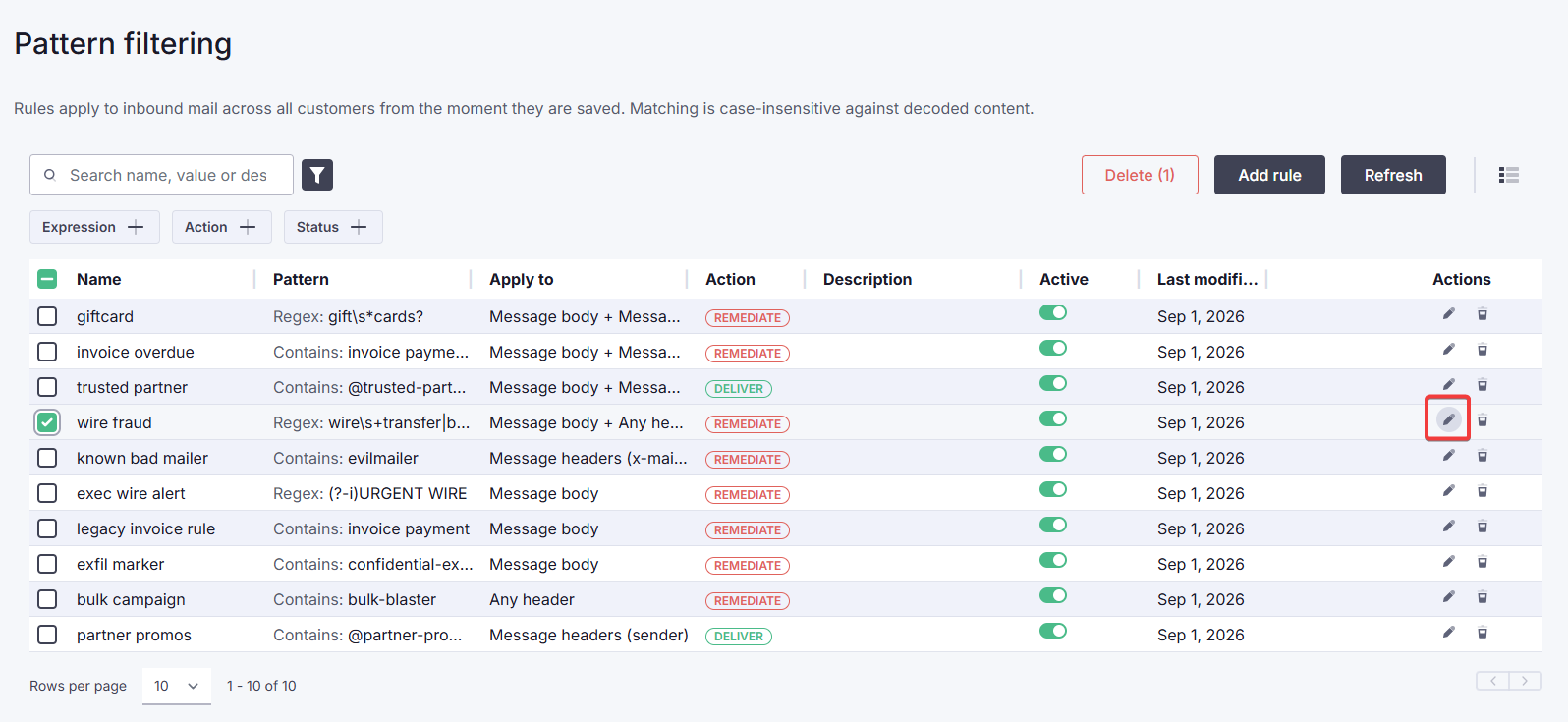
1. Locate the rule in the table. In the Actions column, click on the edit icon.
2. Update the details as needed and click Save.
How to delete a rule
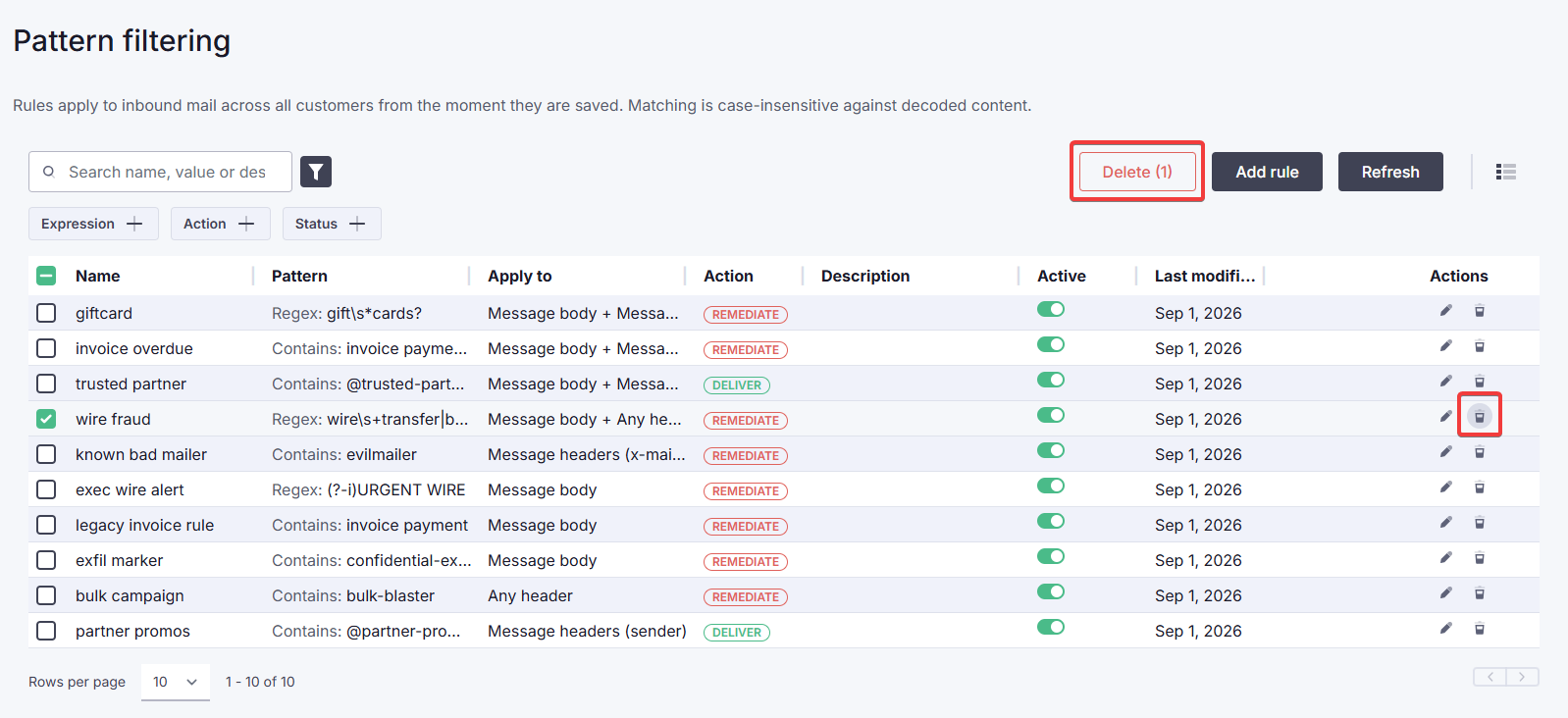
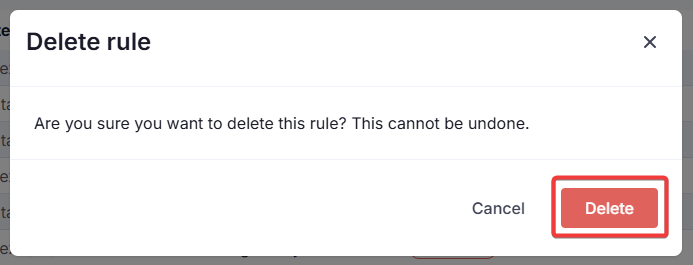
1. Locate the rule in the table. Click Delete at the top right, or click the delete icon in the Actions column.
2. Click Delete to confirm.
How pattern filters work with your other security checks
Pattern filter rules give you deterministic control over how mail is classified. A Deliver rule tells the Email Security service that mail matching your pattern is trusted and should skip spam, graymail, and phishing classification.
However, every message is still scanned for malware and malicious attachments before your rules are applied, and anti-spoofing checks still run. If a threat is detected, the message is handled according to that detection, even if it matches one of your Deliver rules. This is because the content a rule matches, such as a subject line, can be written by anyone, including an attacker. A pattern match is a reliable way to correct how legitimate mail is classified, but it is never treated as proof that a message is safe.
In summary:
- Malware scanning and malicious-attachment scanning always run and cannot be bypassed by any rule.
- Anti-spoofing checks always run. To accept mail from a specific trusted sender, create an exemption instead.
- A Deliver rule bypasses spam, graymail, and phishing classification only.
- If a Deliver rule matches but a threat is detected, the threat detection takes precedence. The message record shows both the rule match and the detection that overrode it, so you can always see exactly what happened.
- If a Deliver rule and a Remediate (block) rule both match the same message, the block rule takes precedence.
 1.png)