
.png)




PAGE CONTENTS
- How to create a new MirrorServer
- How to connect a MirrorServer to the Console
- How to add a MirrorServer to a StorageServer
- How to add a MirrorServer to another MirrorServer
How to create a new MirrorServer
To create a new MirrorServer, you will need to install one using the Storage Platform installer, available on our Downloads page.
Follow the installer wizard, but at Step 2, select Advanced Configuration and then Set up StorageServer.
You will not need to provide an activation key or specify a database.
How to connect a MirrorServer to the Console
1. In the Storage Platform Console, click the Connect button in the toolbar at the top.
2. In the drop-down list that appears, click Add MirrorServer.
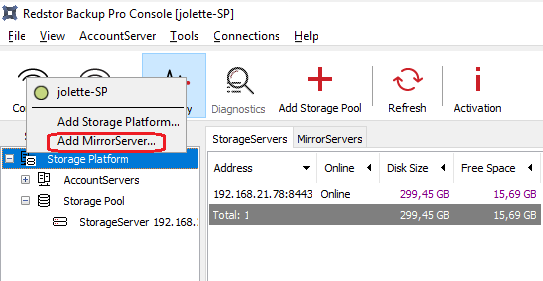
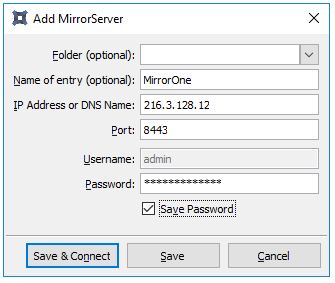
3. In the Add MirrorServer dialog box that appears, enter a display name if required, as well as the server’s IP address and the administrator password.
4. Check the Save Password box if you wish the Console to pre-populate the password box for future connections.
5. Click Save & Connect.
Note: If you have already set up MirrorServers, see Article 1111 on how to manage Mirroring.
How to add a MirrorServer to a StorageServer
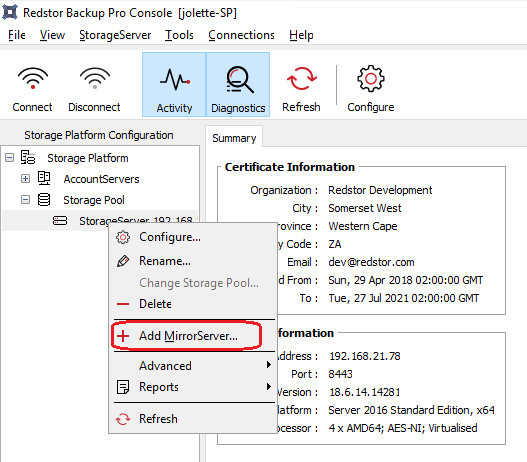
1. In the Storage Platform Configuration tree, right-click the name of the StorageServer that will be mirrored, then click Add MirrorServer.
2. In the dialog box that appears, create a name for the new MirrorServer (optional).
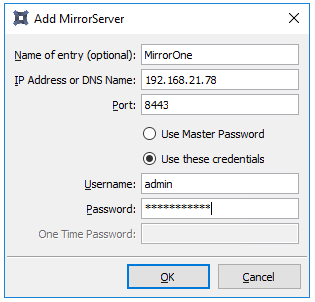
3. Enter the IP address and port number to be used.
4. Select the login credentials you wish to use. If necessary, type the login details in the boxes provided.
5. In the One Time Password field, enter the server GUID.
- To obtain this, open the settings.xml file located in C:\ProgramData\Attix5 Pro\SS_Service\.
- If the folder C:\ProgramData is not visible, go to the View tab in your file explorer and tick the box Hidden items in the Show/hide section. The folder should become visible.
- Find the ServerGuid entry in the settings file and copy the entire alphanumeric string within it (the format will be something like a40b136e-b8b1-4326-b1d2-c27d301kd2e5). Paste this into the One Time Password field.
Once you have entered the GUID, click OK.
6. In the Configure StorageServer dialog box that appears, configure the settings as explained in Article 1110. The MirrorServer node will appear in the Storage Platform Configuration tree once you refresh the Console.
How to add a MirrorServer to another MirrorServer
1. In the Storage Platform Configuration tree, right-click the MirrorServer name and click Add MirrorServer.
2. In the dialog box that appears, enter the name of the new MirrorServer (optional). Enter the IP address and port number to be used, as well as the Administrator password.
3. Select the Save Password check box if you wish the Console to pre-populate the Password box for future MirrorServer additions.
4. Click Save & Connect. The MirrorServer node will appear in the Storage Platform Configuration tree once you refresh the Console.
 1.png)