
.png)




You can use the RedApp to create and manage users for your own organisation and for partner/customer organisations. A user can be assigned customised access (e.g. to a specific product, customer, or group of customers) and customised permissions (e.g. add/edit/delete information, or view only). If a user has been given the required level of permissions, they can also manage other users (e.g. change their permissions or assigned products). Read more about the different types of RedApp user roles in Article 1423 - RedApp user roles.
User access to the RedApp, as well as certain data-related actions, are secured with two-factor authentication (2FA). If you do not have one already, you will need to install an authenticator app such as Microsoft Authenticator or Google Authenticator on your mobile phone.
PAGE CONTENTS
How to add a user
Watch our video or follow the steps below.
How to add a partner user
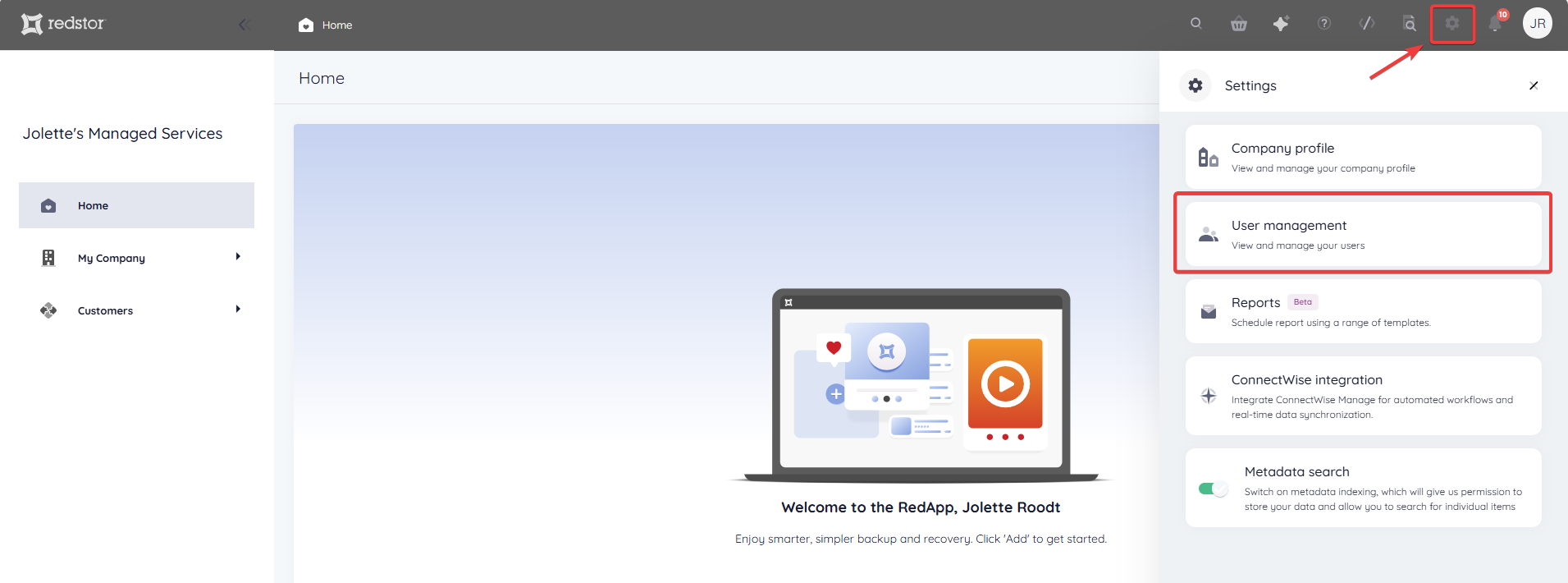
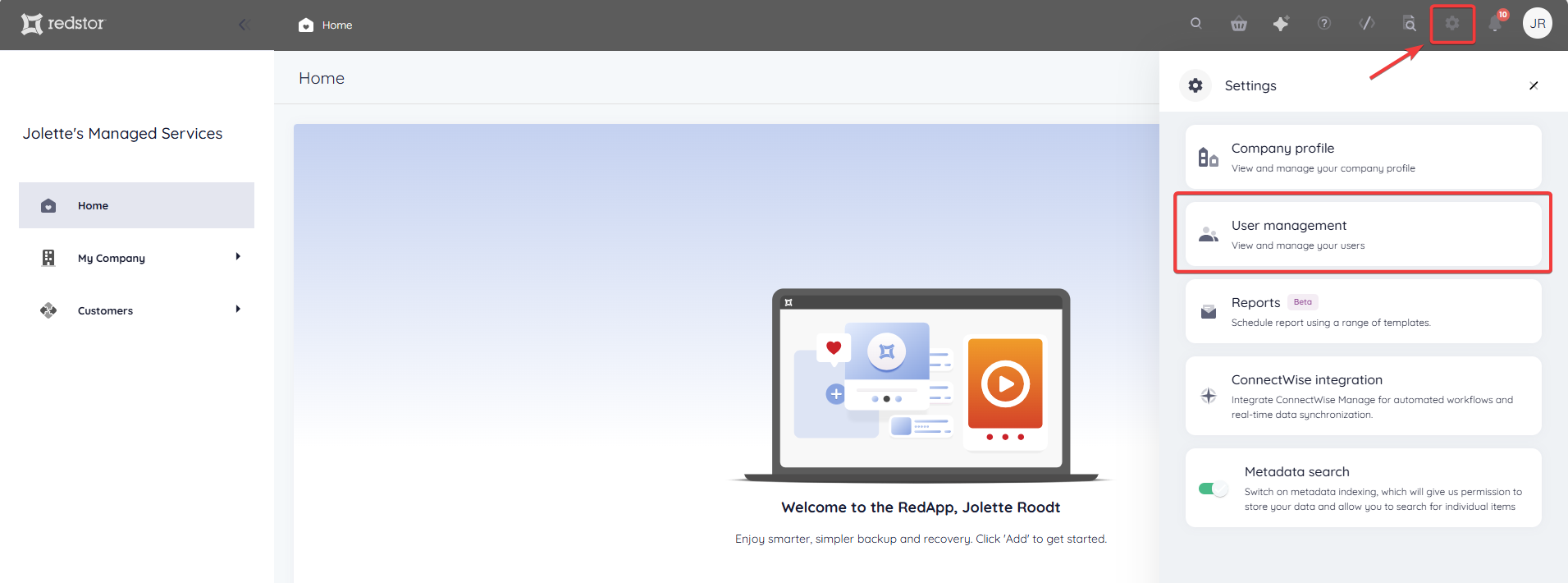
1. In the RedApp, click on Settings (cog icon) at the top right and go to User management.
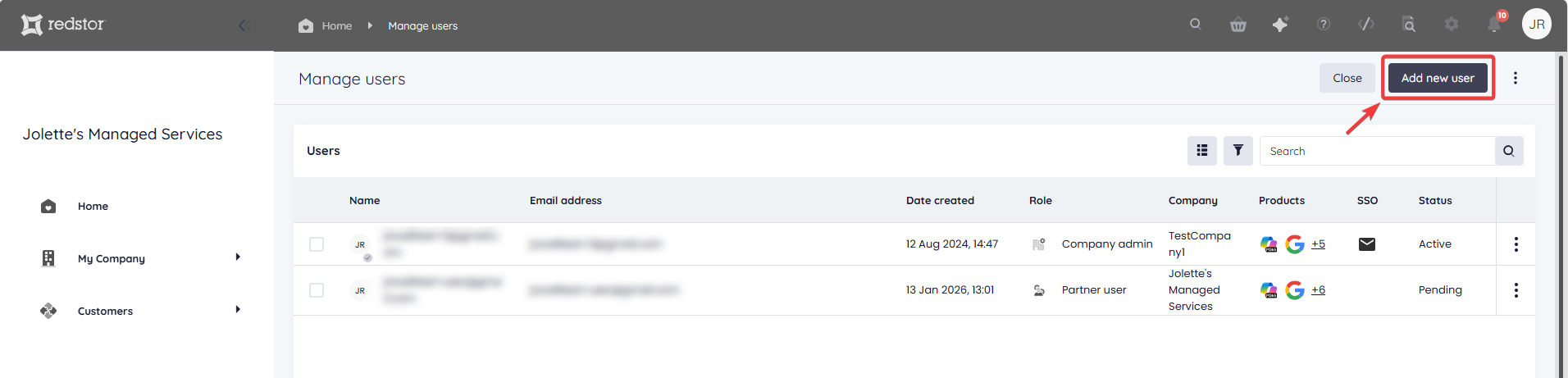
2. On the Manage users page, click on Add new user.
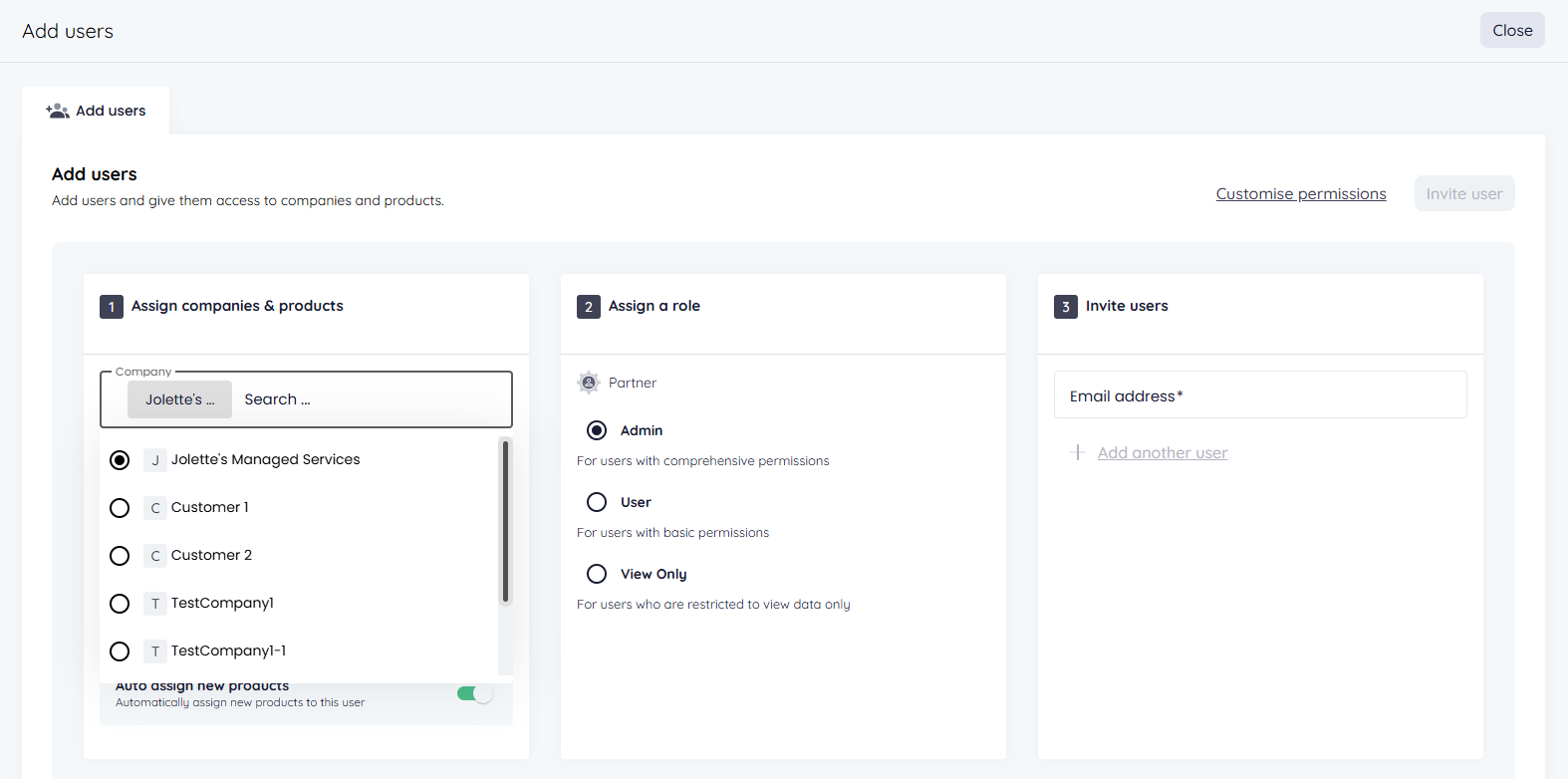
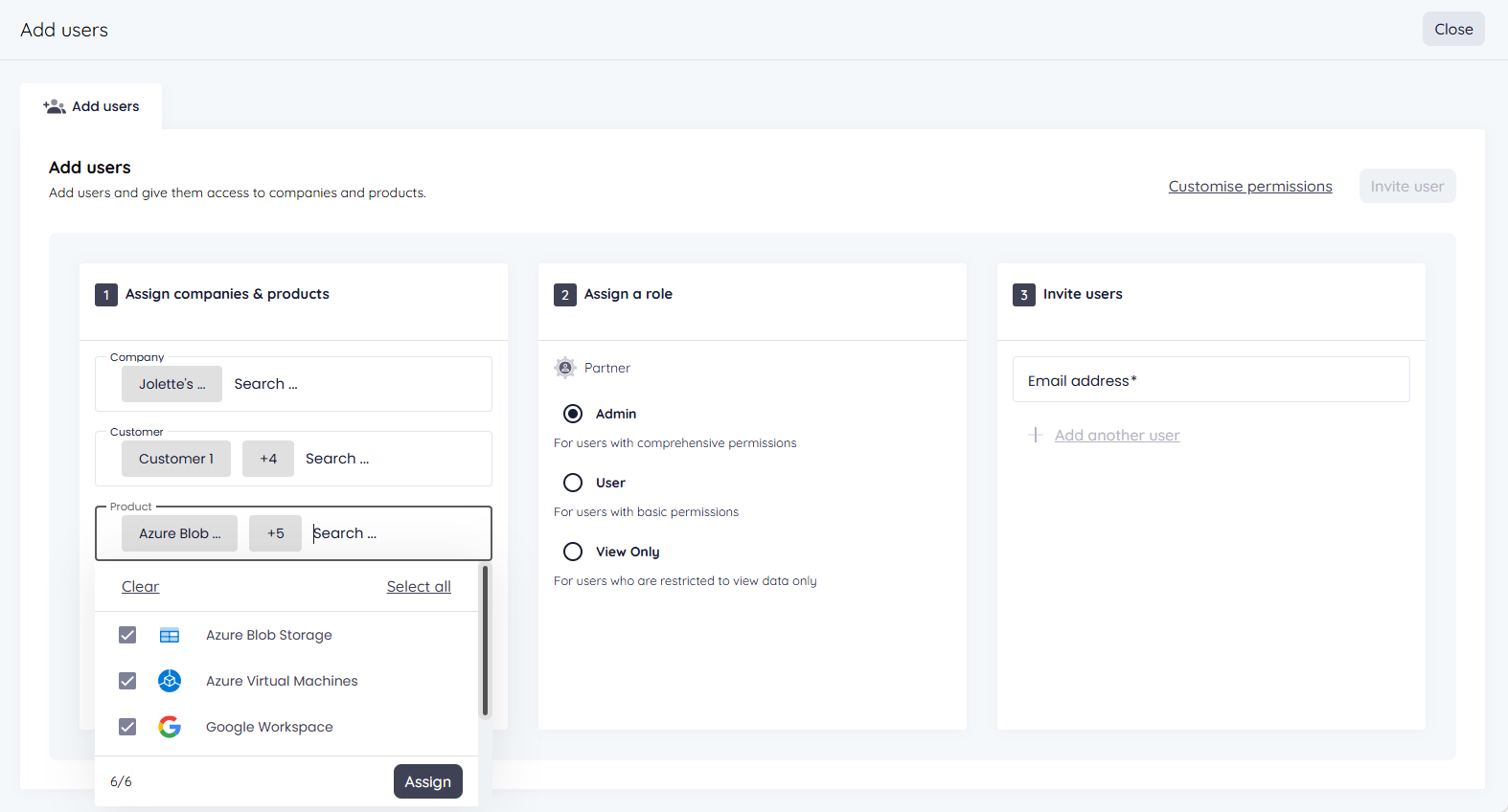
3. Select the companies you want this user to administrate.
- In the Company field, select your own organisation or the applicable partner organisation. You can only select one company from this drop-down.
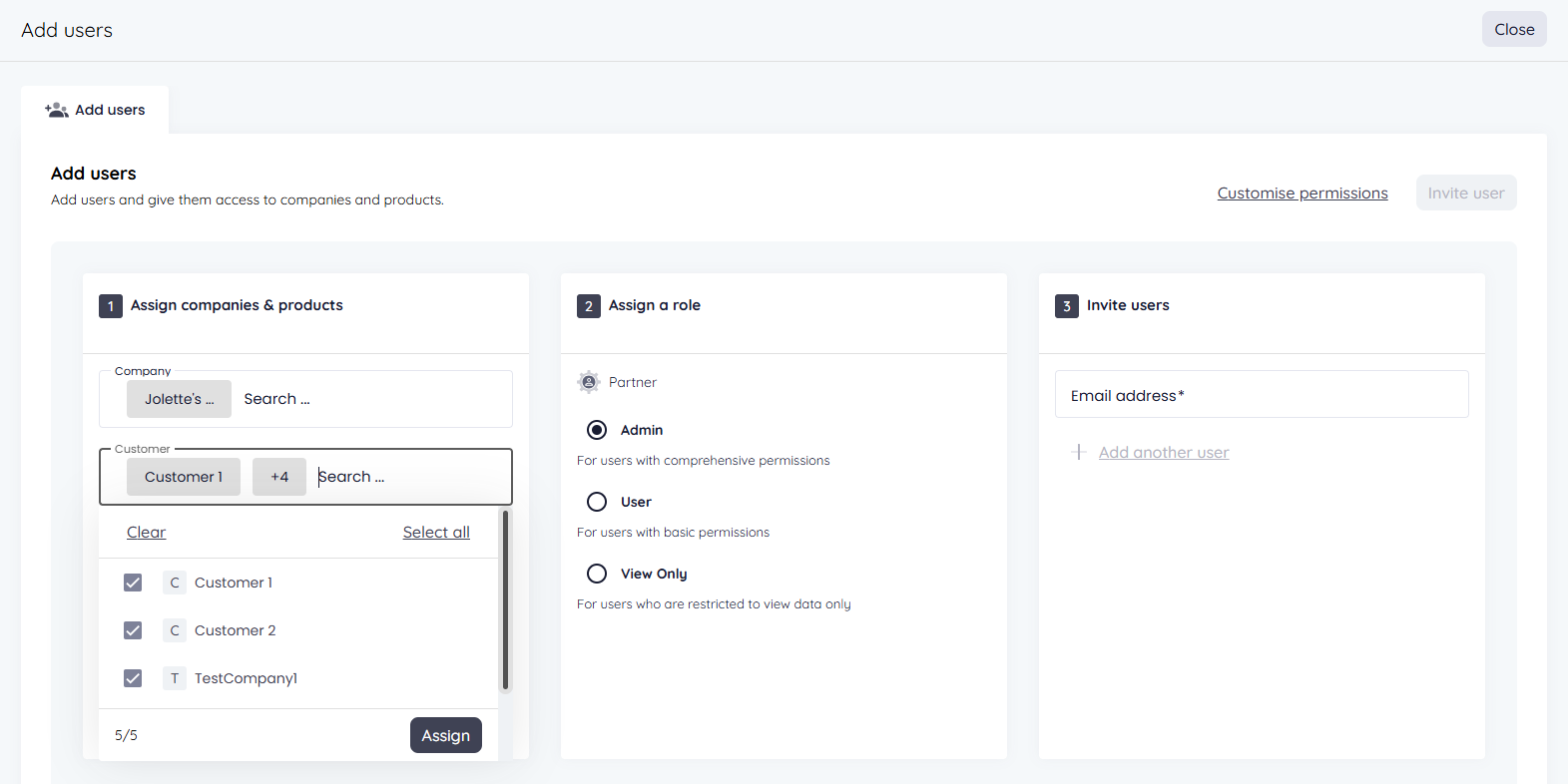
- In the Customer field, select the customers you want this user to administrate. You can select multiple customers. When you're ready, click Assign.
- In the Product field, select the products you want this user to administrate. By default, all available products will be selected. When you're ready, click Assign.
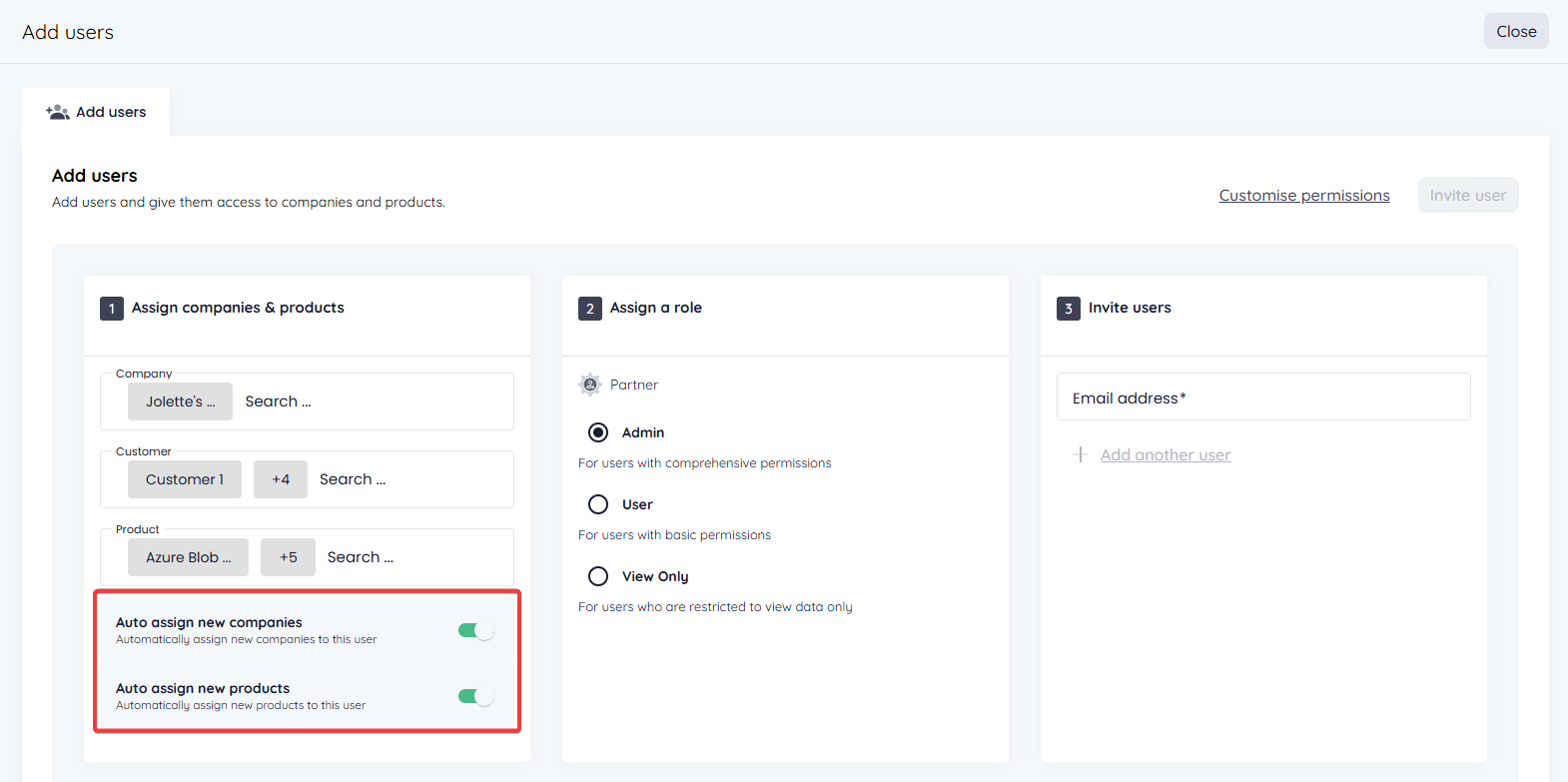
You can also enable one or both of the following options to ensure this user has permissions to administrate new customers and/or products that are added to your organisation.
- Auto assign new companies
- Auto assign new products
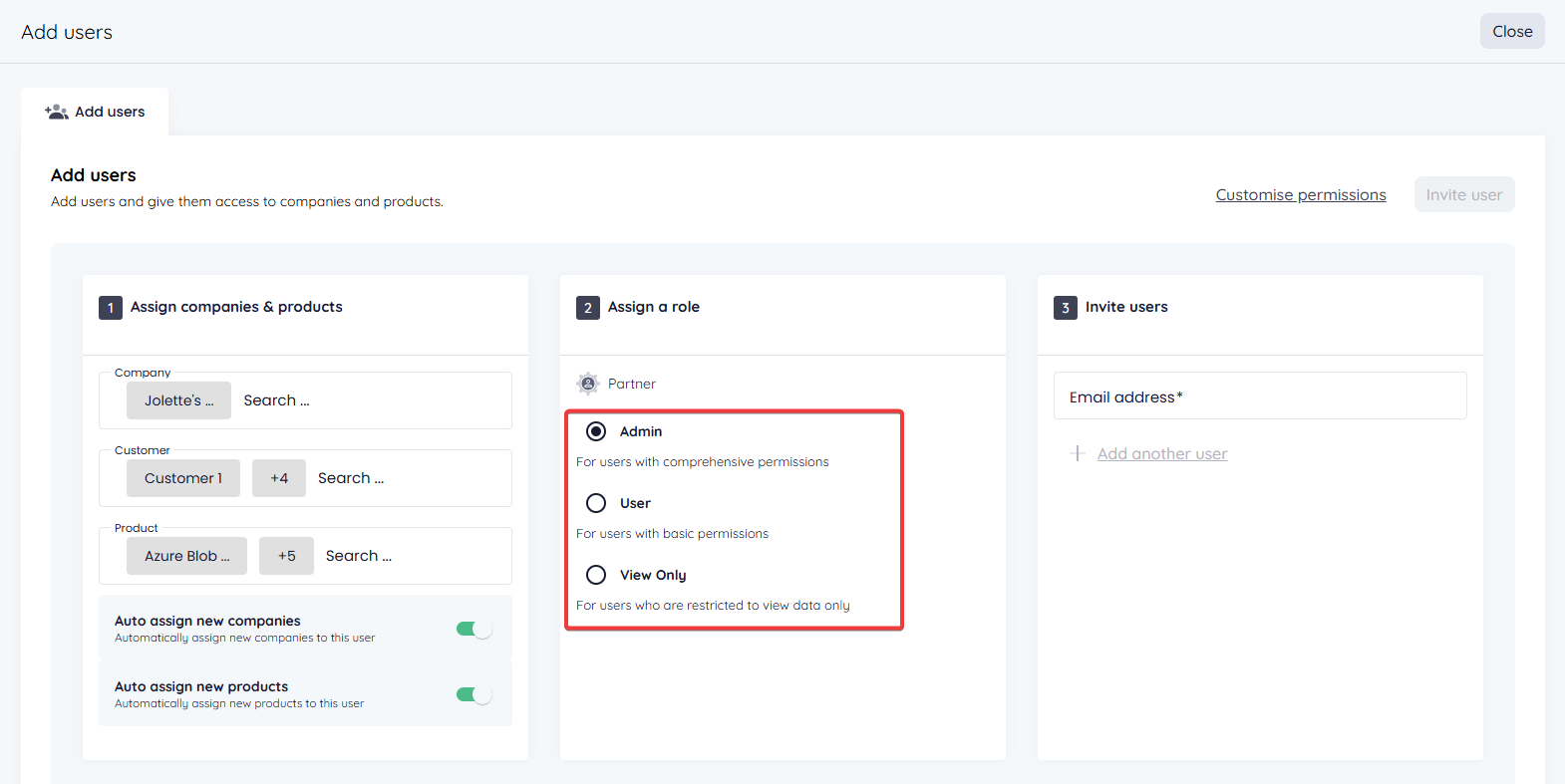
4. Assign a role to this user. When adding a partner user, you have three options: Admin, User and View Only. Partner Admins have the highest level of permissions, including permissions to add and edit policies and integrations. For a comparison between the different types of RedApp users, see Article 1423 - RedApp user roles.
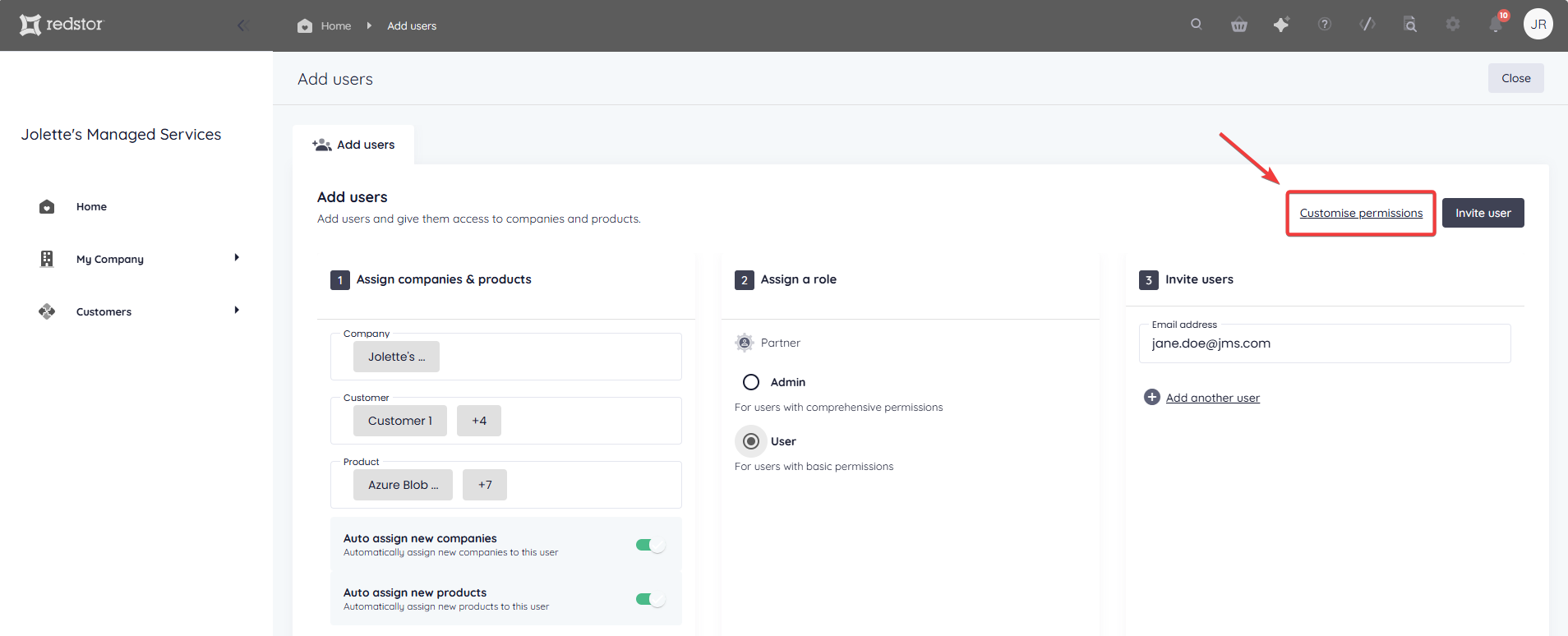
To set more granular permissions for the user you are adding, click Customise permissions.
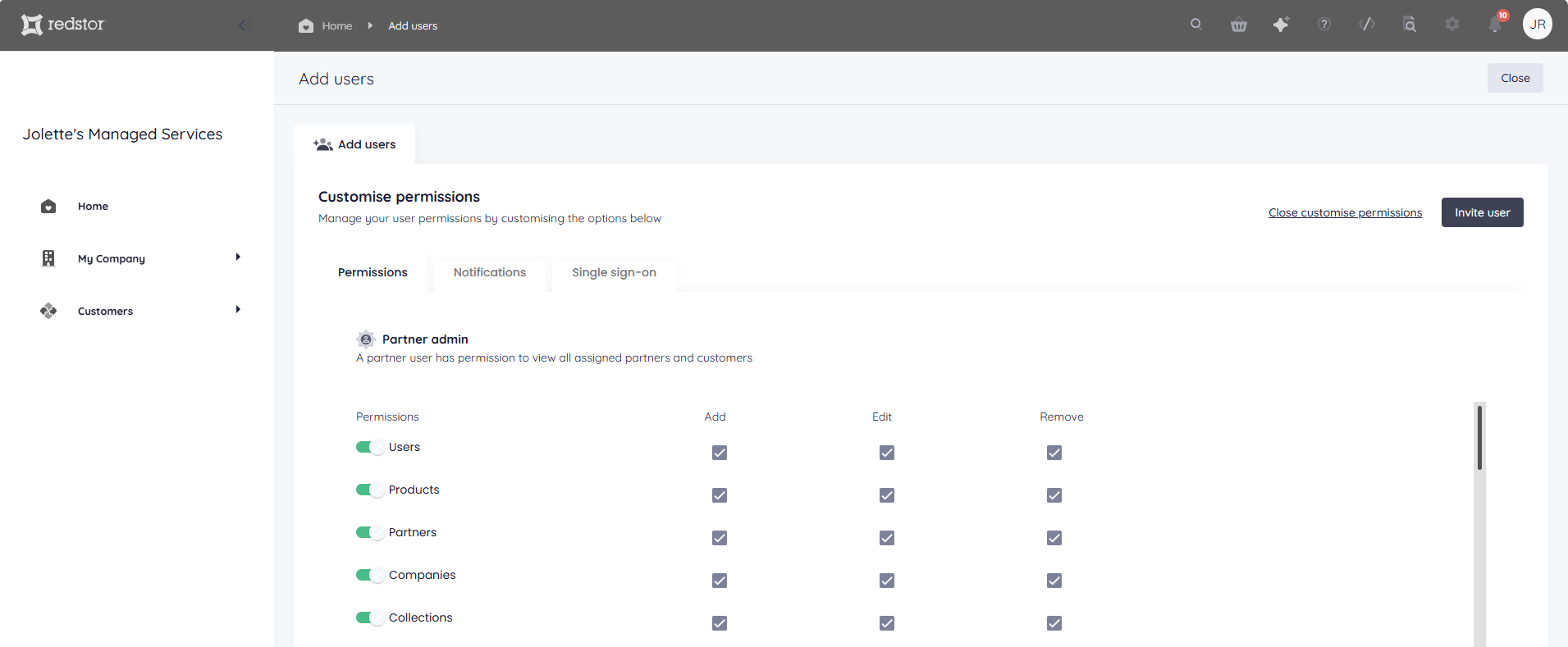
The permissions options will vary based on the user role you select. For a Partner Admin, you will see the following options:
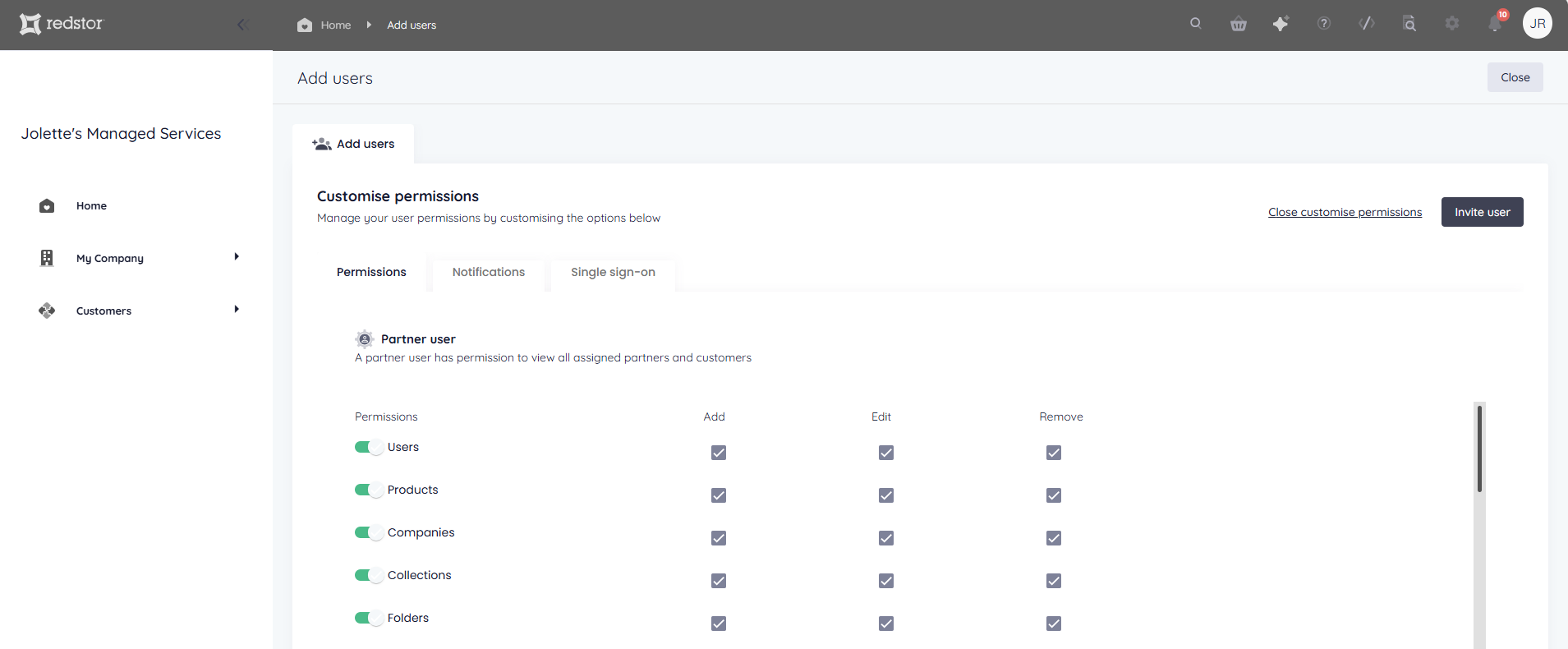
For a Partner User, you will see the following options:
For security purposes, it is best to restrict permissions as much as your operations allow. You may prefer to disable destructive actions, such as deletion, for most users. You can edit the permissions for a specific user at any time, as described below.
Important note:
- To be able to add a backup set, the user needs the following three permissions enabled: Products, Collections, Backup selections
- To be able to edit a backup schedule, the user needs the following two permissions enabled: Folders, Backup schedules
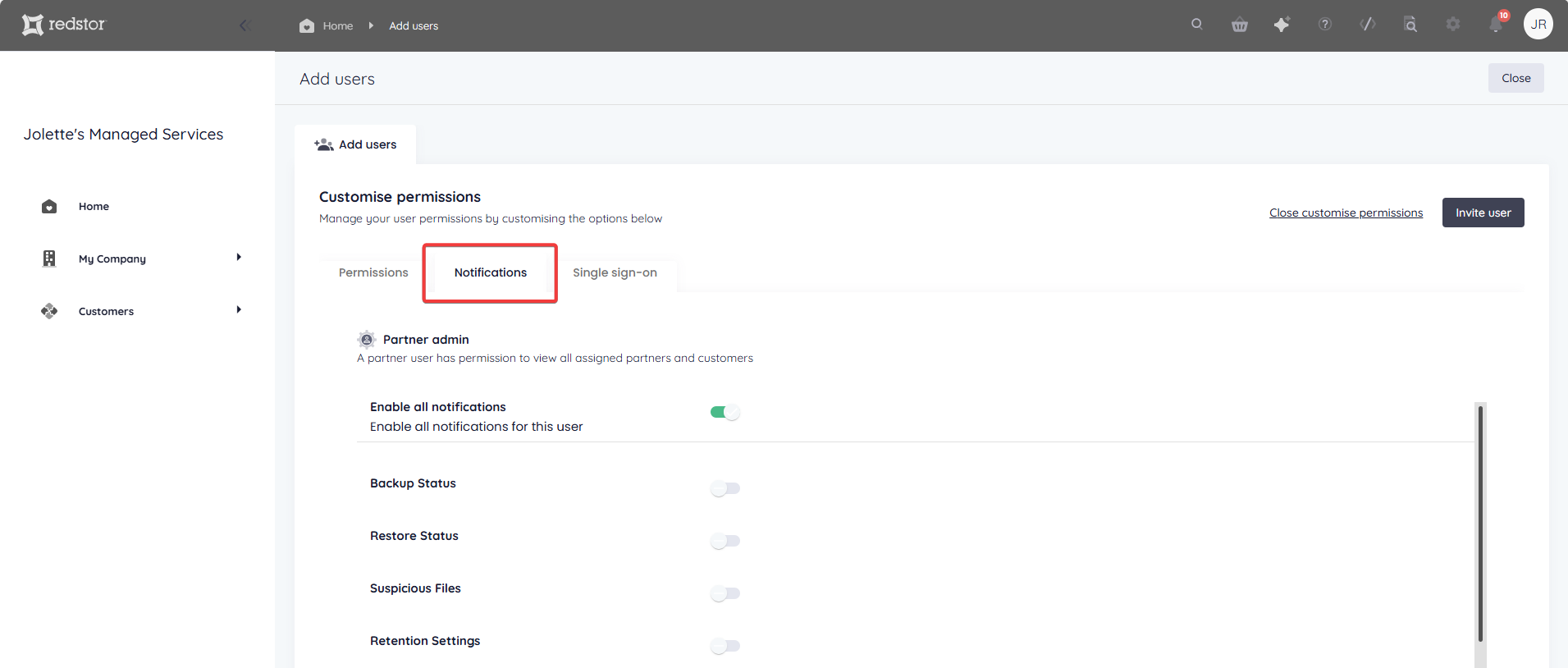
5. Open the Notifications tab and select which notifications this user should receive.
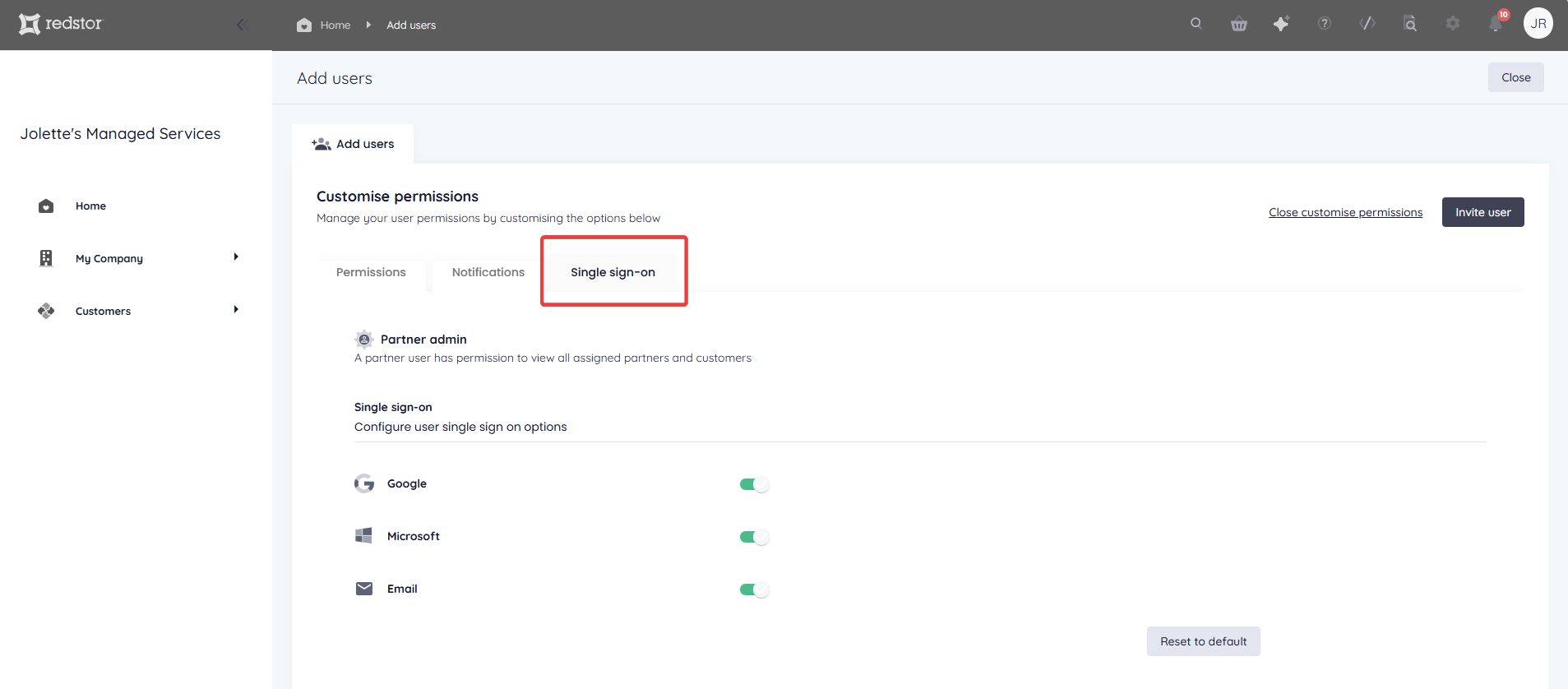
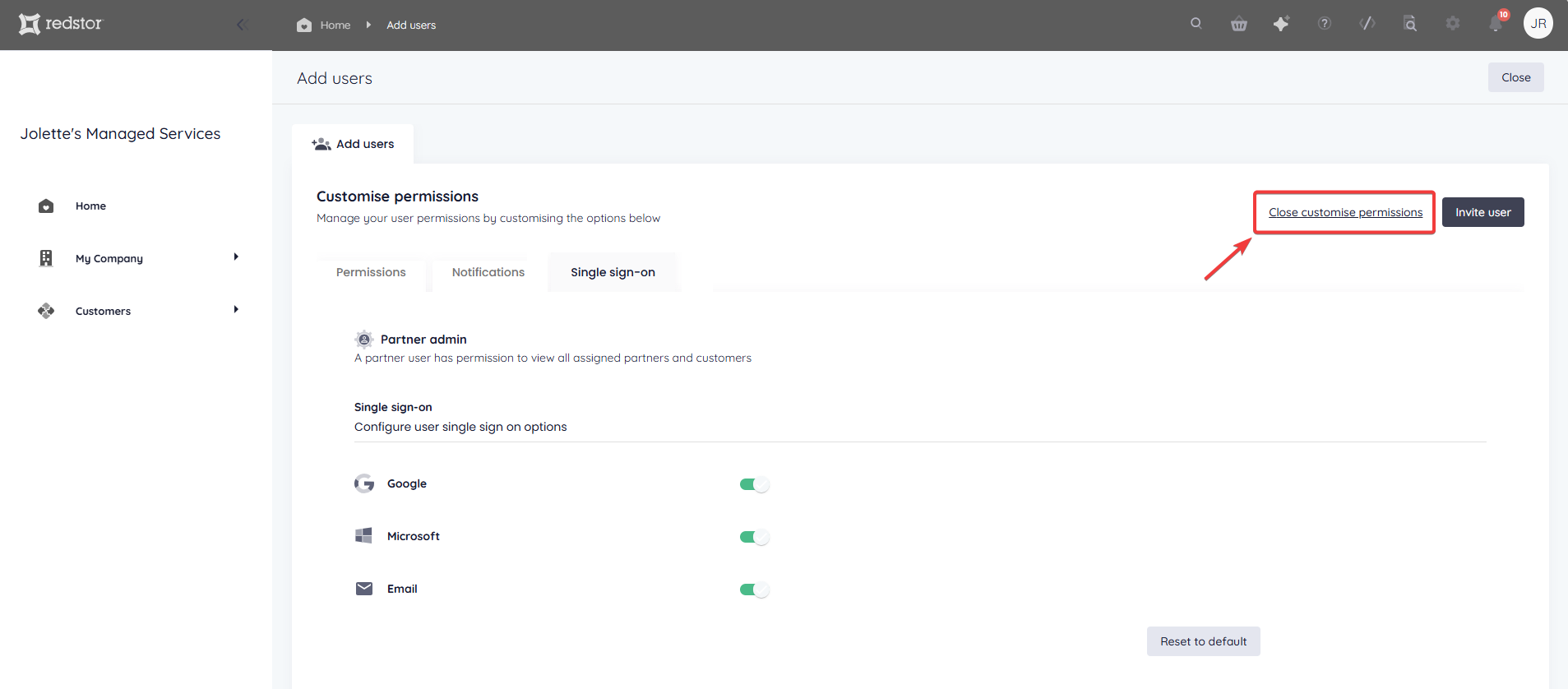
6. Open the Single sign-on tab and select which single sign-on providers this user can use.
7. Click Close customise permissions.
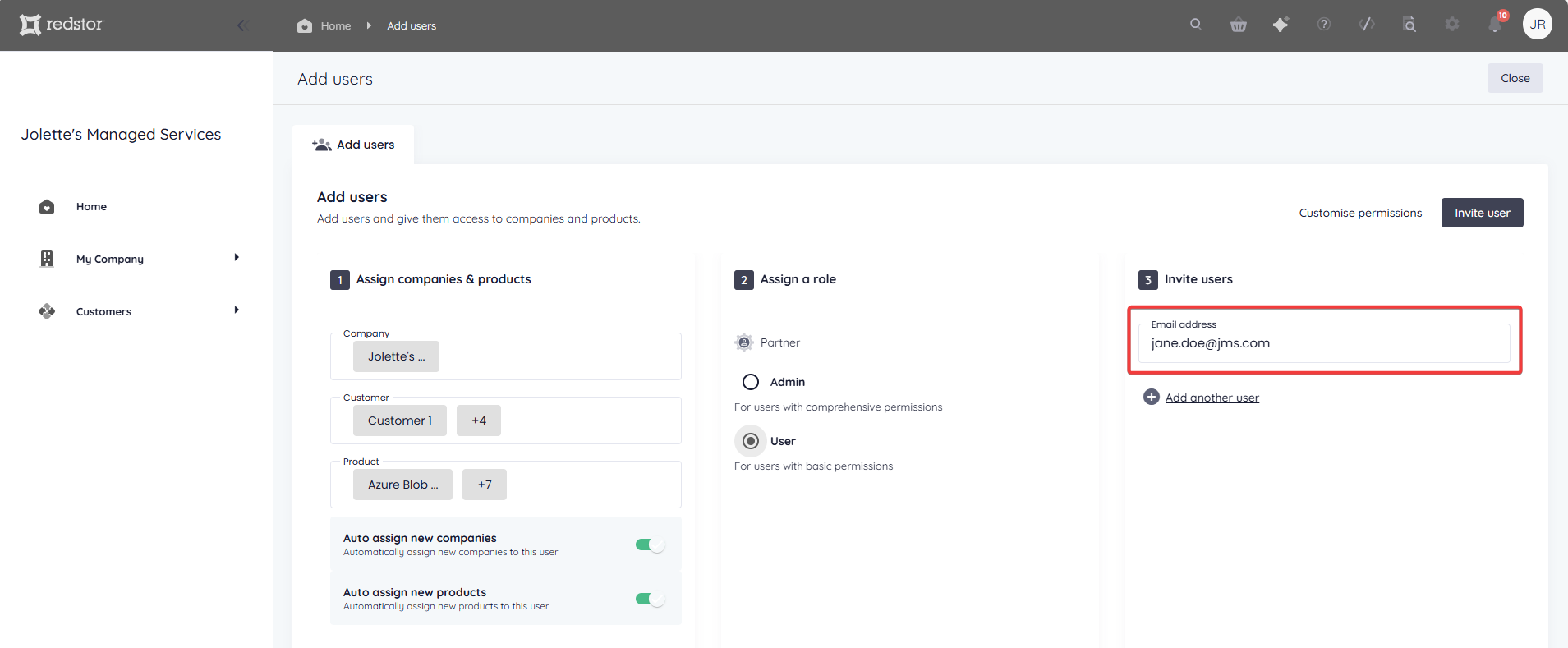
8. Add the user's email address. You can add multiple addresses to create a group of users that will have the same access and role.
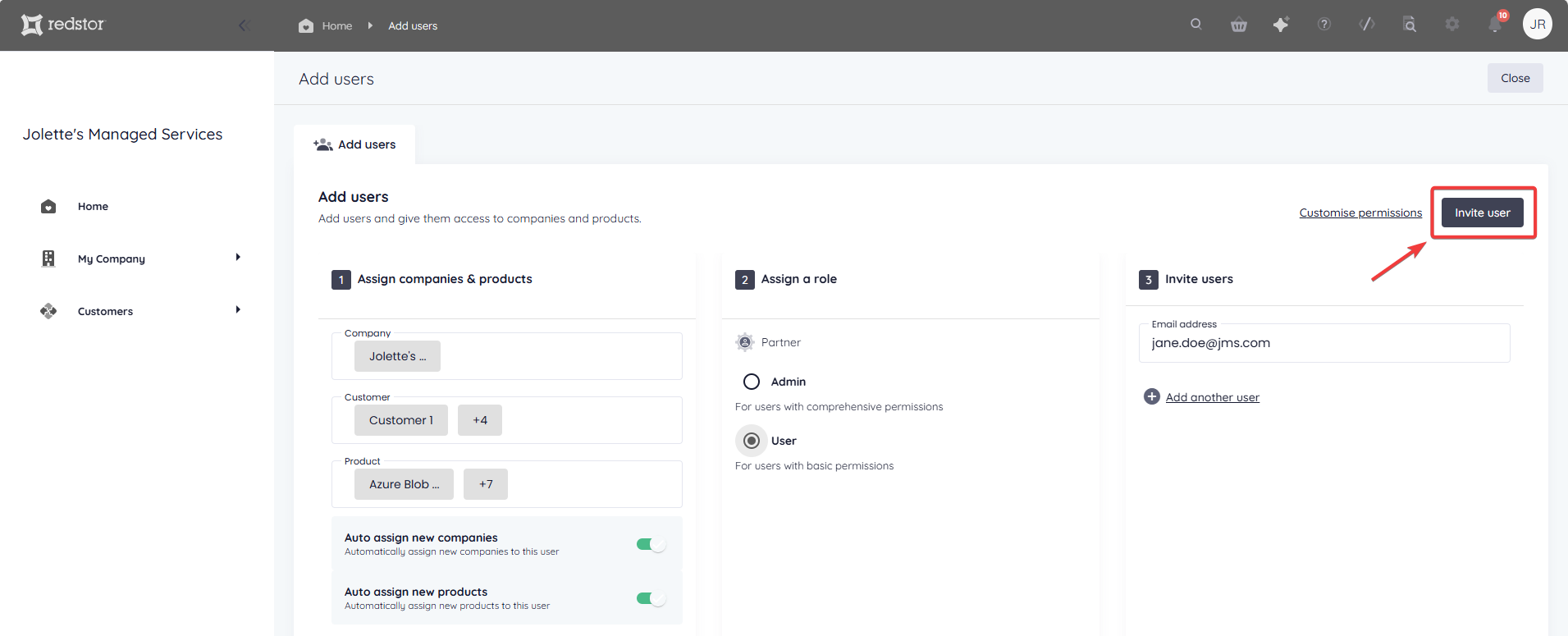
9. Click Invite user. An email will be sent to each of the addresses you provided.
The new user/s will now be listed on the Manage users page with the status Pending.
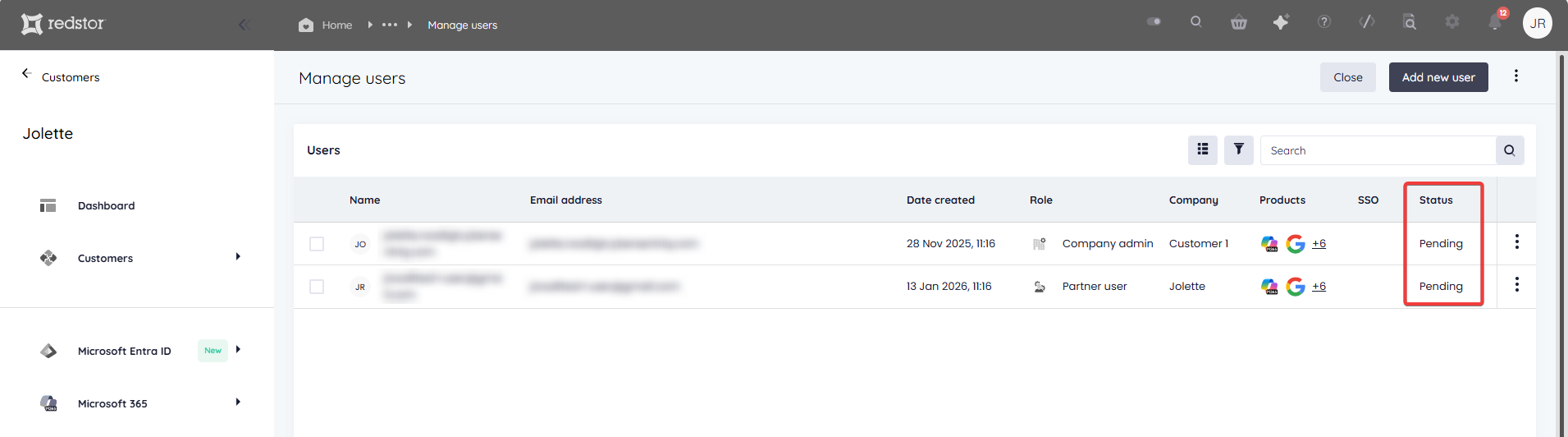
- User invites expire after 48 hours, and will need to be resent after this time if they have not been actioned.
- If a user does not receive their email invite within a reasonable amount of time, you can resend it. On the Manage users page, expand the menu next to the user's name and click Resend invite.
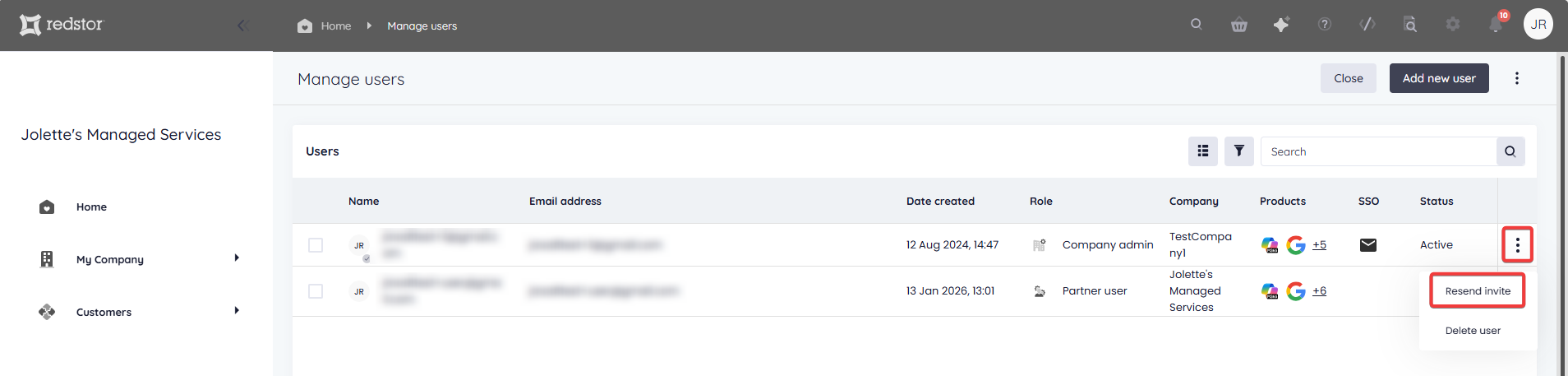
- If a user has been invited in error, follow the same steps, but click Delete user.
Once a new user has activated their account using their invite, they will be able to log into the RedApp.
How to add a company user
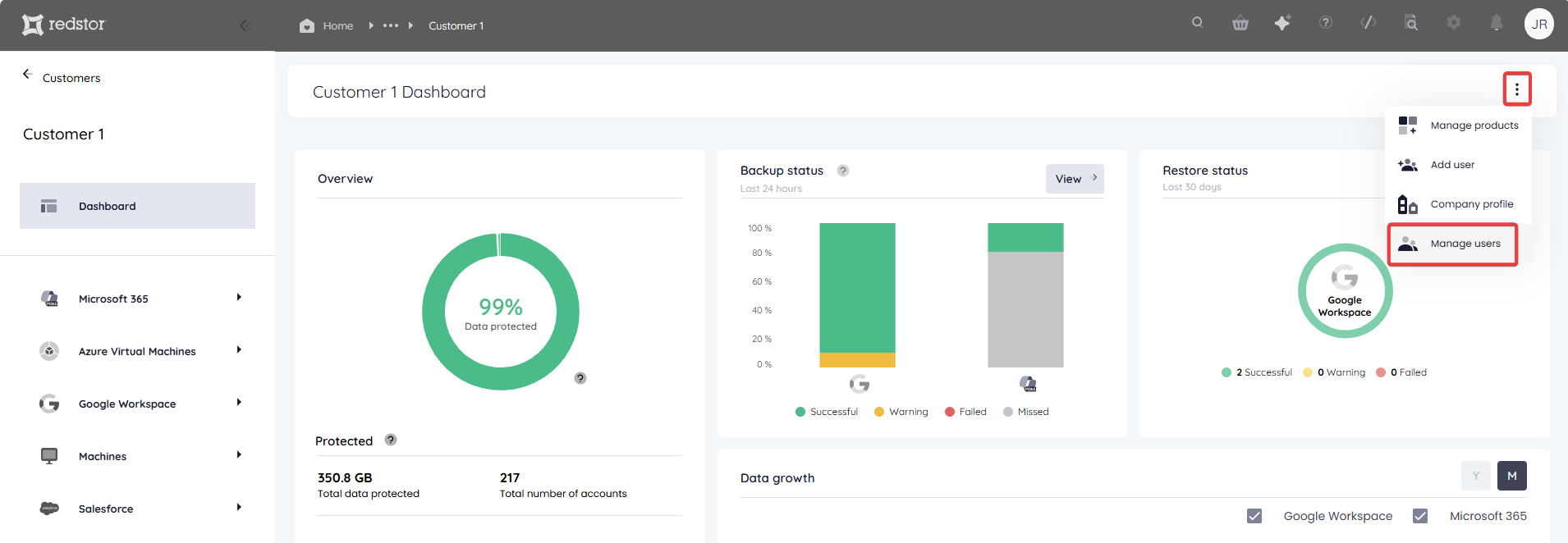
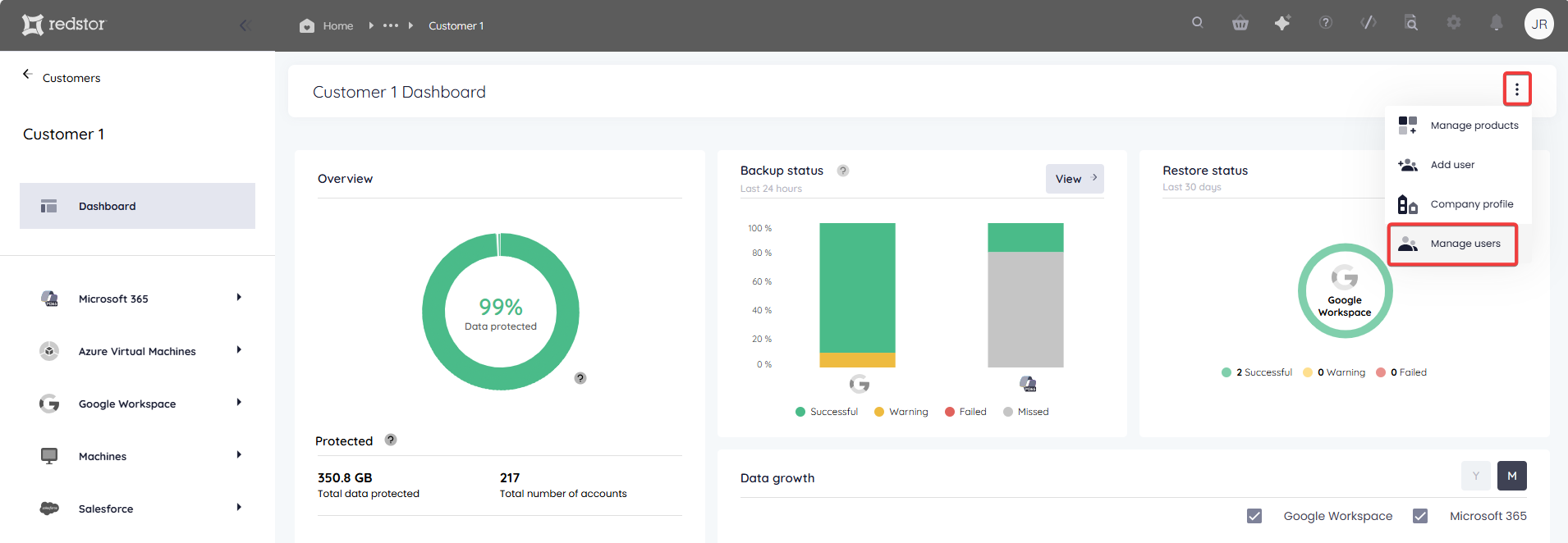
1. In the RedApp, go to the home page for the relevant company. Expand the menu at the top right and go to Manage users.
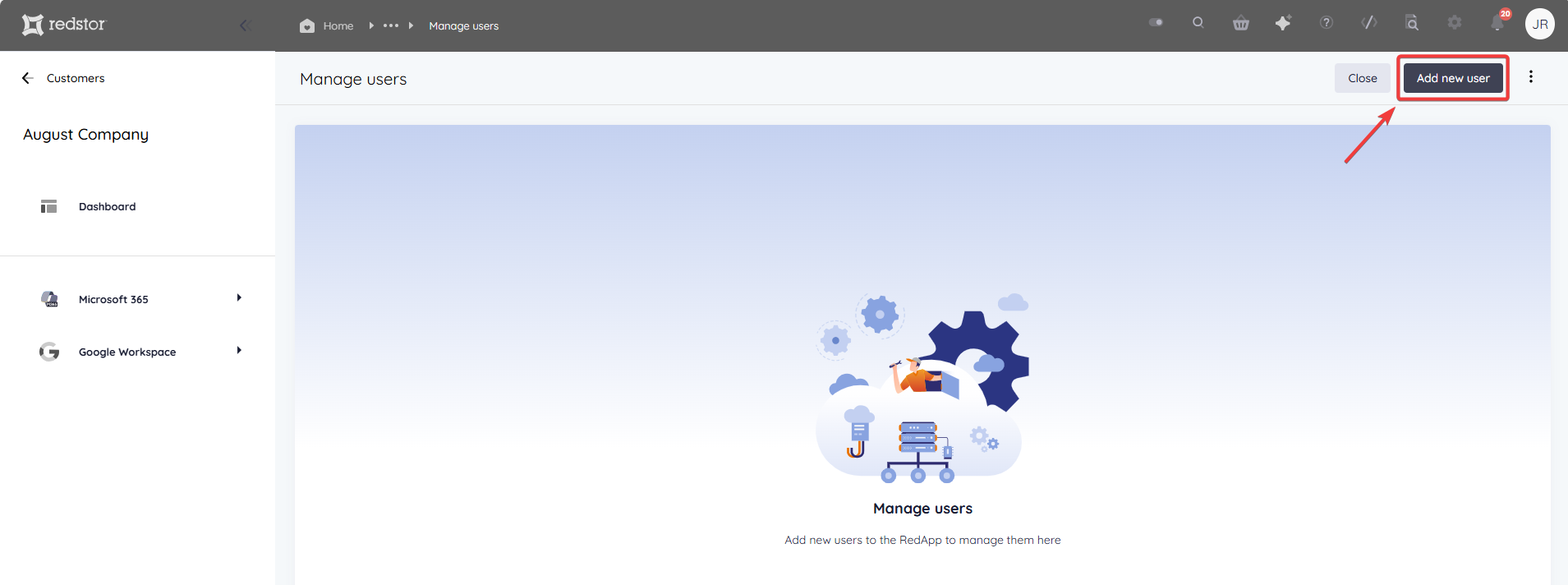
2. On the Manage users page, click on Add new user at the top right.
3. In the Product field, select the products you want this user to administrate. By default, all available products will be selected. When you're ready, click Assign.
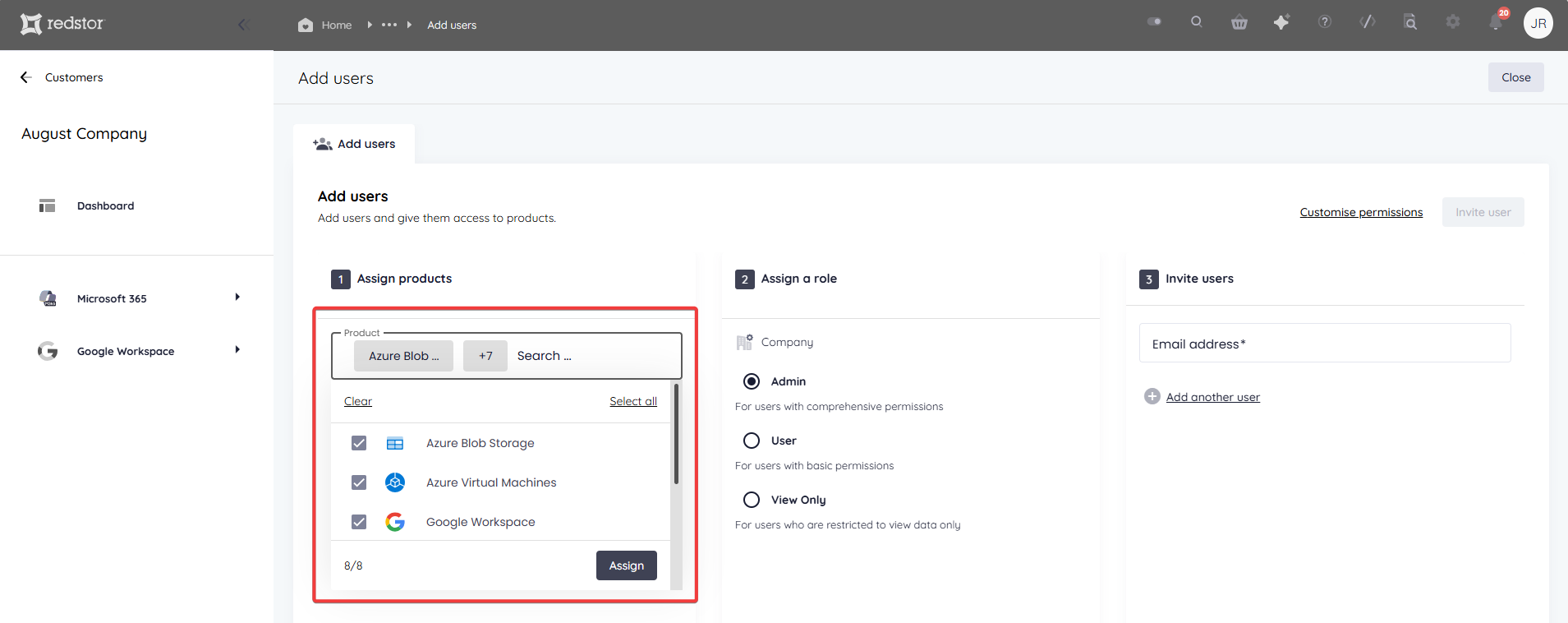
You can also enable Auto assign new products to ensure this user has permissions to administrate new products that are added to your organisation.
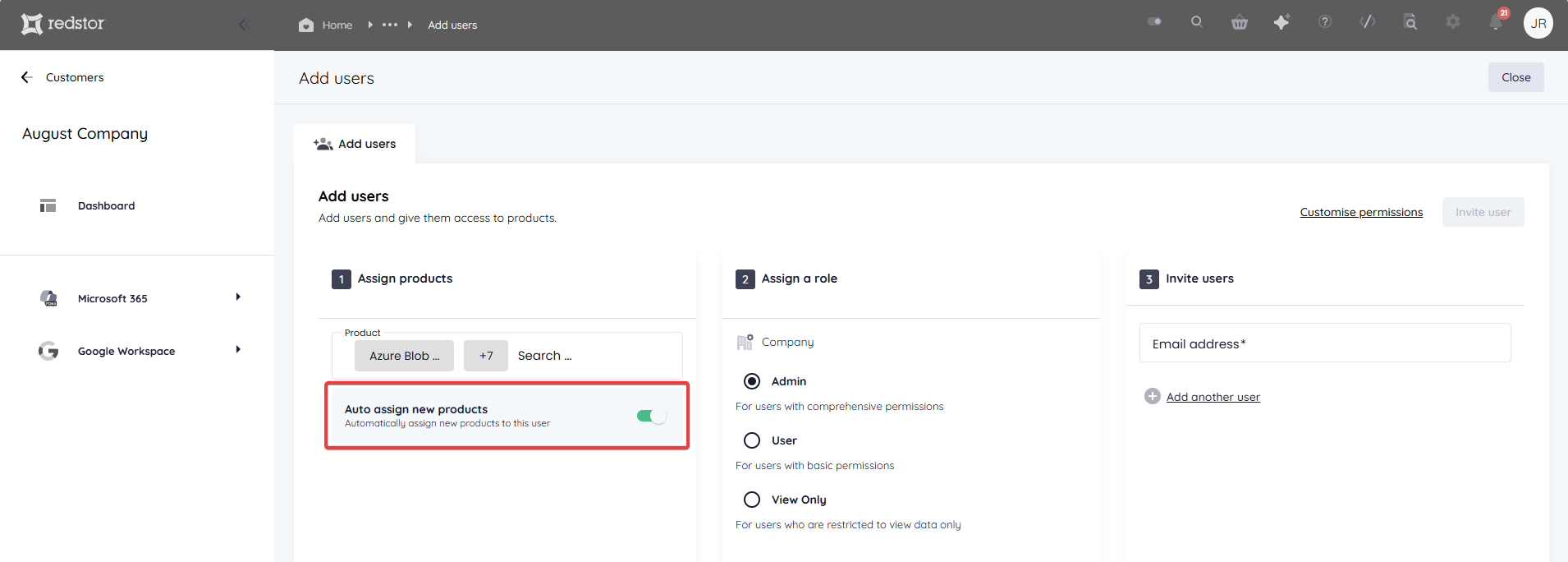
4. Assign a role to this user. When adding a company user, you have three options: Admin, User and View Only.
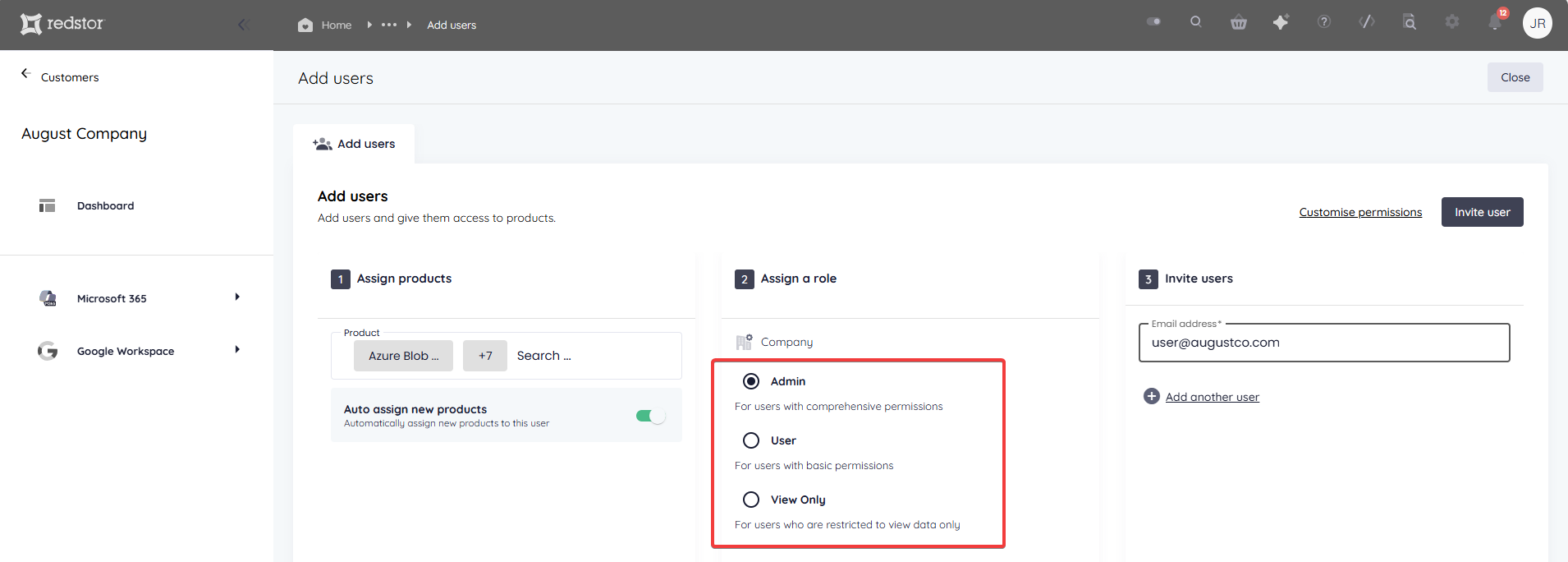
Company Admins can manage their own company (e.g. creating other company users) and all products assigned to their company, whereas Company Users can only manage products assigned to their company. View Only users do not have permissions to perform any actions. For a comparison between the different types of RedApp users, see Article 1423 - RedApp user roles.
To set more granular permissions for the user you are adding, click Customise permissions.
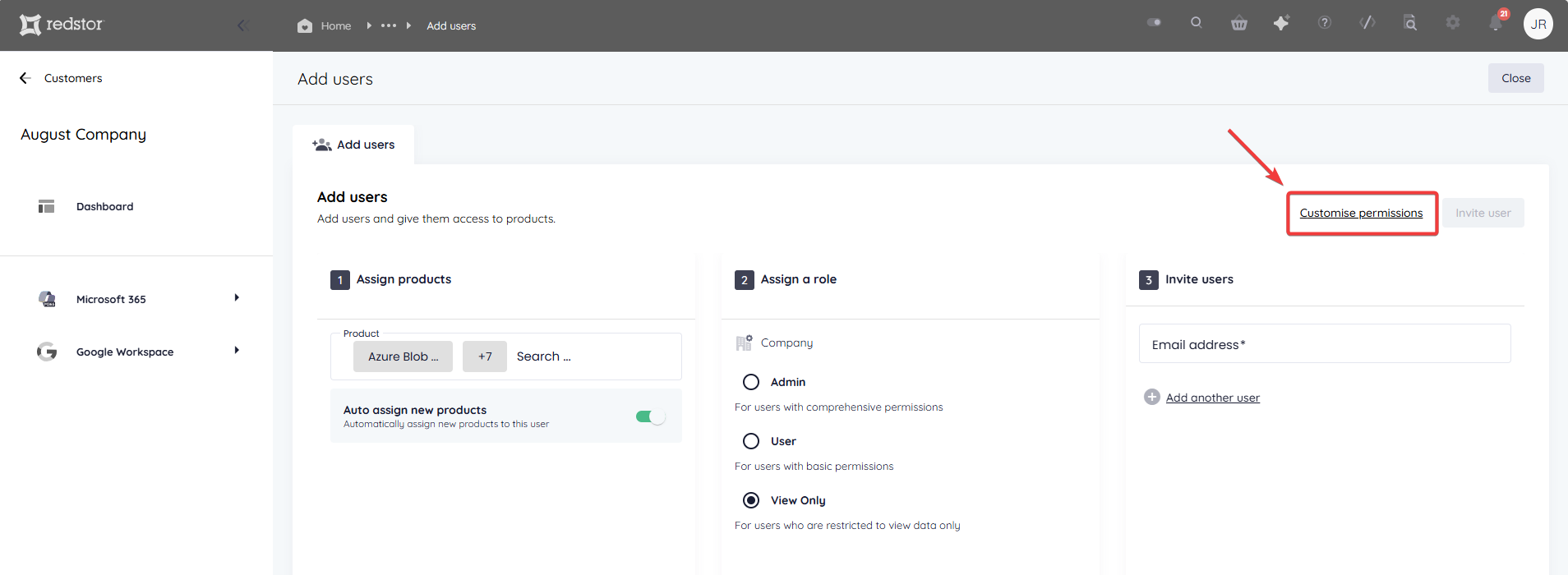
The permissions options will vary based on the user role you select. For a Company Admin, you will see the following options:
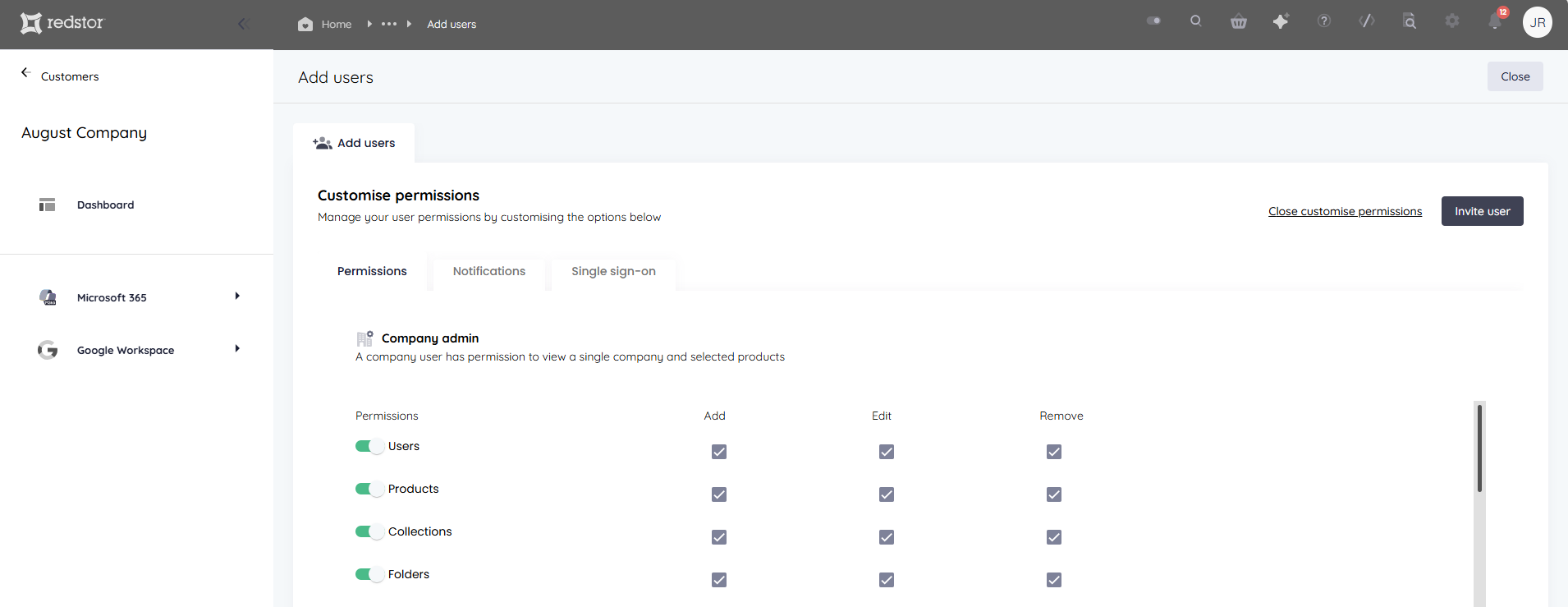
For a Company User, you will see the following options:
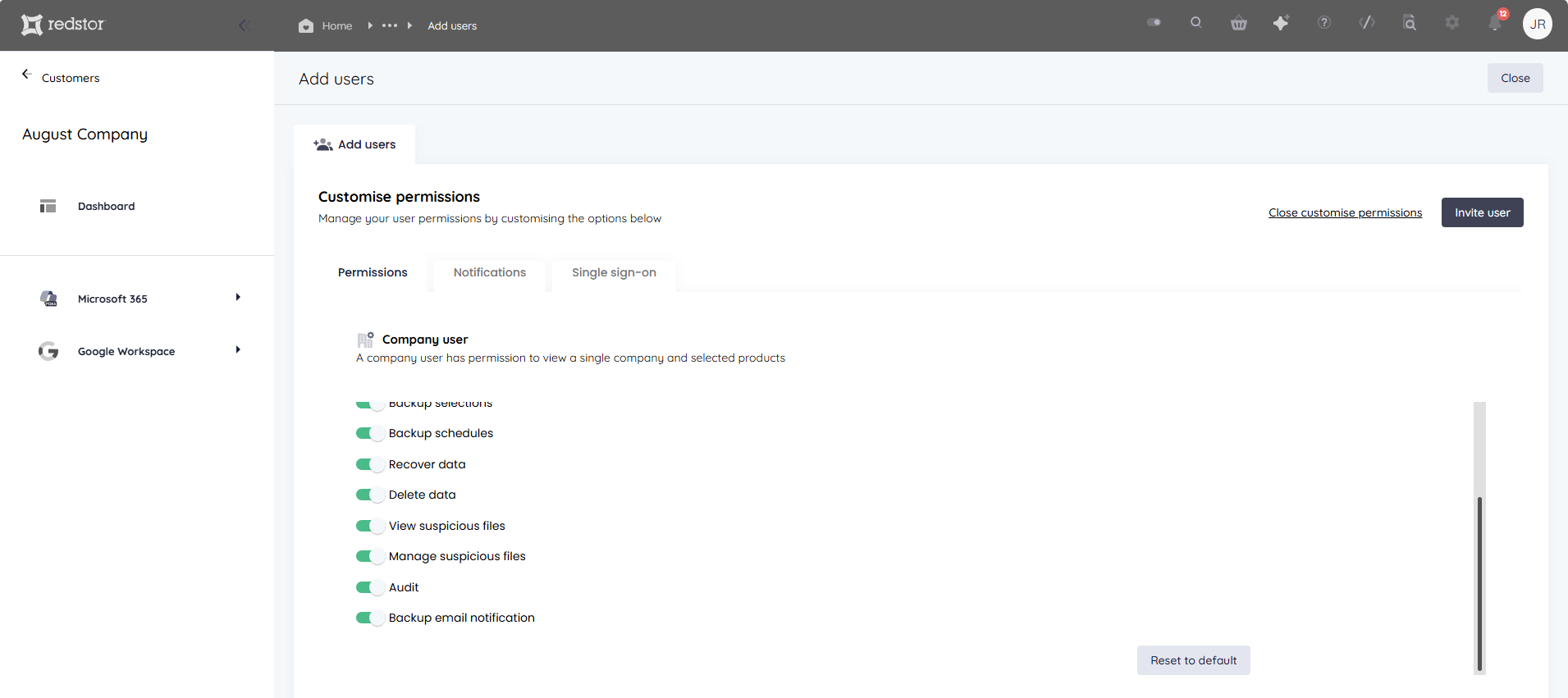
For security purposes, it is best to restrict permissions as much as your operations allow. You may prefer to disable destructive actions, such as deletion, for most users. You can edit the permissions for a specific user at any time, as described below.
Important note:
- To be able to add a backup set, the user needs the following three permissions enabled: Products, Collections, Backup selections
- To be able to edit a backup schedule, the user needs the following two permissions enabled: Folders, Backup schedules
5. Open the Notifications tab and select which notifications this user should receive.
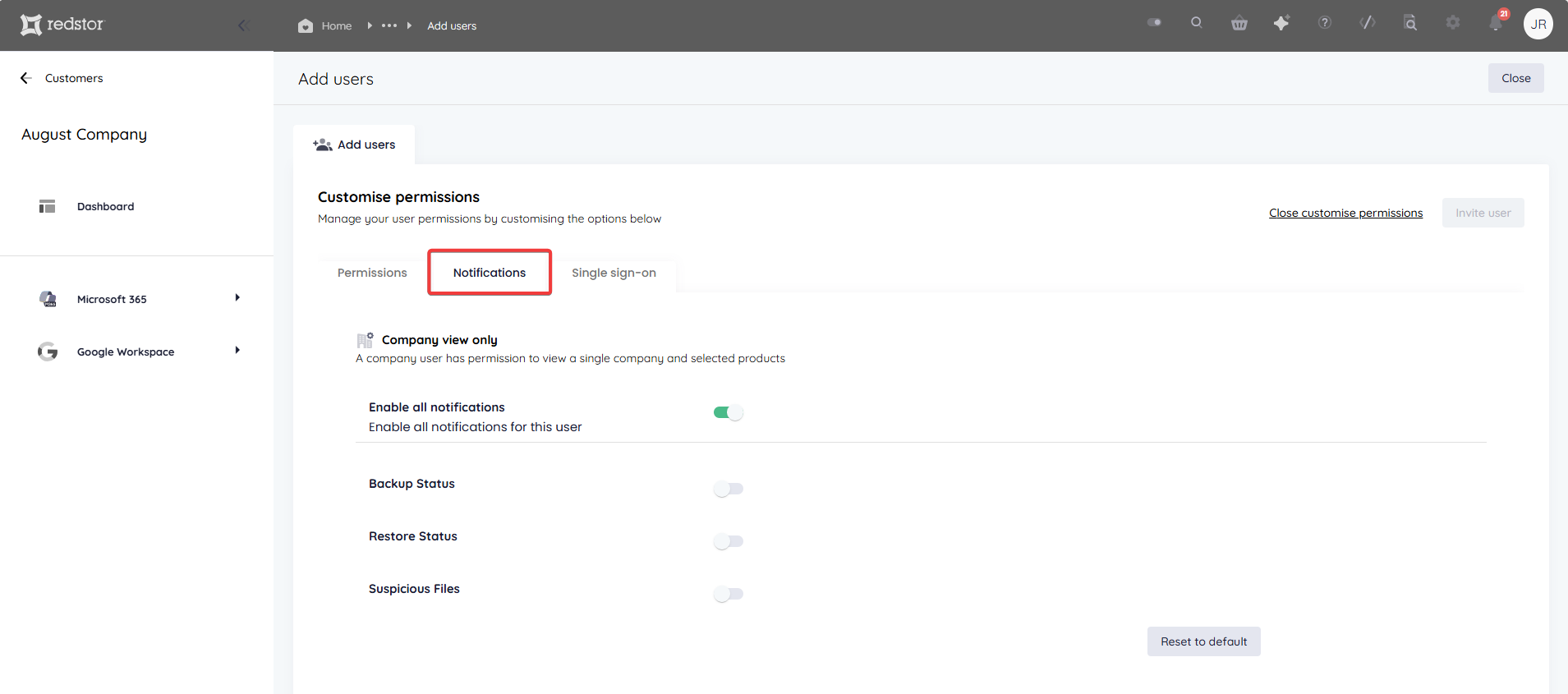
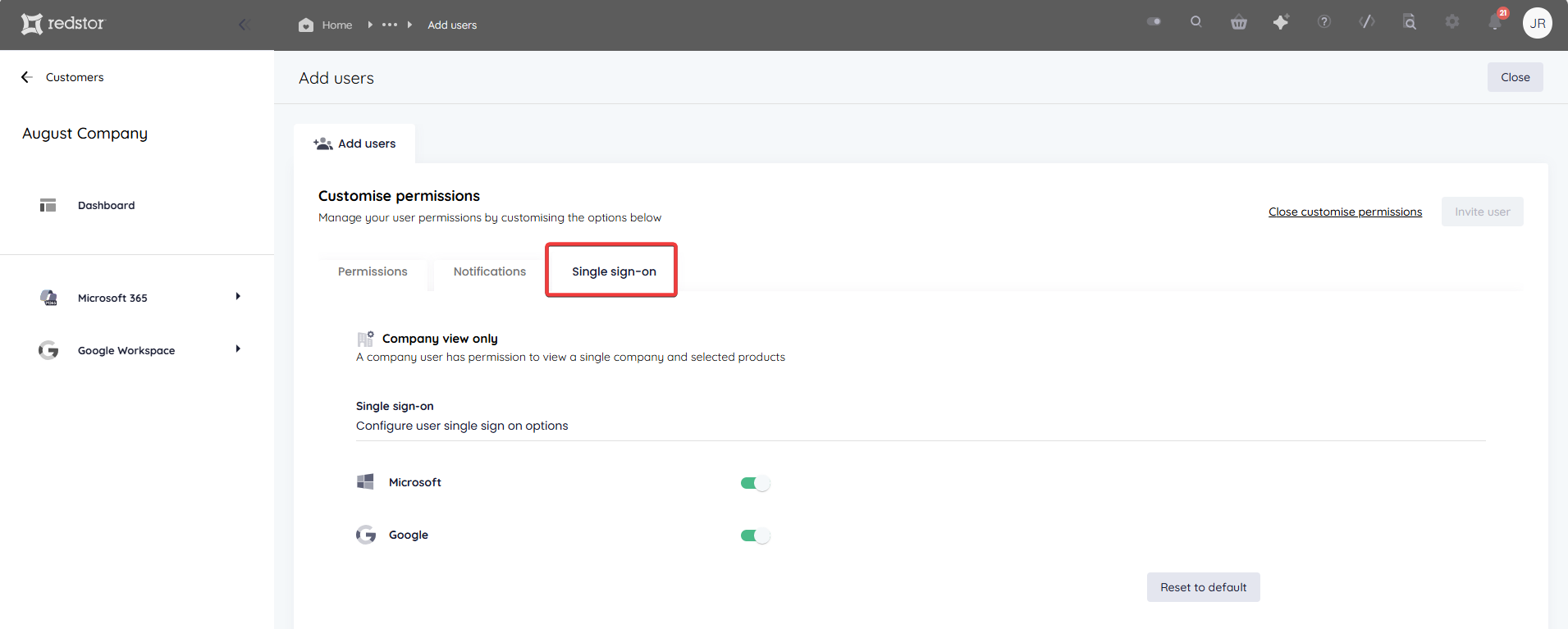
6. Open the Single sign-on tab and select which single sign-on providers this user can use.
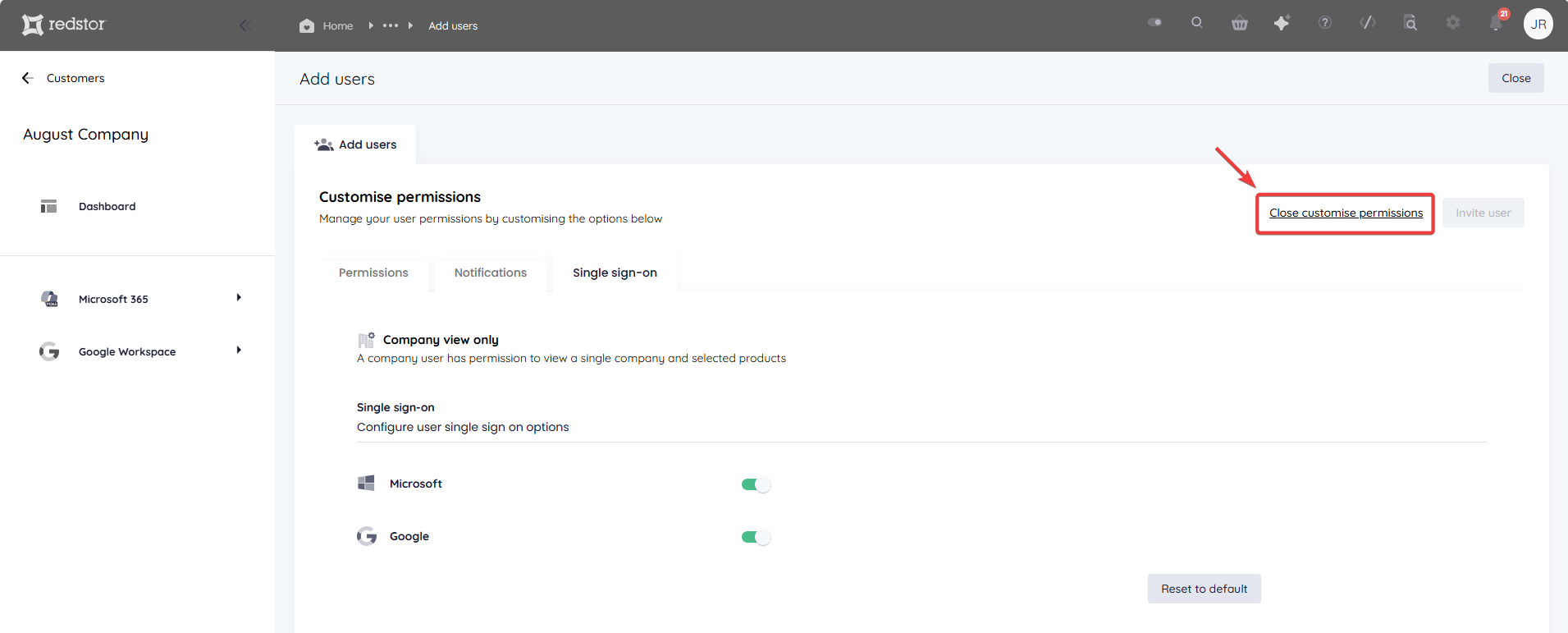
7. Click Close customise permissions.
8. Add the user's email address. You can add multiple addresses to create a group of users that will have the same access and role.
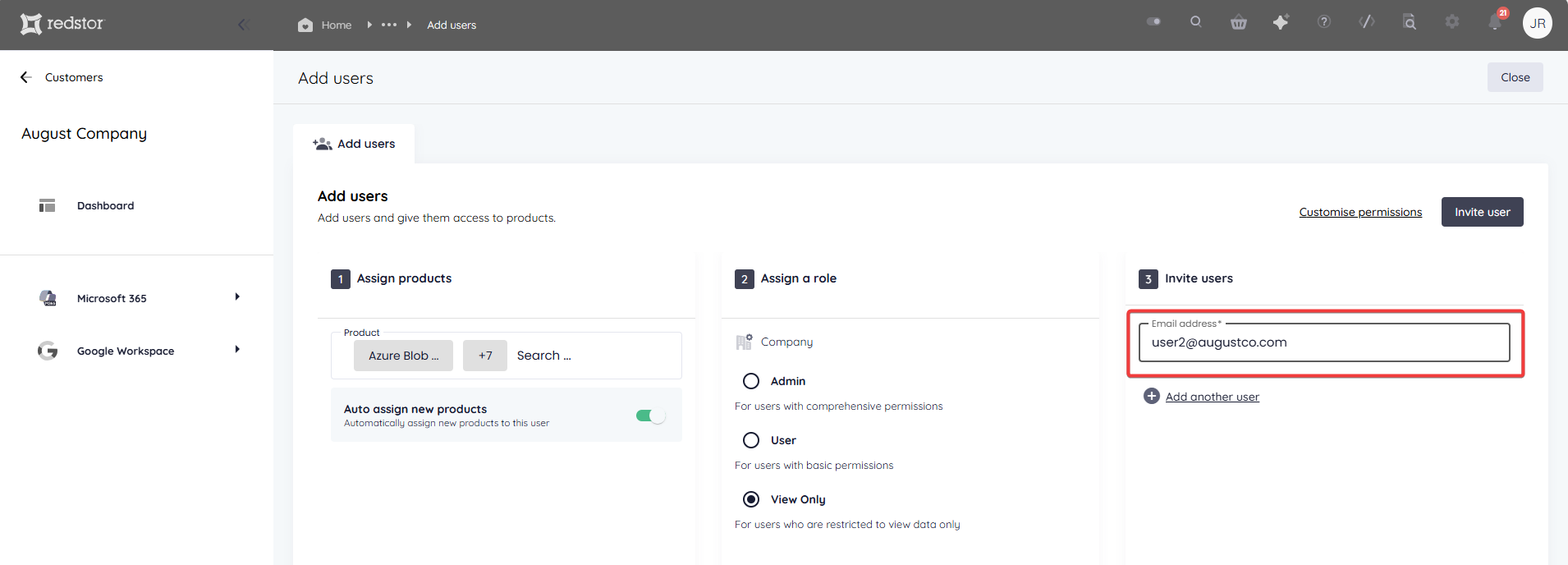
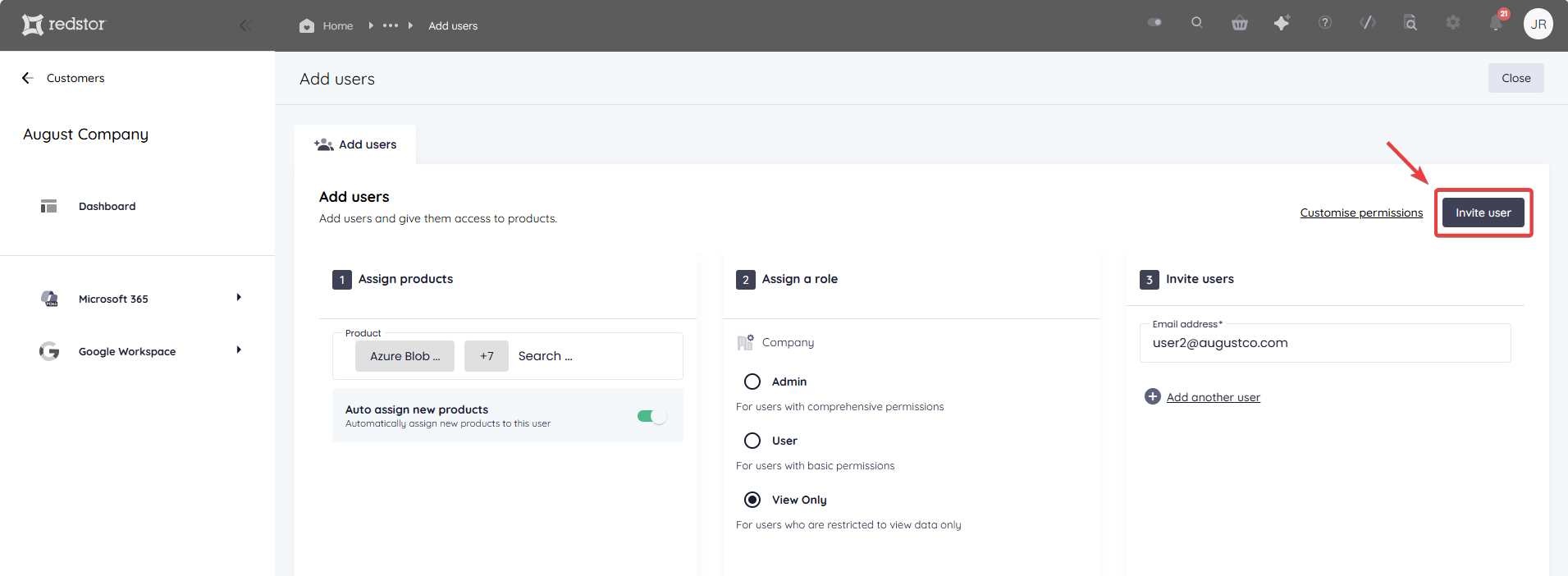
9. Click Invite user. An email will be sent to each of the addresses you provided.
The new user/s will now be listed on the Manage users page with the status Pending.
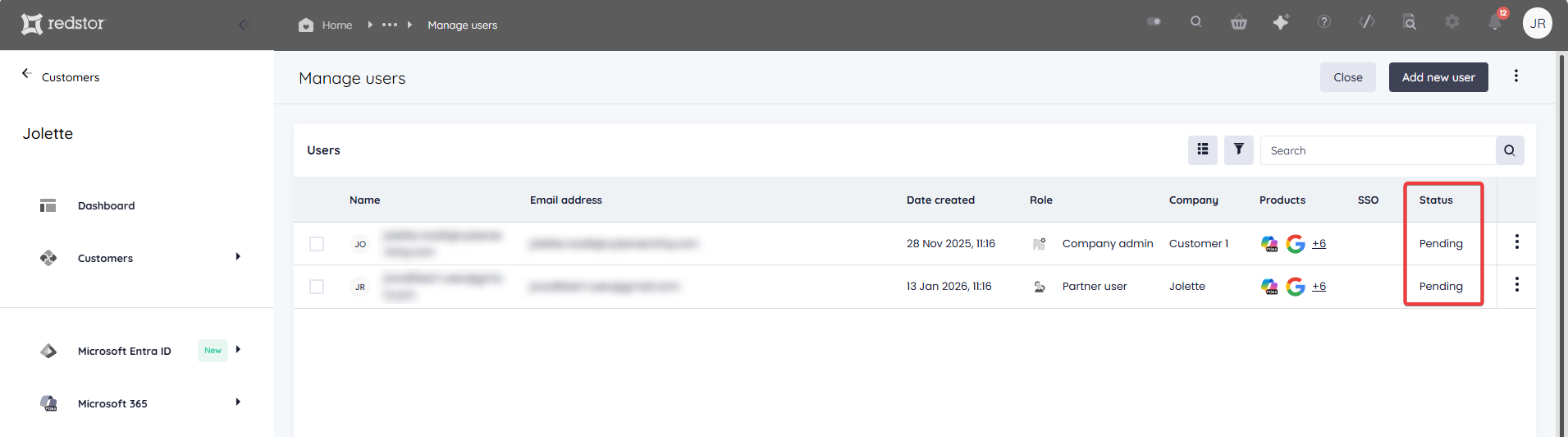
- User invites expire after 48 hours, and will need to be resent after this time if they have not been actioned.
- If a user does not receive their email invite within a reasonable amount of time, you can resend it. On the Manage users page, expand the menu next to the user's name and click Resend invite.
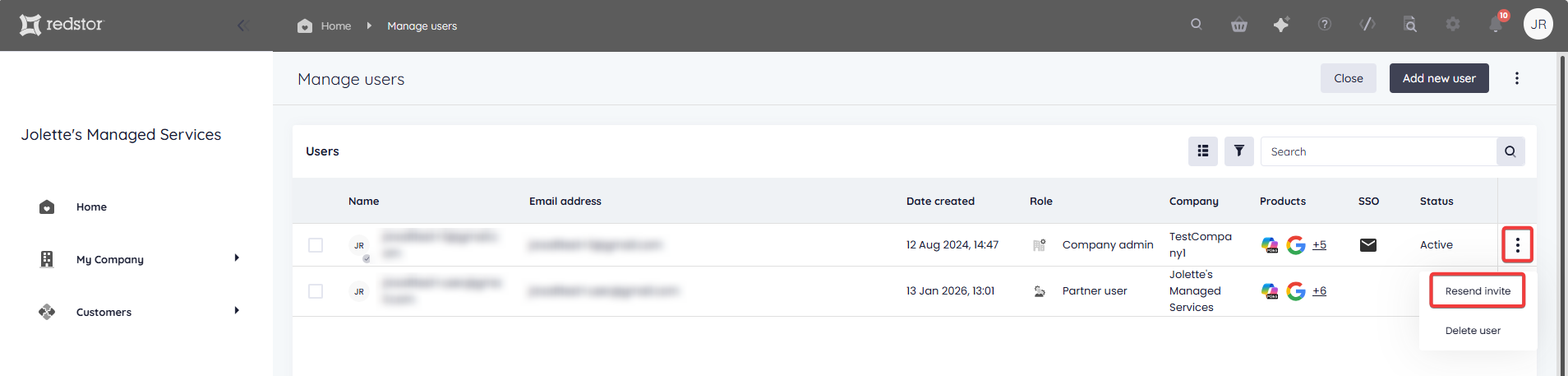
- If a user has been invited in error, follow the same steps, but click Delete user.
Once a new user has activated their account using their invite, they will be able to log into the RedApp.
Use of plus addresses
If a user requires an additional email for logging into the RedApp, for example for demos or testing, they can make use of plus addressing, also called subadressing (read more on Microsoft's knowledge base here).
To create a new account on the RedApp using a plus address (e.g. admin+m365@partner.com), copy the hyperlink from the RedApp invite email into an incognito browser and use the email/password signup method (not single sign-on) to create a user for the plus address.
Note that adding a new RedApp entry to your authenticator app will overwrite the current (main) RedApp entry. To avoid this, rename the current entry in the authenticator app before adding the plus address user.
How to edit an existing user
You can restrict or increase the permissions of any existing user at any time. To do this, follow the steps below.
1. To edit a partner user, go to Settings > User management.
To edit a company user, go to the home page for the user's company. Expand the menu at the top right and go to Manage users.
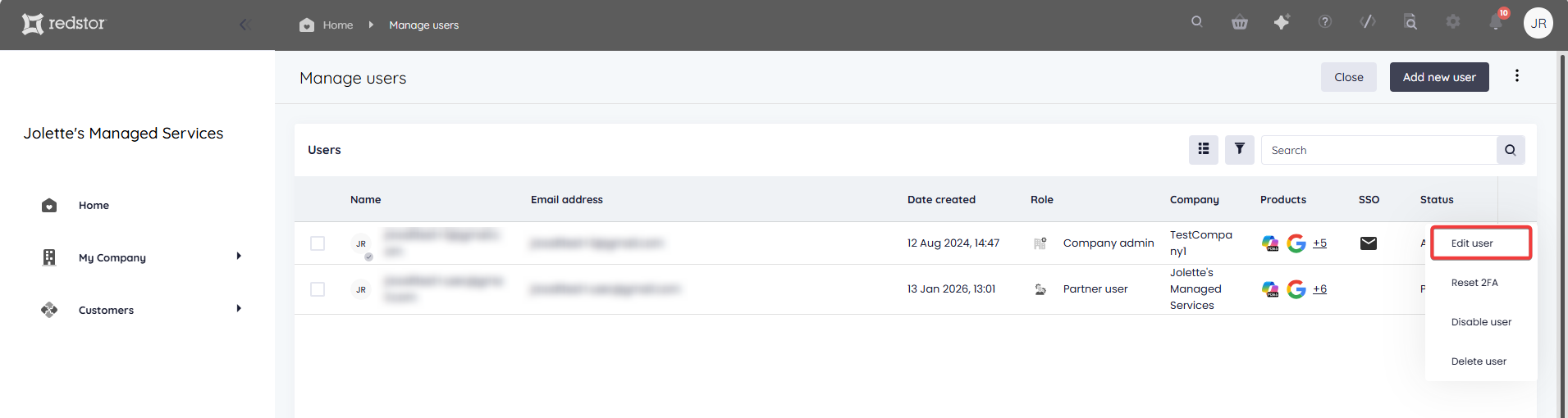
2. Locate the user you want to edit. Expand the menu next to the user's name and click Edit.
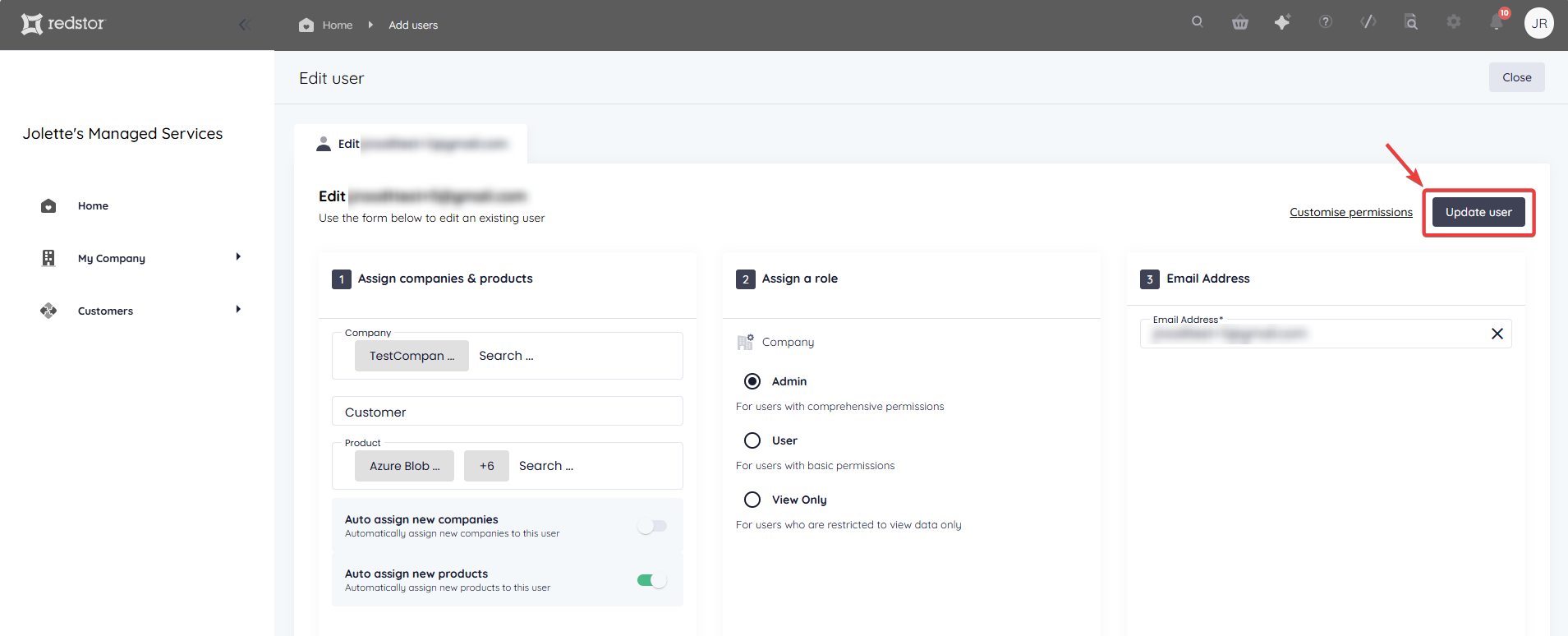
3. Make the changes you need to, using the available fields. You can also change the user's permissions by going to Customise permissions. When you're ready, click Update user.
How to disable a user
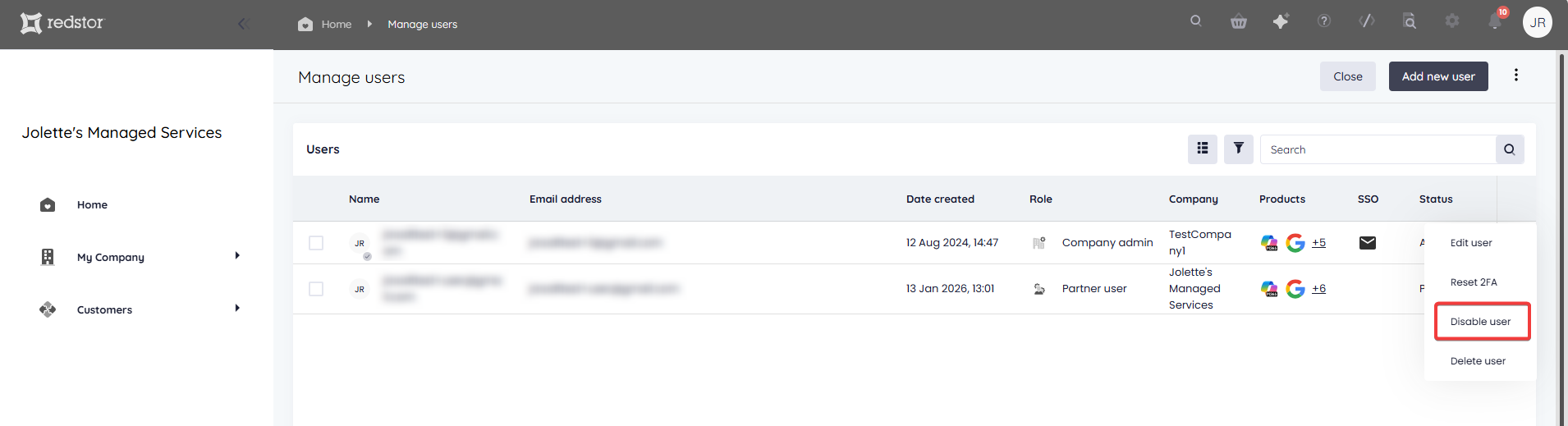
1. On the Manage users page for your company or the relevant customer, locate the relevant user and expand its menu. Click Disable user.
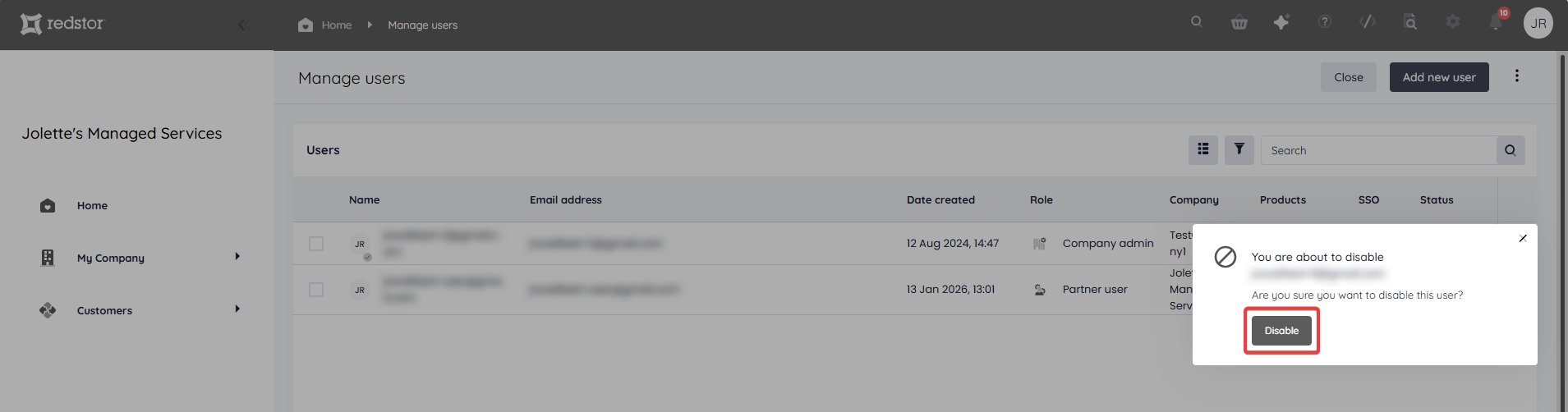
2. Confirm the action by clicking Disable.
How to delete a user
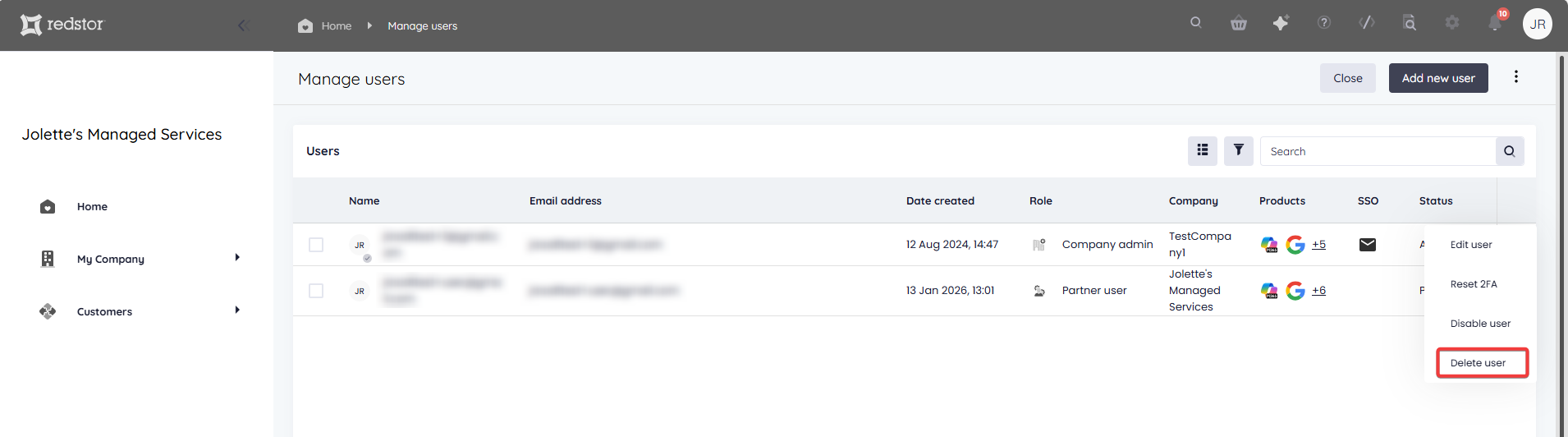
1. On the Manage users page for your company or the relevant customer, locate the relevant user and expand its menu. Click Delete user.
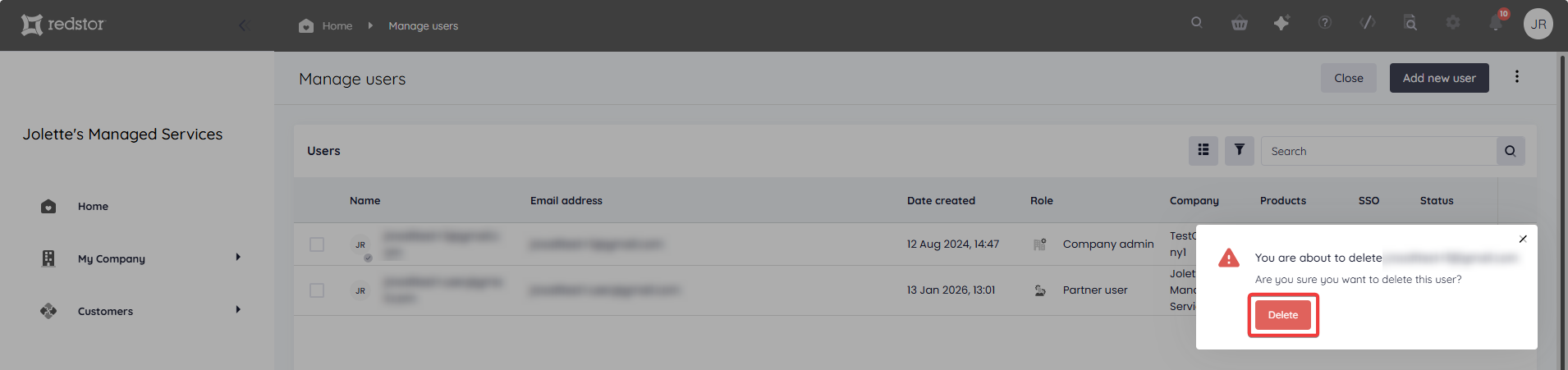
2. Confirm the action by clicking Delete.
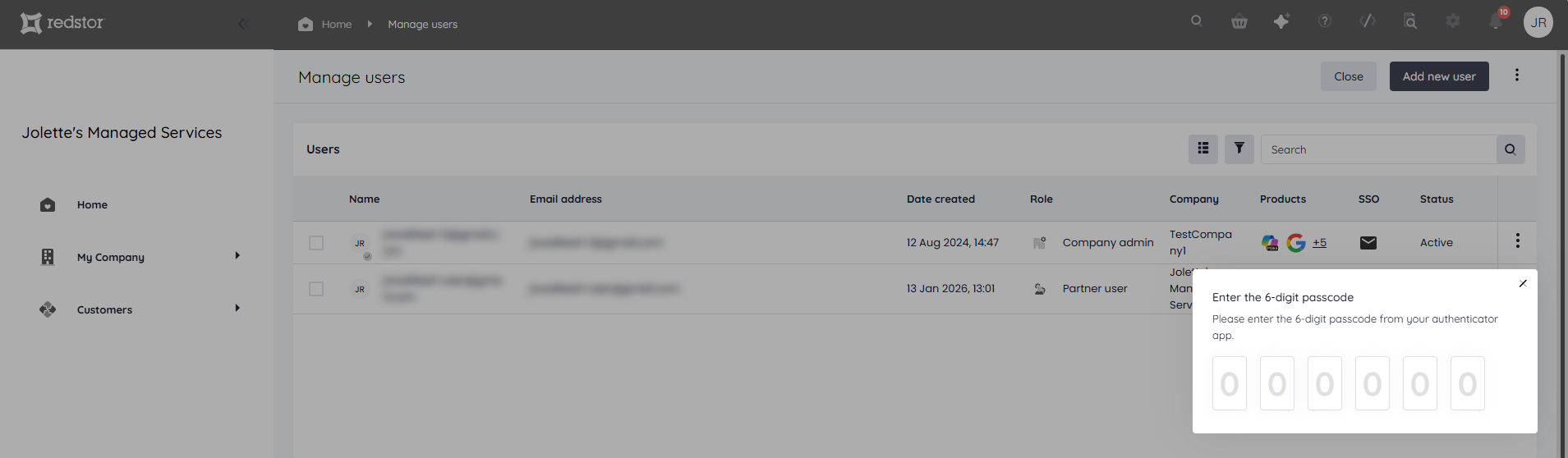
3. Authenticate with your RedApp user by entering the one-time pin shown on your authenticator app.
If all users for a company are deleted, the company itself will not be deleted automatically. Higher-level partners can still create new users for this company or assign existing users to it. Even without any users, backups of the company will keep running off the service principals our system was granted. To delete an entire company, see How to delete a customer/partner.
 1.png)